
How to convert Excel to PDF without cut-off columns
By the WordPDF team · Updated
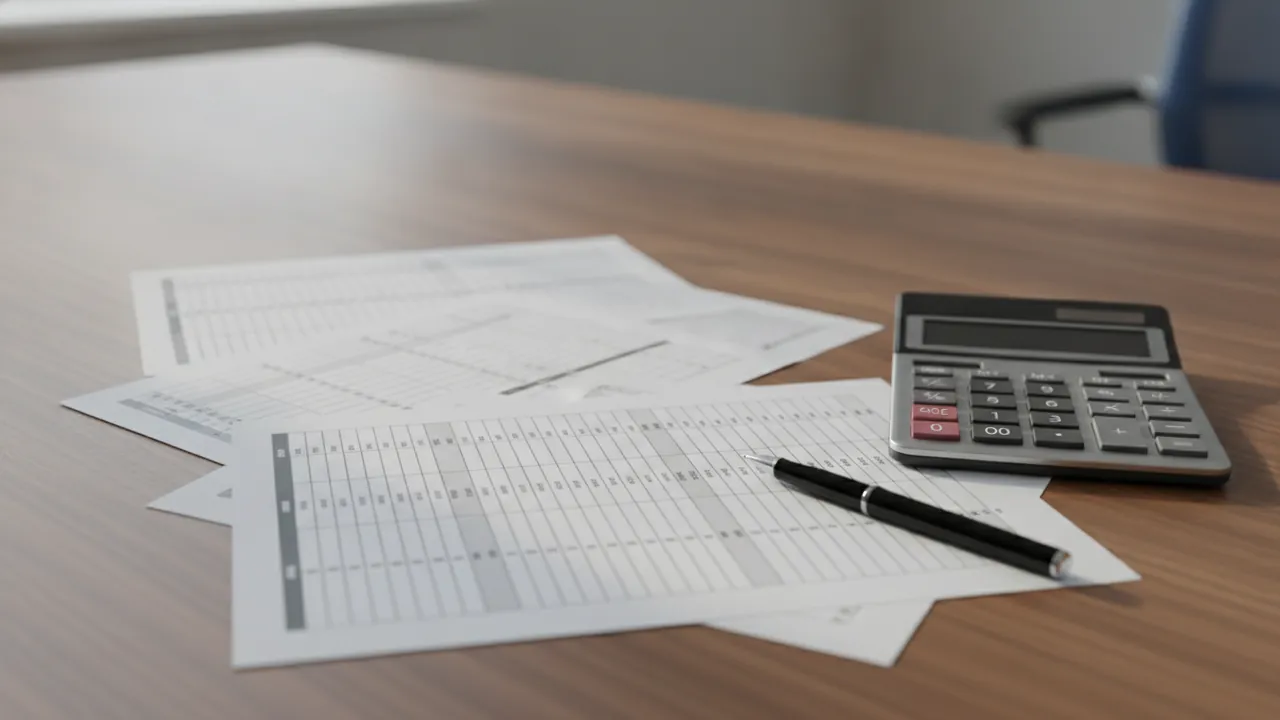
To convert Excel to PDF on Windows, choose File, then Save As, set Save as type to PDF, click Options and pick what to publish: the selection, the active sheets or the entire workbook. Then click Save. The part that goes wrong is page layout, so set the columns to fit one page wide before you export.
Saving a workbook or one sheet as a PDF
- Open the workbook. To export only some sheets, click their tabs while holding Ctrl. To export only a block of cells, select them.
- Choose File, then Save As (or Save a Copy), and set Save as type to PDF.
- Pick Standard for print quality or Minimum size for a smaller file.
- Click Options. Under Publish what, choose Selection, Active sheet(s) or Entire workbook.
- Click OK, then Save.
On a Mac, choose File, Save As, set File Format to PDF and save. The Windows Options box also offers document properties, accessibility structure tags and ISO 19005-1 (PDF/A). Microsoft describes each in its guide to exporting Office files as PDF. Check the dialog in your Excel version for the scope choices, since the Mac layout differs.
Why Excel columns get cut off in a PDF and how to fix it
A spreadsheet has no pages until you print or export it. Excel slices the grid into pages using the paper size, margins and scaling. A wide sheet then spills its last columns onto extra pages, and a PDF with half a table on page three is the result.
The quickest fix is on the Page Layout tab. In the Scale to Fit group set Width to 1 page and leave Height on Automatic. Every column now sits on one page width, and rows continue down as many pages as needed. Microsoft warns that scaling shrinks the print size, so a very wide sheet becomes small text. For a sheet that must fit entirely on a single page, open the Page Setup dialog, choose the Page tab, select Fit to and set 1 page wide by 1 tall.
If the text becomes too small, turn the page sideways with Orientation on the Page Layout tab, or hide columns that readers do not need. Before you export, open View, then Page Break Preview. Dashed blue lines show where automatic breaks fall, and you can drag them or insert a manual break with Page Layout, Breaks.
Setting an Excel print area so only the right cells export
Select the cells you want, then choose Page Layout, Print Area, Set Print Area. Excel then exports only that block. Remove it with Clear Print Area. Be careful with the Ignore print areas box in the PDF Options: clear it to honor the print area, and tick it only if you want the entire sheet regardless.
This matters in shared workbooks. A print area someone set a year ago can hide your new columns, and the PDF will quietly leave them out. If a range is missing, check Page Layout, Print Area first.
Small Excel settings that fix most odd PDFs
- Repeat the header row on every page: Page Layout, Print Titles, then pick the row under Rows to repeat at top.
- Gridlines are not printed by default. To show them in the PDF, tick Print under Gridlines in the Sheet Options group.
- Hidden rows and columns stay hidden. Unhide anything that should appear, especially in Excel for the web, where hidden items are excluded from printing.
- Check the paper size. Letter and A4 break pages in different places, as in the formatting guide for Word.
- Set the same orientation on every sheet if you export the entire workbook, or each sheet will use its own.
Excel for the web, phone and Google Sheets to PDF
In Excel for the web, use File, Print, set what to print (active sheets, entire workbook or a selection) and save the result as a PDF from the print dialog. In Google Sheets choose File, Download, PDF, then set the page size and scaling in the export panel. On phones, the Print command and the share sheet work the same way as for documents, shown in the Android guide.
The printer route is the fallback everywhere. On Windows, Microsoft Print to PDF turns what you print into a PDF, although it skips the Options box above.
Worked example: a wide budget sheet to PDF
Say you have a budget with twelve month columns plus a total, and it prints across three pages. Select the sheet and open Page Layout. Set Width to 1 page, leave Height automatic, and turn the page sideways with Orientation. Add Print Titles so the account names repeat on every page. Open Page Break Preview to confirm the last column sits inside the page. Then choose File, Save As, PDF, pick Active sheet(s) and save.
The result is a wide-format PDF with all thirteen columns visible, a header on every page and the row labels repeated. It takes about two minutes the first time. Excel saves these page settings with the workbook, so next month's export needs only the final Save As.
Checking the Excel preview before you export
Use File, Print to see the print preview. It shows page breaks, scaling and orientation exactly as the PDF will have them, and it is quicker than exporting, opening and re-exporting. Look at the page count shown in the preview. If a single sheet suddenly has forty pages, a stray cell far to the right or far below is being counted, so clear those cells or set a print area.
Exporting one sheet, several sheets or the whole workbook
Pick Entire workbook for a report where every tab matters, with all tabs in a single PDF. Pick Active sheet(s) when you Ctrl-click a few tabs, such as the summary and one detail sheet. Pick Selection for a table you highlighted. Sheets you hide are left out, so unhide a sheet you want to include. Keep calculation notes on a separate tab you simply leave out.
Checking Excel numbers in the PDF
Open the PDF and compare the first and last rows with the sheet. Look for cells showing hash signs, which means the column was too narrow when printed, and for numbers that rounded. Formulas are not exported, only the values shown, so a reader cannot see how a total was reached. If you need to send the logic too, send the workbook. For a report that mixes a spreadsheet with a written summary, write the text in Word and combine the files into one PDF. Every other format is compared on the Word to PDF homepage.
Frequently asked questions
How do I save an Excel sheet as a PDF so it fits on one page?
Open Page Layout, Page Setup, choose Fit to, and set 1 page wide by 1 tall. For long sheets set only the width to 1 page.
How do I convert an entire Excel workbook to PDF?
Choose File, Save As, set the type to PDF, click Options and pick Entire workbook under Publish what. Every sheet exports in tab order.
Why is my Excel PDF cutting off columns?
The sheet is wider than the page, so Excel pushes extra columns onto new pages. Set Fit Width to 1 page or turn the page sideways.
Why are the gridlines missing in my PDF?
Excel does not print gridlines by default. Tick Print under Gridlines on the Page Layout tab, or add cell borders, which always print.
Do formulas appear in an Excel PDF?
A PDF shows calculated values, not formulas. Share the workbook as well if readers need to check how a number was produced.
How do I print only part of an Excel sheet to PDF?
Select the cells, then choose Page Layout, Print Area, Set Print Area. Only that range appears in the exported PDF.
Why do I get blank pages in my Excel PDF?
Blank pages appear when the print area includes empty cells or stray formatting. Reset the print area and check Page Break Preview.