
Word to PDF Without Losing Formatting on Mobile
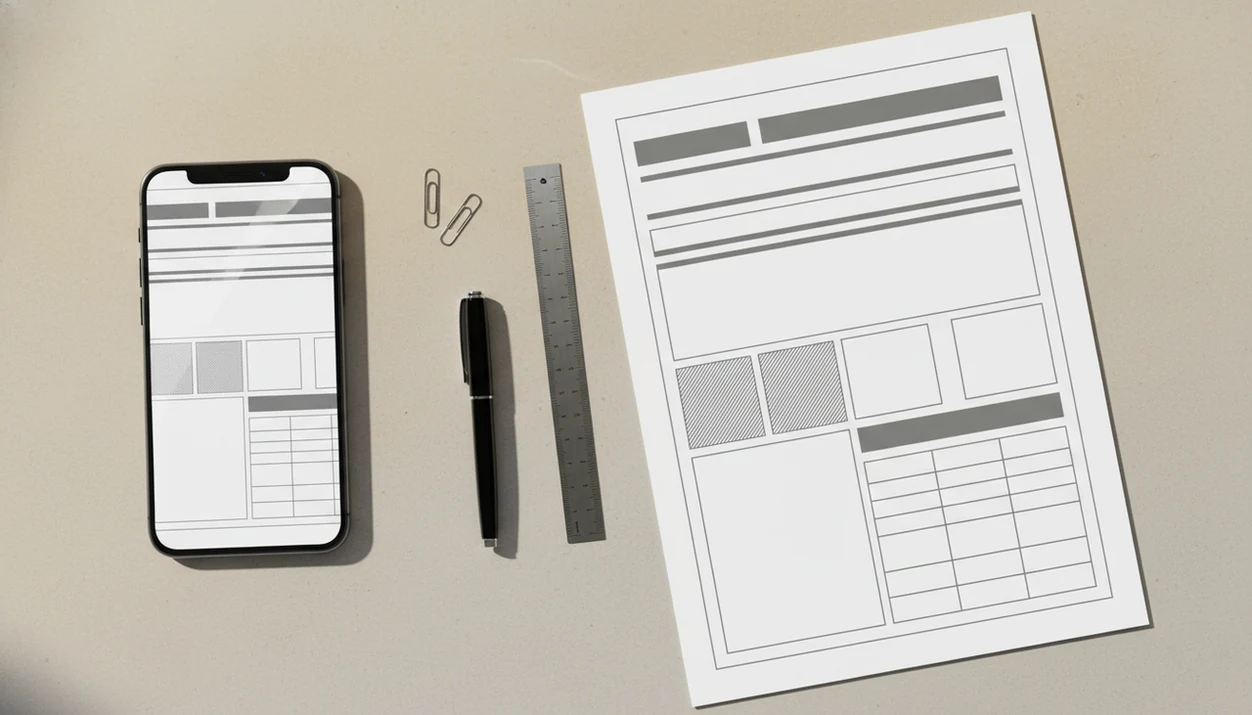
Word to PDF without losing formatting works best when you prepare the DOCX first, use a reliable export or conversion path, and review the finished PDF before sharing. The biggest formatting risks on iPhone and Android are missing fonts, mismatched page size, shifted images, complex tables, and mobile print flows that re-render the document differently.
Definition: A mobile DOCX-to-PDF converter turns editable Word documents into fixed PDF files on iPhone and Android.
TL;DR
- Use a dedicated Word-to-PDF conversion method instead of screenshots, copy-paste, or image-based workarounds.
- Check fonts, margins, page size, images, headers, footers, and links before converting on mobile.
- Open the finished PDF on your phone and verify page breaks, spacing, image quality, and clickable links before sending it.
What DOCX-to-PDF formatting preservation means
Word to PDF formatting preservation means the exported PDF keeps the Word document’s fonts, spacing, margins, images, links, page breaks, headers, footers, and overall layout. The goal is simple: the PDF should look like the DOCX, only fixed for viewing, printing, or submission.
On phones, the weak spots are familiar. Text jumps to the next line. A logo drops lower than expected. The page count changes from two pages to three. We have caught shifted page breaks by placing the Word file and PDF side by side before sending a proposal.
Reliable PDF sharing matters because people use PDFs for serious files. In a 2023 Adobe survey, 89% of respondents said PDFs are essential for sharing and reviewing important work documents, according to Adobe’s source. That includes resumes, contracts, reports, school assignments, invoices, and applications.
DOCX to PDF formatting checklist for iPhone and Android
Before converting, save the latest DOCX version and check the parts most likely to move: fonts, page size, margins, images, tables, headers, and footers. A clean file usually converts more predictably than one patched together from several sources.
Use standard fonts when possible. Confirm the page size, especially Letter versus A4. Keep margins stable, compress large images without making them fuzzy, and simplify tables that span pages. If margins are the main concern, the deeper checklist is covered in preserve margins Word to PDF.
Tiny mistakes show up late.
On iPhone, open the file from Files or your cloud app and make sure the edited version is the one being converted. On Android, check the document location in Google Drive or the Downloads folder. Avoid screenshots and copy-paste methods for formal files because they can flatten text, remove links, or change spacing.
Five facts about DOCX-to-PDF layout on mobile
- Dedicated export or conversion paths are safer than screenshots or generic share options because they read the DOCX structure instead of capturing the screen.
- Missing or unsupported fonts can change text width, spacing, line breaks, and page breaks after conversion.
- Page size and margins must match the intended final document, especially for resumes, forms, invoices, and print-ready files.
- Images, tables, comments, tracked changes, headers, and footers need review after conversion because they often depend on Word’s layout rules.
- Cloud conversion and offline conversion may produce different results in some apps because they can use different rendering engines.
These are practical reliability rules, not a guarantee. Most mobile apps do not disclose the exact rendering engine used for every file, so critical documents still need a page-by-page comparison against the original DOCX.
A good word to pdf converter app that turns docx and word documents into shareable pdf files on iphone and android should deliver a dependable exported PDF, not a bundle of unrelated editing tools.
DOCX rendering mechanics behind PDF formatting
DOCX files store document structure, styles, fonts, images, page setup, tables, headers, footers, links, and metadata. During Word to PDF conversion, a rendering engine turns those editable pieces into fixed PDF pages.
That sounds dry, but it explains most layout surprises. Word is still flexible until the last moment. A PDF is page-based, so the converter must decide exactly where every line, image, and footer lands. If one font is substituted, the text may take up slightly more space.
Different mobile paths can render the same file differently. Microsoft Word export, mobile Print, Files share actions, and dedicated apps do not always use the same engine. Cloud engines may preserve complex layouts better, but they can require upload. That matters for private files and weak hotel Wi-Fi. The document link opened from cloud storage is not always the final file you meant to send.
Five-step DOCX-to-PDF workflow without layout shifts
Use this workflow when the file needs to arrive as a finished PDF, not as a “close enough” copy.
- Open the final DOCX version from Files, Google Drive, email, or your document app.
- Check fonts, margins, and page size before conversion, especially if the file came from desktop Word.
- Choose a dedicated Word-to-PDF conversion option, such as Microsoft Word export or a focused mobile tool like WordPDF.
- Wait for the full upload, export, or processing step to finish before switching apps or closing the screen.
- Review the PDF page by page before sharing, printing, or uploading it.
For job applications, the safest mobile habit is converting first, then opening the PDF preview before tapping the tiny paperclip attachment icon in Gmail. For resume files, preserving fonts is often the difference between tidy and cramped, so preserve fonts Word to PDF checks are worth doing early.
Best mobile DOCX to PDF conversion paths
Dedicated apps and official export tools are usually better for preserving document structure because they work from the DOCX file, not from a visual shortcut. Screenshot or image-based methods may look acceptable on one screen, but they lose selectable text, links, accessibility, and file quality.
| Method | Formatting reliability | Best use case | Main risk |
|---|---|---|---|
| Dedicated Word-to-PDF apps | High | Mobile DOCX conversion with layout checks | App engine quality varies |
| Microsoft Word export | High | Files edited in Word | Requires Word access and correct version |
| Mobile Print > Save as PDF | Medium | Simple files and quick print copies | May reflow or simplify content |
| Files or Share actions | Medium | Fast handoff from cloud storage | Output depends on source app |
| Screenshots or image workarounds | Low | Visual reference only | No selectable text, links, or clean scaling |
For formal files, Microsoft Word export, Adobe Acrobat online, Smallpdf, iLovePDF, and WordPDF are more sensible choices than screenshots.
For sourceable context, Microsoft documents saving or exporting Word documents as PDF at https://support.microsoft.com/en-us/office/save-or-convert-to-pdf-or-xps-in-office-desktop-apps-d85416c5-7d77-4fd6-a216-6f4bf7c7c110, and Adobe documents its Word-to-PDF conversion flow at https://www.adobe.com/acrobat/online/word-to-pdf.html.
Five myths about DOCX-to-PDF layout
Myth 1: Any print option always creates an identical PDF. Mobile print flows can work, but some paths re-render, rasterize, or simplify the document.
Myth 2: All Word-to-PDF apps use the same conversion engine. They do not. Two apps can create different PDFs from the same DOCX.
Myth 3: Embedded fonts do not matter on phones. Font substitution can change text width, line breaks, and page count.
Myth 4: Online converters are always worse than desktop Word. Some cloud converters handle complex DOCX files well, though privacy and connectivity still matter.
Myth 5: A PDF that looks okay on one screen is safe to send. Open it in another viewer if the file is important. Links deserve their own tap test, especially when you need to preserve hyperlinks Word to PDF.
PDF formatting review checklist before sharing
How do you check whether a Word to PDF conversion kept the formatting? Compare the PDF against the original DOCX before sending it, with special attention to the first page, last page, page count, headings, bullet lists, images, tables, and signature areas.
Zoom in on image quality and small text. Tap every important link to confirm it still opens. Check headers and footers near the page edge, especially dates, page numbers, and company names. We have seen a footer date sit just above the edge in preview, then disappear in a rushed share.
Test the PDF in a second viewer if the file matters. On iPhone, use the Files preview. On Android, open the exported PDF from Downloads or Google Drive. Resumes, contracts, reports, and school assignments deserve extra checking; the longer review flow is in check Word to PDF formatting.
Limitations
No mobile method can guarantee identical results for every complex Word document. Word to PDF conversion is reliable for many files, but some layouts still expose the limits of mobile rendering.
- Unusual or missing fonts can still change spacing, line breaks, and page breaks.
- Heavy graphics, nested tables, embedded objects, macros, dynamic fields, comments, and tracked changes may convert imperfectly.
- Cloud conversion may require upload, which matters for sensitive, private, or regulated documents.
- Offline conversion may use a different engine, or it may fail if the app depends on cloud processing.
- Free converters may preserve layout while reducing image quality through compression.
- Documents created on desktop Word can still show minor differences when converted on iPhone or Android.
- Files with tight signature blocks, legal numbering, or multi-column tables need manual review.
If a recruiter asks for “PDF only” at the last minute, convert the DOCX, but still open the exported PDF before submission.
FAQ
Why does Word formatting change when I convert to PDF on my phone?
Formatting usually changes because of missing fonts, different page size, margin differences, mobile rendering engines, or complex elements like tables and floating images. The phone may not render the DOCX exactly the way desktop Word did.
How do I keep DOCX formatting when converting to PDF?
Prepare the file first, use a dedicated export or Word-to-PDF converter, and review the finished PDF before sharing. Check fonts, page size, margins, images, links, headers, and footers.
Do fonts affect PDF layout after Word conversion?
Yes. Unsupported or substituted fonts can change text width, spacing, line breaks, and page breaks in the PDF.
Can images move when I convert a Word file to PDF?
Yes. Floating images, wrapped text, anchors, and complex layouts can shift when the converter maps Word elements onto fixed PDF pages.
Is print to PDF reliable for preserving Word formatting?
Print to PDF can work for simple files. Some mobile print paths may reflow, rasterize, or simplify the document.
Are online DOCX-to-PDF converters more accurate on mobile?
Cloud converters can be accurate for complex DOCX files because they may use stronger rendering engines. Privacy, connection quality, and app differences still matter.
Can I convert Word to PDF offline on iPhone or Android?
Yes, if the app supports offline conversion. Some apps use a different offline engine or require cloud processing for full layout preservation.
How do I check whether my PDF kept the Word formatting?
Compare the PDF with the original DOCX for page count, margins, headings, images, tables, links, and page breaks. Open it in a second viewer if the file is important.
Which Word documents need extra review after PDF conversion?
Resumes, contracts, reports, school assignments, forms, graphics-heavy files, and documents with tracked changes need extra review. Files with tight tables or signature areas also need careful checking.