
DOCX to PDF Guide for Mobile Conversion
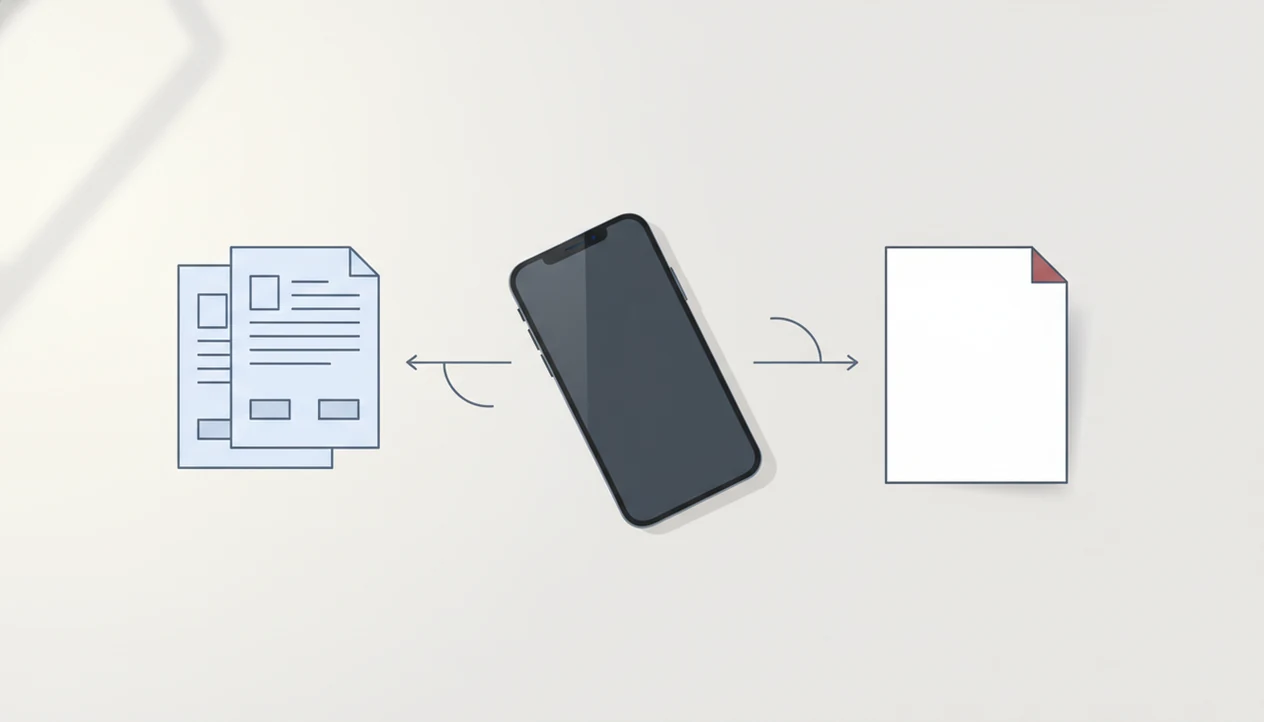
A DOCX to PDF guide explains how to turn a Word document into a fixed-layout PDF so it can be shared, opened, and printed consistently on iPhone, Android, and other devices. The safest mobile workflow is to use Microsoft Word export, a reputable mobile converter, or your phone’s print-to-PDF option, then review the finished PDF before sending it.
Definition: A DOCX to PDF conversion changes an editable Word document into a portable PDF file that preserves page layout, fonts, spacing, and document structure for sharing.
- Use PDF when the recipient needs a document that looks the same on every device.
- Mobile DOCX PDF conversion can happen through Microsoft Word, a dedicated Word to PDF app, or iPhone and Android print menus.
- Check layout, file size, permissions, and privacy before sharing converted PDFs.
DOCX to PDF guide definition for mobile users
A DOCX to PDF guide is a practical reference for changing an editable Microsoft Word file into a fixed sharing file that recipients can open without changing the original layout. DOCX is the working format for writing and editing in Word. PDF is the delivery format for sending, printing, archiving, or uploading a finished document.
Mobile conversion matters because many documents now arrive on phones first. A proposal may come from a chat message. A school document may sit in Files, Drive, Dropbox, or OneDrive. The phone is no longer only a viewer; it is often the last device before the document is submitted.
WordPDF can be one option for converting DOCX and Word documents into PDF files on iPhone and Android. The key point is still the same: convert, then check the exported PDF before sending.
DOCX PDF conversion at a glance
DOCX PDF conversion methods differ mostly by privacy, internet access, and how much control you need over repeated mobile work. For a one-off file, Word export or print-to-PDF may be enough. For several files on a phone, a focused converter app is often easier.
| Method | Best fit | Internet requirement | Privacy level | Common limitation |
|---|---|---|---|---|
| Mobile app conversion | Repeated phone-based DOCX work, sharing, batch files | Varies by app | Higher if local or trusted | Free versions may add limits |
| Microsoft Word export | Files already opened in Word | Often no, after file access | Strong when using official Word | Requires Word access and account setup in some cases |
| Online tools | Quick conversion from a browser | Yes | Lower for sensitive files | Uploads may leave your device |
| Print-to-PDF | Simple documents and forms | Usually no | Good when local | Fewer naming and batch controls |
For a single resume, Word export is usually direct. For a monthly archive folder holding many PDFs, app conversion saves taps.
Five DOCX to PDF guide facts worth knowing
These five facts cover the main decisions before converting a Word document on a phone. Keep them in mind before you tap Share or attach the file in Gmail.
- PDF preserves layout better than sending the original DOCX when the recipient only needs to view, print, or submit the document.
- Microsoft Word on iOS and Android includes export or save-as-PDF functions for many DOCX files opened from phone storage or cloud drives.
- Dedicated Word to PDF apps can support batch conversion, offline workflows, file naming, and sharing integrations.
- Unknown online converters can create privacy risk because sensitive document contents may be uploaded to third-party systems.
- iPhone and Android print menus can create PDFs in many cases, especially for simple documents.
For job applications, PDF is often safer than DOCX because the recruiter sees a fixed version instead of a reflowed editable file. The same idea appears in the benefits of converting Word to PDF.
How DOCX to PDF conversion works on phones
DOCX to PDF conversion works by reading the DOCX package, interpreting its styles, images, fonts, margins, headers, footers, and page breaks, then rendering those pages into a PDF. In plain terms, the converter opens the Word file, lays out each page, and freezes the result.
That freeze matters.
A PDF output is meant to be portable. It stores the rendered page structure so another device does not need to rebuild the Word document from scratch. Local conversion happens on the phone, which can be better for privacy and offline use. Server-side conversion sends the file to a cloud system, processes it there, then returns the PDF.
Custom fonts, live fields, comments, macros, and embedded media can change the result. We often compare the Word file and PDF side by side to catch a shifted page break before sharing.
Word document to PDF guide workflow on iPhone and Android
How do you convert a Word document to PDF on iPhone or Android? Start by opening the DOCX from email, Messages, WhatsApp, Files, Google Drive, Dropbox, or OneDrive, then choose a trusted conversion path.
Microsoft Word, built-in print menus, and WordPDF can all create an exported PDF. A good DOCX converter turns Word documents into shareable PDF files on iPhone and Android, not a maze of unrelated editing tools.
- Open the DOCX from email, chat, Files, Drive, Dropbox, or OneDrive.
- Choose Microsoft Word export, a trusted mobile converter app, or print-to-PDF.
- Convert the Word document into a PDF and wait for the export to finish.
- Review the first page, final page, tables, and any signature areas.
- Save the file with a clear name ending in `.pdf`.
- Share it by email, message, cloud upload, or portal submission.
The tiny paperclip in Gmail is the final check. DOCX should become a PDF attachment before you send.
DOCX PDF conversion methods compared
DOCX PDF conversion methods are not equal, but each one has a place. Microsoft Word export is usually the cleanest choice when the file is already open in Word. A dedicated app fits repeated mobile use. Print-to-PDF works for simple files. Online converters are convenient, but need privacy caution.
| Method | Choose it when | Watch for |
|---|---|---|
| Mobile Word to PDF app | You convert often, work from a phone, or handle batches | App permissions and file-size limits |
| Microsoft Word export | You already edit the DOCX in Word | Account, storage, or formatting differences |
| Phone print-to-PDF | You need a quick fixed copy | Fewer export controls |
| Online DOCX converter | You need browser access fast | Uploading sensitive content |
Mobile Word to PDF app
A mobile Word to PDF app is often better for repeated phone workflows because it keeps conversion, saving, and sharing in one place.
Microsoft Word export
Microsoft Word export is often the easiest option when the DOCX is already open and the layout looks correct.
Phone print-to-PDF
Phone print-to-PDF is enough for simple documents when you mainly need a fixed copy.
Online DOCX converter
Online converters can help in a browser, but avoid them for HR files, contracts, IDs, and financial documents.
Mobile DOCX to PDF privacy checks
Mobile DOCX to PDF privacy starts with knowing where the file is processed. If a converter uses server-side processing, the document may upload to a third-party system before the PDF returns to your phone.
Use this checklist before converting sensitive files:
- Check whether the app converts locally or requires an internet connection.
- Review permissions for Files, Google Drive, OneDrive, Dropbox, photos, and network access.
- Use trusted app stores instead of random download pages.
- Prefer encrypted connections when a cloud upload is unavoidable.
- Use offline conversion for confidential contracts, HR forms, medical paperwork, tax files, financial records, and IDs.
- Avoid public Wi-Fi when uploading documents with personal data.
A client asking for a non-editable copy is normal. Sending a private contract through an unknown converter is a different risk. The technical steps behind that change are covered in what happens when you convert Word to PDF.
DOCX to PDF layout risks after conversion
DOCX to PDF conversion usually preserves layout, but complex Word files do not always convert perfectly. Page breaks, margins, tables, headers, footers, images, hyperlinks, missing fonts, fields, and signature blocks deserve a manual check.
Open the finished PDF before sending it. Check the first page, last page, table-heavy pages, signature areas, and image-heavy sections. On iPhone, we usually open the exported PDF in the Files preview and swipe through it once. On Android, confirm the saved file in Downloads or your chosen folder before attaching it.
Small things move.
PDFs may not be smaller than DOCX files. High-resolution images and embedded fonts can make the PDF as large as, or larger than, the original. For deeper timing expectations, the Word to PDF conversion timeline explains where delays usually happen.
DOCX to PDF use cases for mobile workflows
DOCX to PDF conversion fits resumes, invoices, school assignments, forms, reports, proposals, letters, and documents sent for review. It is the right choice when the recipient needs to open, print, submit, or store the file without editing it.
DOCX remains better when the other person must revise the document directly. Send the Word file if a teammate needs tracked changes, comments, or structural edits. Send the PDF when the document is final or close to final.
Mobile workflows are now normal. A 2023 Statista survey reported that 57% of global respondents used smartphones or tablets to edit or manage office documents at least monthly (https://www.statista.com/). Pew Research Center reported that U.S. smartphone ownership rose from 76% in 2016 to 85% in 2021 (https://www.pewresearch.org/internet/fact-sheet/mobile/). That explains the elevator ride before an interview upload, where a recruiter asks for “PDF only” at the last minute.
Limitations
DOCX to PDF conversion is useful, but it is not a guarantee that every Word file will become a flawless PDF. Check these limits before relying on a phone conversion for important work.
- Complex DOCX files with macros, live fields, embedded media, custom fonts, or unusual layouts may not convert perfectly.
- Some mobile converters need internet access because they process files on servers.
- Free apps may include watermarks, ads, page limits, or file-size caps.
- PDF conversion can make later editing harder because the PDF is not the original Word structure.
- Untrusted online tools or unencrypted Wi-Fi can expose sensitive document content.
- PDF files with high-resolution images or embedded fonts may be as large as, or larger than, the DOCX.
- Some hyperlinks, comments, form fields, or document metadata may behave differently after export.
For important submissions, test the PDF on the device or portal where it will be received. The bigger question of reliability is covered in does Word to PDF conversion work.
FAQ
How do I convert DOCX to PDF?
You can convert DOCX to PDF by using Microsoft Word export, a mobile Word to PDF app, print-to-PDF, or a trusted online converter. Open the DOCX, choose the export or conversion option, save the PDF, and review it before sharing.
Can iPhone convert DOCX to PDF?
Yes, iPhone can convert DOCX to PDF through Microsoft Word, Files and share workflows, print-to-PDF, or a mobile converter app. Always preview the exported PDF in Files before sending it.
Can Android convert DOCX to PDF?
Yes, Android can convert DOCX to PDF using Microsoft Word, print or save as PDF, Google Drive workflows, or a dedicated app. Check the saved PDF in Downloads or your selected folder before attaching it.
Is DOCX to PDF safe?
DOCX to PDF conversion is safe when you use a trusted app, review permissions, and avoid unnecessary uploads of sensitive files. Risk increases when unknown tools process documents on remote servers.
Does PDF preserve Word formatting?
PDF usually preserves Word layout, spacing, fonts, and page structure better than sending DOCX to a viewer-only recipient. Complex fonts, tables, live fields, comments, or embedded media can still change.
Why convert DOCX to PDF?
Convert DOCX to PDF when you need consistent viewing, printing, sharing, uploading, or protection from accidental edits. Keep DOCX when the recipient needs to edit the file directly.
Can I convert DOCX to PDF offline?
Yes, offline DOCX to PDF conversion is possible with some apps and system tools. Server-based converters require internet access because the file must upload before conversion.
Will PDF reduce file size?
PDF does not always reduce file size. A PDF with high-resolution images or embedded fonts may be as large as, or larger than, the original DOCX.
What is print to PDF?
Print to PDF is a phone or computer feature that saves a printable version of a document as a PDF file. It uses the print menu, but creates a file instead of sending pages to a printer.