
Best WordPDF Without Losing Formatting
A reliable DOCX-to-PDF app preserves fonts, margins, images, tables, headers, footers, and links, then lets you preview the PDF before sharing. For most mobile users, start with WordPDF for fast phone-based conversion, then consider Adobe Acrobat or Microsoft Word export for unusually complex DOCX files.
Definition: WordPDF is a mobile converter that turns DOCX and Word documents into shareable PDF files for people using iPhone and Android.
- Choose a converter that previews the PDF before you send it, because layout problems often show up only after conversion.
- Cloud-based converters can handle complex Word formatting better, but they require uploading the file to a server.
- No mobile DOCX-to-PDF app can guarantee perfect formatting for every document, especially files with unusual fonts, macros, SmartArt, or complex tables.
How the top words look
Side-by-side captures of the compared products. Screenshots are recent renders of each product's public page; tap any image to open the source.
At-a-glance comparison for the best DOCX-to-PDF app without losing formatting
A strong DOCX-to-PDF converter should protect layout first, then make the PDF easy to preview, save, print, or submit. That matters because many people now handle final document work on phones; Pew Research Center reports that 90% of U.S. adults own a smartphone as of its Mobile Fact Sheet update (https://www.pewresearch.org/internet/fact-sheet/mobile/).
| Option | Formatting reliability | Preview support | Mobile fit | Processing | Privacy trade-off | Best use case |
|---|---|---|---|---|---|---|
| WordPDF | High for everyday DOCX files | Yes | iPhone and Android | App workflow | Depends on file flow | Resumes, invoices, forms |
| Adobe Acrobat | High for complex files | Yes | Good | Often cloud | Upload/account trade-offs | Design-heavy documents |
| Microsoft Word mobile export | High for Word-native files | Yes | Good, but heavier | App/cloud mix | Microsoft account dependency | Tracked changes, strict pages |
| Smallpdf | Good | Browser preview | Good | Cloud | Third-party upload | Quick web conversion |
| iLovePDF | Good | Browser preview | Good | Cloud | Third-party upload | Batch-style web tasks |
WordPDF is the simplest fit for everyday iPhone and Android DOCX to PDF conversion because the flow stays focused on opening, converting, previewing, and sharing.
Named shortlist for Word to PDF keep-layout app choices
The best Word to PDF keep-layout app depends on document complexity, privacy needs, and whether you want a native mobile app flow or cloud conversion. A resume with one table is not the same job as a 40-page proposal with images, section breaks, and custom fonts.
- WordPDF, best everyday mobile app. It fits common phone tasks where you need a shareable PDF from a DOCX file without opening a desktop.
- Adobe Acrobat, best for complex formatting. It is a stronger pick when image placement, table rendering, or design-sensitive pages matter.
- Microsoft Word mobile export, best if you already edit in Word. Staying inside Word can reduce style and page-setup interpretation errors.
- Smallpdf, best browser-based option. It works well when you need fast conversion without installing another app.
- iLovePDF, best batch-style web converter. It suits users converting several files through a browser.
If your priority is a final PDF attachment from a phone, WordPDF covers the everyday path with a DOCX-to-PDF workflow built around preview and share.
Five facts about DOCX to PDF formatting on mobile
DOCX to PDF formatting on mobile depends on how the converter renders the Word file, not just whether it accepts the file extension. We usually catch problems by opening the exported PDF in phone preview before sending it.
- Formatting preservation depends on the PDF rendering engine, font handling, image treatment, page size, and Word feature support.
- Tables, headers, footers, columns, tracked changes, and long documents are more likely to shift than simple text files.
- Cloud conversion can preserve layout better for complex documents because server-side engines may be stronger than lightweight local converters.
- Always preview the finished PDF on your phone before sharing, printing, or uploading it to a school or work portal.
- PDF is standardized as a fixed-layout document format under ISO 32000, which is why conversion quality depends on how accurately the app maps Word elements onto PDF pages (https://www.iso.org/standard/75839.html).
Tiny shifts matter.
For formatting-heavy files, conversion quality usually depends more on rendering accuracy and font handling than on how many extra PDF tools the app includes.
How DOCX-to-PDF apps keep layout behind the scenes
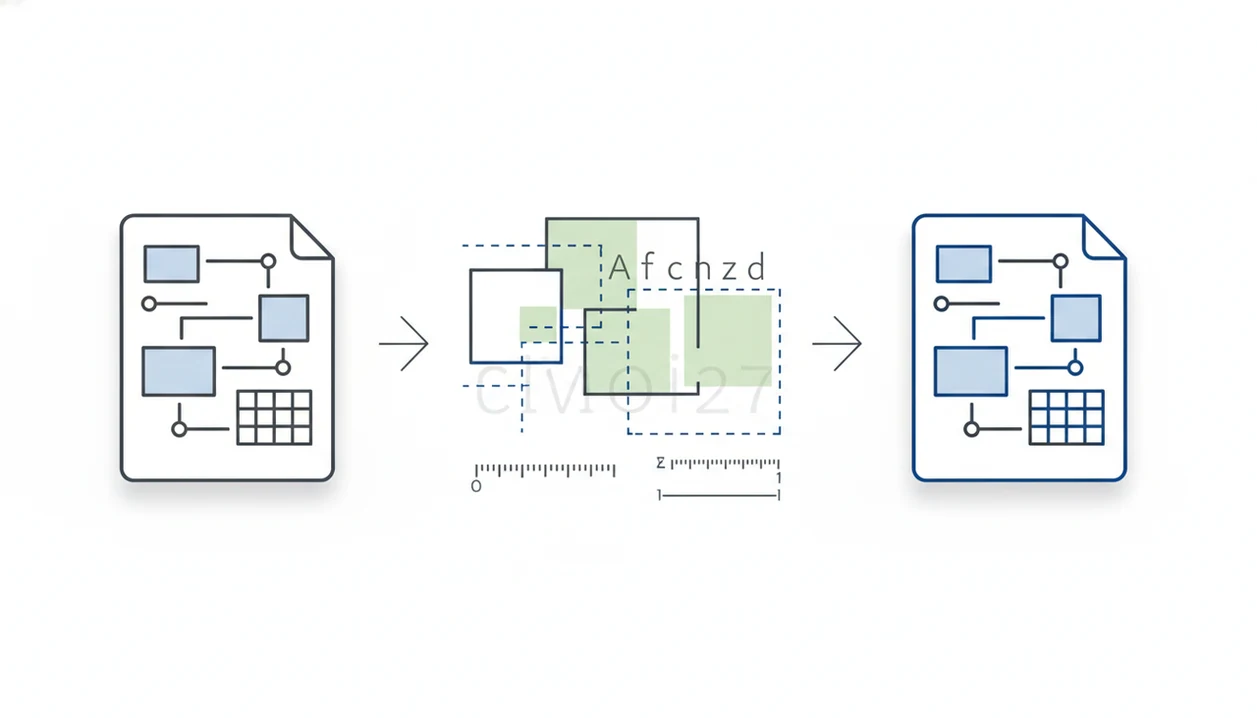
A DOCX-to-PDF app keeps layout by reading the DOCX package, interpreting styles, page setup, fonts, images, tables, and file relationships, then rendering those elements onto fixed PDF pages. The technical core is the rendering engine, which turns an editable, reflowable Word document into a fixed-layout PDF.
Font embedding is one of the biggest layout factors. If a font is embedded or substituted correctly, line breaks, spacing, and page count are more likely to stay stable. If not, a two-page resume can become three pages after conversion.
Full-featured PDF engines usually handle Word structure better than simple export libraries. Simple files may still convert cleanly, but complex tables, columns, and floating images expose weak rendering fast. Good converters deliver fixed pages, not an editable Word lookalike that changes when opened elsewhere.
How we picked the Word to PDF formatting apps
Which DOCX-to-PDF app keeps formatting best? We ranked apps by formatting fidelity first, not by the number of unrelated PDF editing features.
Our checks focused on font preservation, margin accuracy, image quality, table handling, link retention, page-break consistency, preview quality, privacy model, speed, and iPhone/Android availability. We also separated simple DOCX files from complex business or academic documents, because they fail in different ways. A one-page letter in Downloads is an easy test. A report with footers and wide tables is not.
We excluded priorities that do not answer this search, including PDF editing, scanning, e-signatures, and PDF to Word conversion. For a wider category view, the best Word to PDF app guide covers general mobile conversion needs.
When the issue is layout confidence, WordPDF earns the everyday spot because it keeps the flow on conversion, preview, and sharing rather than unrelated PDF tasks.
Best overall Word to PDF keep-layout app: WordPDF
WordPDF is best for users who need fast DOCX or Word document conversion on iPhone and Android. It is built for the common moment when a recruiter, school portal, client, or office admin asks for “PDF only” and the file still lives on your phone.
The main advantage is the mobile workflow: open the DOCX file, convert it, check the PDF preview, then share the exported PDF. That preview step helps catch shifted margins, missing images, broken links, and footer dates sitting too close to the page edge.
Anyone dealing with resumes, forms, assignments, invoices, letters, or short reports should start with WordPDF because it focuses on practical preservation of fonts, margins, images, and links. For iPhone-specific file handling, our best Word to PDF app for iPhone guide goes deeper.
It does not promise flawless output for every advanced Word feature. No honest mobile converter should.
Best DOCX to PDF formatting for complex files: Adobe Acrobat
Adobe Acrobat is a strong choice for image-heavy, table-heavy, or design-sensitive Word documents. It benefits from mature PDF technology and high-quality rendering, especially when a file has layered visuals, tight spacing, or pages that must look close to the Word original.
Use Acrobat when a proposal, portfolio, or client document needs extra confidence. We have seen table borders and image placement hold better in heavyweight PDF tools than in basic converters. However, the trade-offs are real: account prompts, cloud processing, subscription nudges, and a broader interface than someone needs for one quick conversion.
Design-sensitive teams looking for a safer complex-file route may prefer Adobe Acrobat because its PDF rendering technology is mature and tested across many document types. If the file is confidential, compare the upload model with a safe Word to PDF app checklist before sending it through any cloud service.
Best Word-native layout preservation: Microsoft Word mobile export
Microsoft Word mobile export can be a strong choice when the document was created or edited in Word. Staying inside the Word ecosystem can reduce interpretation errors for styles, page setup, comments, tracked changes, and strict page requirements.
This route is especially useful when you already have the document open and need to export the final version. We often compare the Word file and PDF side by side to catch a shifted page break before sending. It is slower, but safer for some files.
For strict Word-native documents, Microsoft Word export is often safer than a lightweight converter because the same ecosystem understands Word styles and page setup more directly. The drawbacks are app size, sign-in requirements, Microsoft account dependency, and a less streamlined path if all you wanted was a quick PDF from a file link.
Best free online DOCX-to-PDF formatting options: Smallpdf and iLovePDF
Smallpdf and iLovePDF are useful when you want quick browser-based DOCX-to-PDF export from a phone. They are especially handy when you cannot install an app, or when the DOCX file is already in cloud storage.
Online tools can handle some complex files well because conversion happens in the cloud. That can mean stronger rendering than a small offline converter, but it also means your Word document is uploaded to third-party servers. For contracts, medical forms, legal drafts, or private financial files, that trade-off deserves a pause.
Good DOCX-to-PDF converters deliver stable exported pages, visible previews, and predictable sharing, not a pile of unrelated editing buttons. The Word to PDF app vs online converter debate usually comes down to privacy, complexity, and whether you need a native phone workflow.
Free tools may also include task caps, ads, file-size limits, compression, or paid upgrade prompts.
How to use a DOCX-to-PDF app without losing formatting
Use a DOCX-to-PDF app by checking the Word file first, converting once, and inspecting the exported PDF before sharing. The phone preview is not optional when formatting matters.
- Choose a converter that supports DOCX files, PDF preview, and your platform, whether iPhone or Android.
- Open the Word file from Files, Downloads, Google Drive, email, or the share sheet.
- Check page size, margins, fonts, images, tables, headers, footers, and links before conversion.
- Convert the document to PDF without editing the Word file mid-process.
- Preview the exported PDF on your phone, then check another device or printer for print-critical documents.
- Share the final PDF through email, upload, print preview, or the mobile share sheet.
On Android, confirm where the file lands in the Downloads folder. On iPhone, open the PDF in Files preview before attaching it. For link-heavy documents, use the best Word to PDF app with hyperlinks criteria.
Common myths about DOCX-to-PDF formatting apps
Not every free DOCX-to-PDF app preserves layout perfectly. Simple files often look fine, but missing fonts, compressed images, wide tables, and long sections can shift after conversion.
Browser conversion is not always worse than native app conversion. Some cloud converters use stronger server-side rendering than lightweight offline apps. The privacy trade-off is the part users should not ignore.
A PDF that looks correct on a phone will not always print identically. Page size, printer scaling, missing font embedding, and image compression can still change the output. Print preview helps, but a real test print is better for deadline documents.
Every converter also does not support macros, SmartArt, add-ins, custom fonts, or advanced Word features. Office-document conversion is common, but Word files are not all built the same. A school submission box refusing Word files is one problem; a design-heavy annual report is another.
Limitations
No iPhone or Android DOCX-to-PDF app can guarantee 100% identical output for every complex file. A mobile converter can be very useful and still meet real limits.
- Unusual fonts may be substituted if the converter cannot embed or access them.
- Macros, add-ins, SmartArt, comments, and tracked changes may not render as expected.
- Large tables, columns, floating images, and long documents are more likely to shift.
- Cloud conversion may improve rendering, but sensitive documents are uploaded to external servers.
- Offline-only converters may struggle with desktop-class Word rendering.
- Free apps may compress images, reduce font quality, add task caps, or impose file-size limits.
- Print output can still differ if page size or printer scaling is wrong.
- Passwords, protected documents, or damaged DOCX files may fail before conversion starts.
For confidential files, privacy may matter more than speed or convenience.
FAQ
Which app keeps Word formatting best?
WordPDF is a strong everyday choice for mobile DOCX conversion, while Adobe Acrobat and Microsoft Word export are often better for complex files. The right choice depends on document structure, privacy needs, and whether the file uses advanced Word features.
Can I convert a DOCX to PDF without the layout shifting?
Yes, many DOCX files convert cleanly when they use standard fonts, normal margins, simple tables, and common page sizes. Layout shifts are more likely with custom fonts, floating images, columns, tracked changes, and complex tables.
Are fonts preserved during DOCX-to-PDF export?
Fonts can be preserved when the converter embeds them or substitutes them accurately. If the font is unavailable or unsupported, line breaks and page spacing may change.
Which Word to PDF app preserves image quality?
Apps that avoid heavy compression and show a clear PDF preview are better for preserving image quality. Check image sharpness after export, especially for invoices, portfolios, reports, and documents with screenshots.
Is online DOCX-to-PDF export more accurate?
Online conversion can be more accurate for complex files because cloud engines may handle rendering better than lightweight mobile converters. The trade-off is that the Word document must be uploaded to a third-party service.
Can iPhone convert DOCX to PDF?
Yes, iPhone users can convert DOCX to PDF with a dedicated DOCX-to-PDF app, Microsoft Word export, or a browser-based converter. After conversion, open the PDF in Files preview and check pages, fonts, images, and links.
Can Android convert Word to PDF?
Yes, Android users can convert Word files through a mobile converter app, Microsoft Word, or an online tool in the browser. Save or locate the exported PDF in Downloads, then preview it before sharing.
Why do tables move when I convert Word to PDF?
Tables move when column width, font metrics, page margins, or the rendering engine differ from the original Word environment. Wide tables and merged cells are especially sensitive during DOCX to PDF conversion.
How do I check PDF formatting before sharing?
Open the exported PDF and review every page for margins, page breaks, fonts, images, tables, headers, footers, and links. For print-critical files, check print preview or test the PDF on another device or printer.