
Online vs offline Word to PDF conversion choices
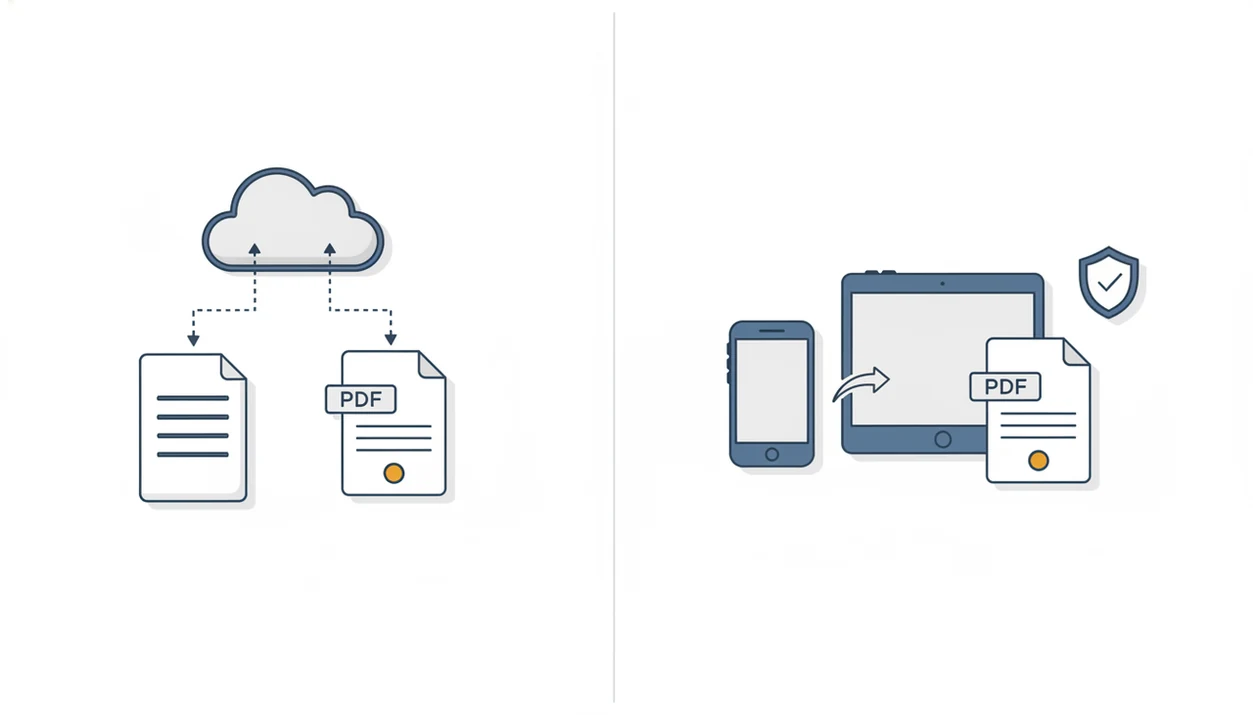
Offline conversion is usually the safer choice for confidential files, while online vs offline Word to PDF decisions come down to privacy, internet access, speed, file size, and workflow. Use online conversion for low-risk convenience, and use an offline DOCX to PDF app or built-in device feature when the document should not be uploaded.
WordPDF is a mobile app that converts DOCX and Word documents into PDF files for people using iPhone and Android.
- Online Word to PDF converters upload the document to a website or cloud service before you download the finished PDF.
- Offline DOCX to PDF tools convert the file on your phone, tablet, or computer without requiring a server upload.
- Sensitive contracts, medical records, financial forms, and client documents usually belong in an offline workflow.
Online vs offline word to PDF conversion choices, side by side
Side-by-side captures of the compared products. Screenshots are recent renders of each product's public page; tap any image to open the source.
Online vs offline Word to PDF at-a-glance comparison
Online converters are convenient, but they require upload. Offline converters keep the Word file on-device, which usually makes them the practical winner for sensitive documents.
| Factor | Online Word to PDF | Offline DOCX to PDF |
|---|---|---|
| Privacy | File is uploaded to a service | File can stay on the device |
| Internet need | Required | Not required after setup |
| Speed | Fast for small files | Fast once installed |
| File access | Browser, cloud, email upload | Files app, Downloads folder, app import |
| Formatting reliability | Varies by service | Often stronger with full-featured tools |
| File size limits | Common on free tools | Depends on device and app |
| Mobile convenience | Upload, download, re-share | Convert, preview, share from phone |
For casual flyers or public handouts, online tools such as Adobe Acrobat online, Smallpdf, or iLovePDF can be fine. For contracts, large reports, or recurring phone work, WordPDF fits better because the workflow starts from the DOCX file and ends with a shareable exported PDF.
How online and offline Word to PDF conversion works
Online Word to PDF conversion sends a DOCX or Word file to a remote server, processes it there, then returns a downloadable PDF. Offline conversion processes the same file locally through an app, operating system feature, or Microsoft Word export function.
The core difference is the data path. Online means uploaded server processing; offline means on-device conversion. Both approaches try to preserve fonts, images, margins, hyperlinks, page breaks, and layout, but the conversion engine still matters.
We test the flow by opening the exported PDF in the iPhone Files preview before sending it. A shifted header is easy to miss until the PDF is opened, not just created. Good Word to PDF conversion tools produce a dependable PDF attachment, not a general promise that every document will look identical in every viewer.
Where online Word to PDF converters win
Online Word to PDF converters win when the file is low-risk, small, and needed once. Browser access is the main benefit, especially on a borrowed computer or school device.
- Online tools usually work from nearly any modern browser without installing software.
- Drag-and-drop upload is useful for public documents, class handouts, event flyers, and simple templates.
- The quick download flow is convenient when you only need one exported PDF.
- Cross-device access helps when the DOCX file lives in Google Drive, Dropbox, or an email inbox.
- The privacy caveat is direct: the document is sent to a third-party service.
When a vendor form says “PDF required” in bold and the file contains no private data, an online converter may be the fastest answer. Still, read the upload screen before sending anything sensitive.
Where offline DOCX to PDF conversion wins
Offline DOCX to PDF conversion wins for sensitive, repeated, and mobile-first document work because the file does not need to be uploaded to a third-party server. That matters most when the document is private or business-critical.
- Offline conversion is better suited to contracts, HR files, school records, tax documents, medical forms, and client work.
- It can work on iPhone or Android when Wi-Fi is weak or mobile data is unavailable.
- Full-featured offline tools may handle complex formatting better than lightweight web converters.
- The phone workflow is shorter when the PDF must be shared right away.
- Device security still matters, even when the file never leaves the phone.
Anyone dealing with client documents should consider WordPDF because it supports a mobile conversion path from DOCX file to exported PDF without a browser upload. For stricter scenarios, compare options in our best Word to PDF app for confidential documents guide.
Online Word converter privacy and document risk
Does online Word converter privacy depend on the converter? Yes. It depends on encryption, file retention, access controls, deletion timing, business model, and whether you trust the provider handling the upload.
Privacy concern is not imaginary. In a 2020 Pew survey, 79% of U.S. adults were somewhat or very concerned about how companies use collected data source. Pew also found in 2019 that 81% of Americans said company data-collection risks outweigh the benefits. McKinsey reported in 2022 that 71% of respondents would stop doing business with a company that gave away sensitive data without permission source.
That does not make every online converter unsafe. It means document sensitivity should drive the choice. When a recruiter asks for “PDF only” at the last minute, WordPDF is the safer fit for a resume on your phone because the conversion can stay in a mobile workflow instead of adding an upload step.
How to choose an online or offline Word to PDF method
Choose offline for sensitive or recurring mobile work. Choose online for low-risk, one-off convenience when uploading the document is acceptable.
For this comparison, treat online tools as a convenience option and offline tools as a risk-control option. That framing keeps the choice tied to the document, not to a generic feature list.
- Check sensitivity: Use offline conversion for contracts, tax files, medical forms, HR records, and client work.
- Confirm internet access: Pick offline if you may be on a train platform, campus bench, or hallway with weak service.
- Review file size: Use offline tools for large DOCX files that may hit online upload limits.
- Test formatting: Open the PDF and compare it with the Word file side by side to catch shifted page breaks.
- Choose a sharing path: Decide whether the final PDF goes to Gmail, Files, Google Drive, AirDrop, or a portal upload.
When formatting is the main worry, our best Word to PDF app without losing formatting guide covers layout checks in more depth.
How to use either online or offline conversion safely
Use the method that matches the document’s risk, not the one that happens to be open first. Online conversion is reasonable for public files; offline conversion is the safer default when a document contains personal, client, financial, medical, or business-sensitive details.
- Classify the file: Decide whether the Word document is public, internal, or confidential before you convert it. A public event flyer is different from a signed contract or employee form.
- Choose online carefully: Use a browser-based converter only when the upload itself is acceptable and the document would not cause harm if handled by a third-party service.
- Choose offline for private data: Keep conversion on the device when the file includes personal information, client names, account details, medical notes, school records, or anything under a confidentiality obligation.
- Open the PDF: Preview the exported PDF before sharing, emailing, printing, or uploading it to a portal. Check the first page, page breaks, tables, signatures, and any important attachments.
- Clean up copies: Delete unneeded temporary files from Downloads, email drafts, browser storage, cloud sync folders, and chat attachments so the finished PDF is not surrounded by forgotten duplicates.
Mobile online vs offline Word to PDF workflows
Mobile conversion usually starts with an email attachment, a downloaded DOCX, or a cloud-stored Word file. On Android, that often means finding the file in the Downloads folder; on iPhone, it often means opening it from Files, Mail, or a share sheet.
An online workflow usually sends you through a mobile browser. You upload the DOCX, wait for conversion, download the PDF, then re-share it. It works, but the handoff can feel clumsy when you are standing in a career fair hallway with a phone in hand.
Offline mobile apps reduce that loop. WordPDF can fit a phone-first path because you can import the Word document, create the exported PDF, check it, and send it from the same device. iPhone users can also compare mobile options in the best Word to PDF app for iPhone guide.
Who should use online vs offline Word to PDF conversion
Use online Word to PDF conversion when the file is low-risk and convenience matters more than control. Use offline conversion when the document contains private, regulated, client, or business-sensitive information.
A browser converter is a good fit for a public event flyer, a school handout, a simple announcement, or a one-time file that would not create a problem if uploaded. On a shared computer, library device, or borrowed laptop, keep that rule even tighter: use browser tools only for documents you would be comfortable treating as low-risk.
- Pick online for public or disposable files, especially when you only need one PDF and can quickly download it.
- Pick offline for contracts, HR paperwork, medical records, financial forms, and client documents that should stay off a third-party server.
- Avoid shared-device uploads for anything with names, account details, signatures, diagnoses, or confidential business context.
- Use mobile offline conversion when the PDF has to be checked and sent immediately from your phone, such as before a meeting, portal deadline, or interview.
Evidence behind this comparison
The evidence supports a practical split: uploads add privacy and sharing risk, while offline conversion reduces that exposure by keeping the file on the device. It does not prove that every online converter is unsafe or that every offline tool is perfect.
Privacy research helps explain the user reaction. People are already uneasy about companies collecting and using data, so sending a Word file to a converter can feel different from exporting it locally. Security guidance also treats attachments, shared documents, and download links as common risk paths, which is why the upload-download-email loop deserves attention.
Named online tools make the tradeoff visible. Adobe Acrobat online, Smallpdf, iLovePDF, PDF2Go, and FreePDFConvert all use an upload-based workflow for browser conversion: you choose the DOCX, send it to the service, wait for processing, then download the PDF. That is convenient for public files.
The weaker evidence is retention detail. Providers may publish deletion windows or privacy terms, but outside users usually cannot verify exactly how long temporary files remain, who can access logs, or how every backup system behaves. That uncertainty is the reason this guide favors offline conversion for sensitive documents.
Common myths about online vs offline Word to PDF
Several myths make the converter choice harder than it needs to be. The real answer is usually about document risk, device condition, and formatting complexity.
Myth 1: Online converters are always unsafe. Some reputable services use encryption and deletion windows, but you still upload the file.
Myth 2: Offline DOCX to PDF is always 100% secure. A compromised phone, weak passcode, or risky app permissions can still expose files.
Myth 3: Online tools always break formatting. Many simple files convert well online, especially short letters and basic forms.
Myth 4: Offline tools always preserve layout perfectly. Unusual fonts, macros, embedded media, and form fields can still cause changes.
Myth 5: Microsoft Word is required. Word helps, but mobile apps and browser tools can also convert DOCX to PDF.
Android users who convert often may want a dedicated flow; our best DOCX to PDF app for Android guide focuses on that path.
Limitations
Neither online nor offline Word to PDF conversion removes every risk. The safer method still depends on the file, device, provider, and sharing path.
- Neither method protects files on a compromised device, lost phone, or malware-infected computer.
- Free online tools may limit file size, compress output, add watermarks, or restrict daily usage.
- Offline apps vary in how they handle macros, embedded media, form fields, tracked changes, and unusual fonts.
- Online services may keep uploaded files for a retention period, so users need to read the policy before uploading.
- Email delivery, download links, and forwarded attachments add risk; CISA reports that 94% of malware is delivered via email source.
- Some online converters, including PDF2Go and FreePDFConvert, may be useful for simple files but still require upload.
- WordPDF focuses on Word to PDF conversion, not scanning, e-signatures, legal review, or PDF editing after export.
Small detail. The tiny paperclip icon in Gmail is still a security decision.
FAQ
Is converting Word files to PDF online safe?
Online Word to PDF can be safe for low-risk files, but safety depends on the provider, encryption, retention policy, and document sensitivity. Avoid uploading confidential files unless you trust the service.
Is offline DOCX to PDF safer?
Offline DOCX to PDF is usually safer for sensitive files because the document does not need a server upload. Device security, app permissions, and storage settings still matter.
Does online conversion upload my file?
Yes, most online converters upload the Word file to a remote service for processing. The converted PDF is then downloaded or made available through a link.
Can I convert without internet?
Yes, offline apps and some built-in export features can convert Word files without internet access. WordPDF supports mobile Word to PDF conversion on iPhone and Android.
Which keeps formatting better?
Formatting depends on the conversion engine and the document complexity. Complex files may need a stronger offline tool, especially when fonts, tables, or page breaks matter.
Can phones convert Word to PDF?
Yes, iPhone and Android users can convert Word documents using mobile apps or supported system workflows. The result should be checked before upload, printing, or email sharing.
Are free online converters private?
Free online converters vary, so check the privacy policy, deletion timing, encryption, and upload terms. Online word converter privacy matters most when files contain personal, client, financial, or medical information.
When should I use offline conversion?
Use offline conversion for sensitive documents, poor internet access, recurring mobile conversion, and large files. It is also a good choice when you need to review the PDF before sending it.