
Convert Word to PDF on phone without workflow friction
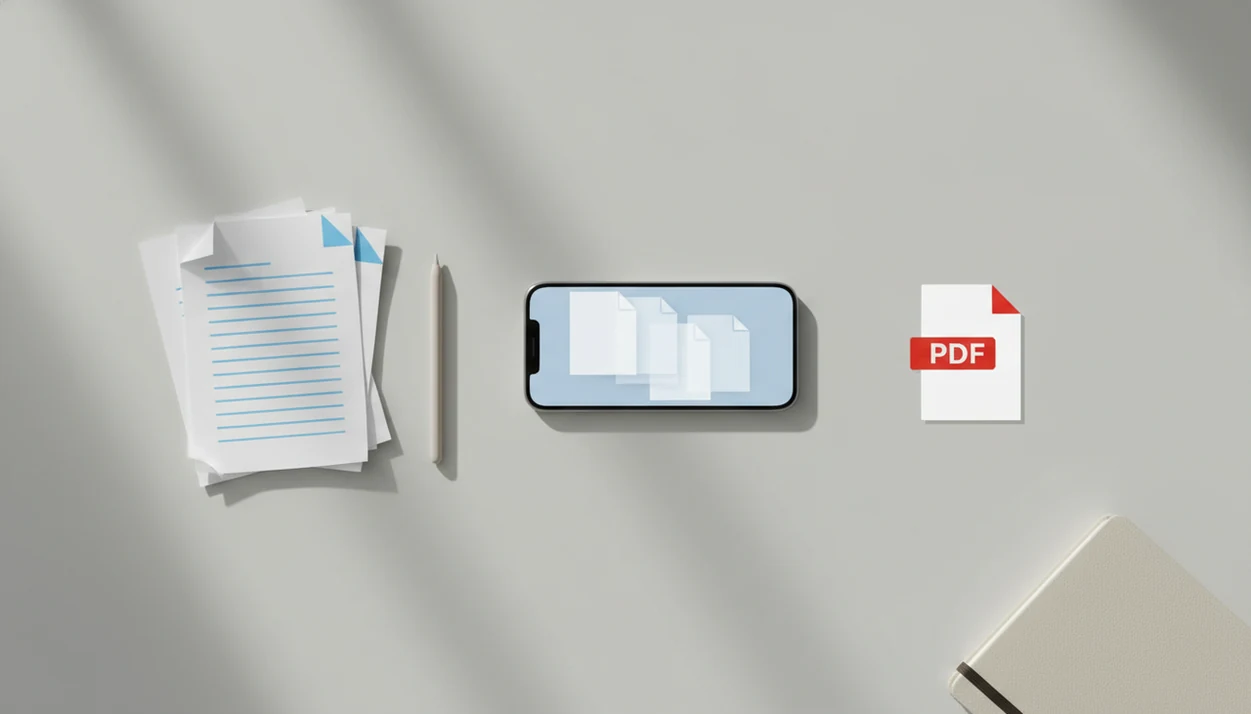
The fastest way to convert Word to PDF on phone is to open the DOC or DOCX file in Microsoft Word, Microsoft 365, Files, Drive, Mail, Dropbox, or OneDrive, then use Export, Share, or Print to save a PDF copy. Check the PDF layout before sending it, especially for resumes, forms, contracts, and documents with unusual fonts.
WordPDF is a mobile document converter that turns DOC, DOCX, and Word documents into PDF files for people using iPhone and Android.
- Use Microsoft Word or Microsoft 365 mobile when you want the most reliable DOCX to PDF mobile conversion.
- Use Files, Drive, Dropbox, OneDrive, or Mail as the starting point when the Word document is already stored there.
- Check page breaks, fonts, images, and privacy before sharing the finished PDF.
DOCX to PDF mobile conversion at a glance
A Word file can be turned into a PDF directly on iPhone or Android. The cleanest starting point is usually the app that already holds the file: Word, Files, Drive, Mail, Dropbox, or OneDrive.
Microsoft Word and Microsoft 365 mobile are often the safest first choice for a DOCX file because they understand Word layout better than generic viewers. Files is useful when the document is already on an iPhone. Drive, Dropbox, and OneDrive work well when the file is in cloud storage, though you may need Open in, Share, Export, or Send a copy.
Mobile document work is normal now: Pew Research Center reports that 90% of U.S. adults own a smartphone (https://www.pewresearch.org/internet/fact-sheet/mobile/). PDF is also designed for consistent document exchange across devices and operating systems, according to Adobe’s PDF overview (https://www.adobe.com/acrobat/about-adobe-pdf.html). Still, open the exported PDF before sending it. A recruiter asking for “PDF only” at the last minute is not the time to discover a shifted page break.
Before you convert a Word file to PDF on your phone
Before you convert, make sure the Word file is readable, safe to process, and headed to the right folder. A quick check prevents the common phone problems: a broken attachment, a privacy surprise, or a PDF that disappears after export.
- Open the DOC or DOCX on your phone first, not just in an email preview. If Word, Files, Drive, or your converter cannot display the document correctly, the PDF may inherit the same problem.
- Look for signatures, tracked comments, macros, hidden text, or private notes. PDF conversion is not cleanup, redaction, or legal review.
- Choose the conversion route based on privacy. Use local conversion for contracts, IDs, invoices, medical forms, or anything confidential; use cloud upload only when that is acceptable.
- Decide where the PDF should save before you tap Export. Files, Downloads, Drive, OneDrive, and project folders are easier to search than temporary app storage.
- Install Word, Microsoft 365, or a trusted converter before you need offline access. Waiting until the airport, courthouse, or classroom hallway is how a simple PDF task becomes a scramble.
How DOCX to PDF conversion works on iPhone and Android
DOCX to PDF conversion works by reading the Word document structure, laying out each page, embedding or substituting fonts, flattening some elements, and writing a fixed-layout PDF file. In plain terms, the converter turns an editable document into pages that should look the same when opened elsewhere.
Some methods process the file on the phone. Others upload the document to a cloud server, convert it there, then return the exported PDF. That difference affects privacy, speed, internet access, and formatting consistency. On-device conversion is better for private files and offline work. Cloud conversion may handle more formats, but the file leaves your phone.
Not every Word feature survives as a live feature. Macros, live media, unusual fonts, embedded objects, and some form controls may be flattened or dropped. Good word to PDF converter apps turn DOCX and Word documents into shareable PDFs on iPhone and Android, not editable Word replicas with every interactive feature preserved.
How to use a Word-to-PDF converter app on iPhone and Android
Use a focused converter app when you want a direct mobile route from Word file to exported PDF without opening a full office suite. This fits the quick handoff case: receive a DOCX, convert it, save the PDF, then share or upload it.
- Open your converter app on your iPhone or Android phone.
- Select a DOC or DOCX file from local storage, Files, Downloads, Drive, Dropbox, or OneDrive.
- Convert the Word document to PDF and wait for the export to finish.
- Save the PDF beside the original Word file when possible, so both versions are easy to find.
- Open the finished PDF in Files preview, Downloads, or your chosen viewer.
- Check page breaks, fonts, images, and links before sharing.
Small thing, big save.
For repeat phone workflows, this is often faster than hunting through a file picker that hides unsupported documents. The full storage-specific path is similar to how to save DOCX as PDF on phone.
Microsoft Word mobile steps to make a Word file PDF
How do you make a Word file PDF in the Microsoft Word mobile app? Open the DOC or DOCX file in Word or Microsoft 365, then use Export, Share, Print, or Save as PDF depending on the option your device shows.
iPhone Word app steps
Open the document in Word on iPhone. Tap the file or share controls, then look for Export, Send a copy, Print, or Save as PDF. If Print is the available route, use the print preview to create a PDF, then save it to Files, OneDrive, or another folder. The dedicated iPhone flow is covered in convert Word to PDF on iPhone.
Android Word app steps
Open the DOCX in Word or Microsoft 365 on Android. Use Share as PDF, Export, or Print, then choose Save as PDF if Android shows the print panel. Save the result to Downloads, Drive, OneDrive, or a project folder. Microsoft reported over 1.4 billion monthly active Windows 10 or 11 devices in 2023, and its document workflows often carry across mobile apps too.
Files, Drive, Mail, Dropbox, and OneDrive Word to PDF routes
Most phone conversions begin where the Word document already lives. Start there, then hand the file to Word, a converter app, or an export option.
- Files or Android file manager: Open the DOCX, use Share or Open in, then send it to Word or a converter. For iPhone storage, the detailed route is Word to PDF from Files app.
- Mail or Gmail: Open the Word attachment, tap the share icon, then send it to Word or a converter app. In Gmail, the tiny paperclip becomes the moment the DOCX turns into a PDF attachment.
- Google Drive: Open the file, then use Open in, Send a copy, or another app if PDF export is not shown. Use Word to PDF from Google Drive when Drive is your main folder.
- Dropbox: Start from the file menu and choose Share, Export, or Open in.
- OneDrive: OneDrive pairs naturally with Microsoft Word, so it is often the smoothest cloud route.
Save the PDF next to the original Word file when you can.
Five facts before a mobile Word to PDF conversion
- Microsoft Word and Microsoft 365 mobile can export, share, print, or save many Word files as PDF on iPhone and Android.
- Many third-party converter apps and browser tools upload documents to servers, so private files need extra caution.
- Reputable browser tools can convert files from device storage or cloud drives, but they usually need internet access.
- PDF conversion usually preserves layout, fonts, and images, but complex tables, uncommon fonts, and image-heavy pages can shift.
- Finished PDFs can be stored locally, shared by email or messaging, printed, or uploaded to PDF-only forms.
For job applications, Microsoft Word mobile is often easier than a browser converter because it reduces the chance of a resume layout changing during handoff. We still compare the Word file and PDF side by side when a page break before references must stay intact.
Layout and privacy checks after DOCX to PDF mobile conversion
Open the finished PDF, not just the conversion success screen. The only file that matters is the one your client, teacher, recruiter, or portal will receive.
| Check | What to inspect | Why it matters |
|---|---|---|
| Page layout | Page breaks, margins, headers, footers | A one-page cover letter can spill onto page two |
| Content blocks | Images, bullets, tables, signature areas | These are common places for mobile layout shifts |
| Links | Web links and email links | Some converters preserve links, others flatten them |
| Sensitive content | Names, account numbers, comments, hidden text | PDF conversion is not redaction |
| Privacy route | On-device app versus upload-based tool | Cloud tools may send the file to a remote server |
For sensitive documents, compare the PDF against the original Word file before sharing. Converting to PDF does not automatically encrypt or password-protect it. Microsoft Word, Adobe Acrobat online tools, Google Drive handoff, and on-device converter apps can all be useful, but the privacy choice depends on whether conversion happens locally or on a remote server.
Common DOCX to PDF mistakes on phones
The biggest mistake is trusting a preview. A DOCX preview inside Mail, Drive, or Dropbox is not always the final exported PDF.
Other problems are more practical. People upload contracts, invoices, or school forms to unknown free converter sites without checking privacy terms. They send the PDF without opening it. They lose the file because it saved to a temporary app folder instead of Files, Downloads, Drive, or OneDrive. On Android, check the Downloads folder before assuming the export failed.
Some users also expect Word-only features to keep working. Macros, embedded videos, live objects, and interactive elements may be flattened or removed. Free tools can add watermarks, reduce quality, limit daily conversions, or ask for sign-up after the upload. Annoying, but common.
For email-first work, the safer path is usually to convert Word email attachment to PDF from the attachment, save the output, then attach the PDF yourself.
Limitations
Mobile Word to PDF conversion is useful, but it is not a guarantee that every document will convert cleanly.
- Offline phones cannot use most browser-based or cloud-server converters.
- Large or graphics-heavy Word files can convert slowly, crash apps, or time out.
- Unusual fonts, macros, embedded objects, and live media may be lost, flattened, or rendered differently.
- Some free mobile converters add watermarks, restrict daily conversions, reduce quality, or require sign-up.
- Converting to PDF does not automatically encrypt, redact, or password-protect sensitive content.
- Cloud conversion may upload the document to a third-party server, which matters for private files.
- Older phones may struggle with long documents, image-heavy reports, or weak network connections.
If the document is a legal filing, signed contract, medical record, or financial packet, treat the PDF check as mandatory. WordPDF can help create the PDF, but you still need to review the finished file before sending it.
FAQ
How can I convert a Word document to PDF on an iPhone?
Open the DOC or DOCX in Microsoft Word, Files sharing, or a trusted converter app, then use Export, Share, Print, or Save as PDF. Open the finished PDF in Files preview before sending it.
How can I convert a DOCX file to PDF on Android?
Use Microsoft Word, Microsoft 365, Android Print to PDF, Google Drive handoff, or a converter app. Save the PDF to Downloads, Drive, OneDrive, or the folder you choose.
Can I make a DOCX a PDF on my phone for free?
Yes, some native methods are free, including Word app export options and phone print-to-PDF routes. Third-party tools may include ads, limits, subscriptions, or watermarks.
Can I convert a Word file to PDF on my phone without internet?
Yes, but only if an installed app can process the file locally. Browser upload tools and cloud-server converters usually need internet access.
Will the PDF keep the same formatting as my Word document?
Usually, the PDF keeps the main layout, fonts, and images. Complex tables, unusual fonts, embedded objects, and media can shift or flatten.
Is it private to use an online DOCX to PDF converter?
Many online converters upload files to remote servers for processing. Use trusted services or on-device conversion for sensitive documents.
How do I convert a Word email attachment to PDF on my phone?
Open the attachment, share it to Word or a trusted converter app, then export or save the PDF. Attach the PDF, not the original DOCX, when replying.
Where does the converted PDF save on my phone?
Common locations include Files, Downloads, Drive, OneDrive, Dropbox, app folders, or the export folder you selected. If you cannot find it on Android, check Downloads first.
Can Google Drive turn a Word document into a PDF on mobile?
Google Drive can preview and hand off many DOCX files, but PDF creation may require opening the file in another app. Use Word, a converter app, or an export route when Drive does not show PDF output.