
How to save DOCX as PDF on phone without mistakes
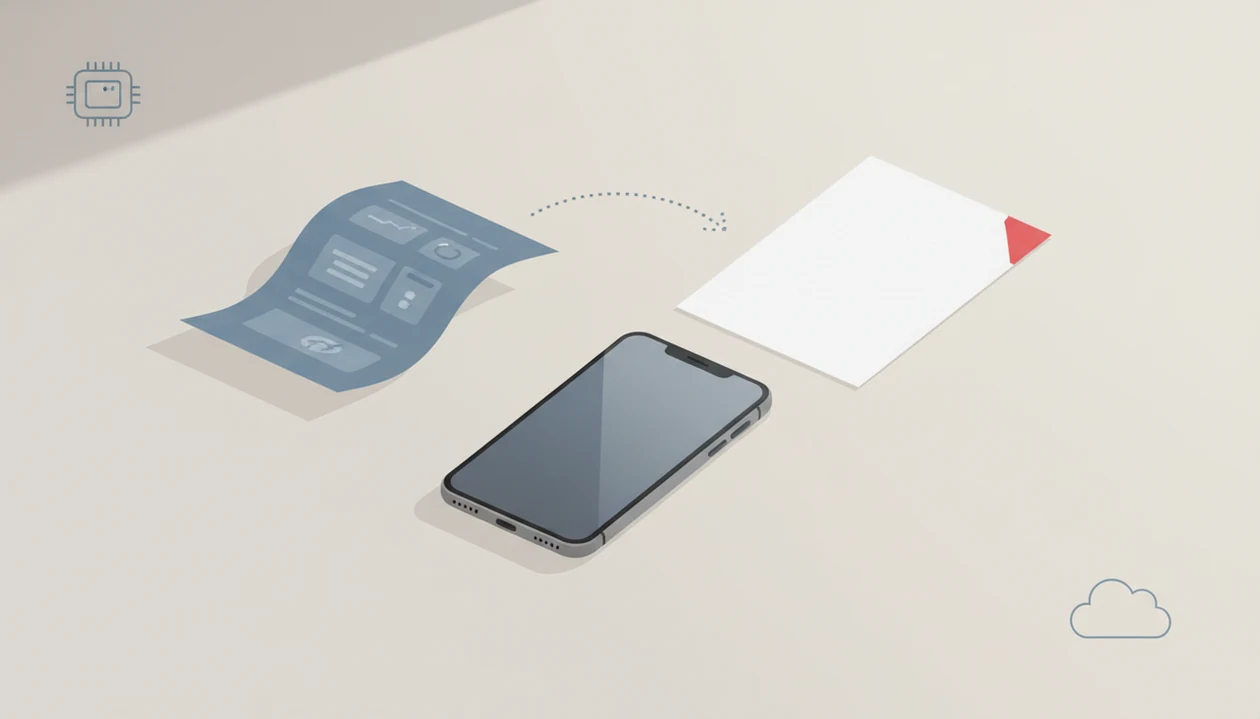
To learn how to save DOCX as PDF on phone, open the Word file in a mobile app, choose Export, Share, or Print, then select Save as PDF and save the new PDF copy. The exact taps depend on whether the DOCX is on iPhone, Android, email, cloud storage, or a converter app.
Definition: Saving a DOCX as a PDF on a phone means creating a separate PDF copy of the Word document, not renaming or replacing the original DOCX file.
TL;DR
- Use Export, Share, or Print to PDF; do not change the file extension manually.
- Move files from email, Messages, or Downloads into Files or local storage if the conversion option is missing.
- Check the finished PDF before sending, especially if the DOCX has tables, fonts, images, or strict page breaks.
DOCX to PDF on mobile: the format change in one sentence
Saving DOCX as PDF on mobile means the phone generates a fixed-layout PDF copy from the Word document’s content, styles, and page structure. It does not turn the original file into a different file by changing its name.
A DOCX file is still a Word document if you rename `proposal.docx` to `proposal.pdf`. Most recipients will either get an error or open a broken file. Real conversion happens through Export, Print, Save as PDF, or a dedicated converter.
The original DOCX usually stays where it was unless you delete it yourself. That matters when you need both an editable version and a finished version. A reliable mobile converter should create a new PDF copy while leaving the editable DOCX intact.
DOCX file location checks before saving Word as PDF on phone
Where is the DOCX file on your phone right now? That answer decides whether you should use Word, Files, Google Drive, a print menu, or a converter app.
Files inside Mail, Gmail, Messages, WhatsApp, or the Android Downloads folder may only be opened as previews at first. Save the attachment locally if Export or Print is missing. A DOCX in iCloud Drive, Google Drive, OneDrive, or device storage may open in a different app depending on your defaults.
Viewing is not exporting. A preview lets you read the document; a conversion creates a separate PDF. That difference shows up fast when a recruiter’s application form says “PDF only” beside a countdown timer.
Before you start, note where the finished PDF will land. Files, Downloads, Documents, iCloud Drive, and Drive are all possible. For cloud files, our Google Drive conversion guide guide covers that handoff in more detail.
DOCX-to-PDF rendering on a phone: fonts, margins, and pages
How DOCX-to-PDF conversion works: the phone opens the DOCX, interprets its fonts, styles, margins, images, tables, headers, footers, and page breaks, then renders those pages into a fixed-layout PDF.
That rendering step is the real conversion. In plain terms, the app decides what each page should look like, then saves that view so it opens the same way for the recipient. The technical pieces are layout rendering and font substitution. Font substitution means the phone may use a similar font if the original one is unavailable.
Different paths rely on different engines. Microsoft Word can export directly. iOS and Android can use system print services. A file manager or converter app may handle the rendering instead.
Small documents usually behave. Complex formatting can shift. We often compare the Word file and PDF side by side to catch a moved page break before sending a resume or quote.
Five steps to save a DOCX as PDF on a phone
The usual way to save a DOCX as PDF on a phone is to open the file, use Export or Print, choose a PDF option, save the output, and inspect the new file before sharing it.
- Open the DOCX in Microsoft Word, a compatible file app, Google Docs, or WordPDF.
- Tap the menu, share, export, or print control and look for PDF-related actions.
- Choose Save as PDF, Export as PDF, Print to PDF, or Save to Files depending on the app.
- Name the PDF clearly and choose a destination such as Files, Downloads, Documents, iCloud Drive, or Google Drive.
- Open the finished PDF from its saved location and verify the pages before sending.
For most users, built-in export is easier than a browser converter because it keeps the file in the app or phone storage. The tiny paperclip in Gmail is the final check, not the conversion step; make sure the attachment is the PDF, not the DOCX.
DOCX to PDF on iPhone with Word, Files, or Print
On iPhone, start by opening the DOCX from Files, Mail, OneDrive, or Microsoft Word. The available PDF option depends on which app actually opens the document.
Microsoft Word on iPhone
In Word, look for the three-dot menu, File, Export, Send a Copy, Print, or Save as PDF. Microsoft changes labels across versions, so follow the PDF wording rather than memorizing one tap path. If the file came from Mail, save it first if Word only shows a preview.
Files and iOS print flow
The iOS print flow can create a PDF when the preview/share path is available. Open the file, choose Share or Print, use the print preview route, then save or share the generated PDF. Save to Files, iCloud Drive, On My iPhone, or send it directly.
For platform references, Apple documents printing from iPhone through the system print flow (https://support.apple.com/guide/iphone/print-iph92628b8f/ios), and Google documents printing from Android devices in Android Help (https://support.google.com/android/answer/3123261).
A quick layout check in the iPhone Files preview catches obvious issues before the customer or school portal sees them. For a deeper iPhone walkthrough, use iPhone conversion guide.
DOCX to PDF on Android or Samsung with Print to PDF
On Android and Samsung phones, open the DOCX in Microsoft Word, Google Docs, Samsung My Files, or another viewer that supports printing or export. Menu labels vary by Android version, phone maker, and app.
Microsoft Word on Android
In Word, tap the three-dot menu or file menu, then look for Share, Export, Save as, or Print. If Save as PDF appears, use it. If not, Print often exposes the same outcome through Android’s print system.
Android Print to PDF
From Print, change the printer destination to Save as PDF. Then choose Downloads, Documents, Google Drive, or another device storage location. The Android Downloads folder is easy to find later, but rename the file before you send it if the default name is vague.
For Android-specific screenshots and storage paths, the full flow is covered in convert DOCX to PDF on Android.
Best DOCX-to-PDF mobile method by file source
The best DOCX-to-PDF mobile method depends on where the file lives and how much the layout matters. Built-in export is best when layout and privacy matter because it avoids an extra upload step.
| File source or method | Best use case | Main steps | Privacy note | Layout reliability |
|---|---|---|---|---|
| Word app | Resumes, proposals, files edited in Word | Open DOCX, Export or Save as PDF | Stays in Microsoft workflow | Usually strong |
| iPhone Files | Files saved in iCloud or On My iPhone | Open, Share or Print, Save to Files | Stays on device or iCloud | Depends on preview support |
| Android print flow | DOCX opened in Word, Docs, or viewer | Print, Save as PDF, choose folder | Usually local unless saving to cloud | Good for simple layouts |
| Email attachment | DOCX received in Mail or Gmail | Save locally, open, export | Avoid forwarding wrong file | Depends on app used |
| Cloud storage | Drive, OneDrive, Dropbox files | Open in compatible app, export PDF | Cloud account controls access | Often good |
| Converter app | No export option appears | Upload or import, convert, save | Check upload handling | Varies by tool |
Five facts about saving Word as PDF on phone
- The most reliable methods for saving Word as PDF on phone are Export, Print, or Save as PDF.
- Menus differ across iPhone, Android, Word, Files, Google Docs, Samsung My Files, and third-party apps.
- Email and chat attachments often need to be saved before the phone exposes a conversion option.
- A phone can create a PDF without a desktop computer if the opening app supports export or printing.
- Online converters may require upload, internet access, and privacy tradeoffs.
Mobile conversion matters because phones are now normal work devices. Pew Research Center’s mobile fact sheet reports that 90% of U.S. adults owned a smartphone in 2024, with higher ownership among adults ages 18 to 49 (https://www.pewresearch.org/internet/fact-sheet/mobile/).
Still, check the file. A proposal logo can look sharp in preview and still need a filename fix before upload.
Common DOCX-to-PDF mistakes on phone
The most common mistake is renaming a DOCX file with a `.pdf` extension. That changes the label, not the document format.
Another common slip is sending the original DOCX instead of the exported PDF. It happens when the file picker shows both files with similar names. We prefer names like `Garcia-Resume-PDF.pdf` instead of `Resume final final.pdf`.
Some apps only preview DOCX files and do not export PDFs. In that case, open the file in Word, Google Docs, a system print flow, or a converter. Online converters are not identical to built-in phone tools because they may upload the document first.
Formatting is the other trouble spot. Fonts, tables, headers, footers, images, and page breaks should be checked before submission. For strict resumes and invoices, formatting preservation guide is often the better starting point.
PDF verification checklist after mobile DOCX conversion
Open the PDF from the saved location before you send it. Do not trust the success message alone.
Check the first page, last page, page count, margins, images, tables, and line breaks. Confirm the filename ends in `.pdf`, then attach that PDF copy to the message, form, or upload box. If you are using Gmail, look at the attachment name beside the paperclip before tapping Send.
Small pause. Worth it.
If the layout changed, try a different rendering path. Microsoft Word export, system Print to PDF, or a dedicated converter app may produce a cleaner result than the first app you used. Files-based workflows are covered separately in Files app conversion guide, especially for iCloud and local iPhone storage.
Limitations
Phone-based DOCX-to-PDF conversion is useful, but it does not guarantee the same result in every app or document.
- Not every viewer app includes Save as PDF, Export as PDF, or Print.
- Web converters usually require uploading the document before conversion.
- Sensitive documents may not belong in a browser-based converter.
- Complex DOCX layouts can reflow on mobile, especially with columns or nested tables.
- Missing fonts can change spacing, line breaks, and page breaks.
- A phone-made PDF is good for sharing, printing, or submitting, but it does not preserve editable DOCX behavior.
- One-tap conversion is often overstated because users still must locate the file, choose an output path, and verify the result.
- Passwords, compression, merging, and annotations may require separate tools after conversion.
If a customer cannot open your Word layout, a PDF helps. But it still needs a layout check.
FAQ
Can I convert a DOCX to PDF on iPhone?
Yes. iPhone users can convert through Microsoft Word, Files, the iOS print flow, or a converter app depending on where the DOCX opens.
Can an Android phone save a DOCX as a PDF?
Yes. Android phones can often use Microsoft Word, Google Docs, or Print to PDF by changing the printer destination to Save as PDF.
Is renaming a DOCX file to PDF enough?
No. Renaming a DOCX with a `.pdf` extension does not convert the document format or create a usable PDF.
Where does the PDF save on my phone?
The PDF may save to Files, Downloads, Documents, iCloud Drive, Google Drive, or the folder used by the app that created it. Check the save destination before closing the app.
Can Microsoft Word mobile export a DOCX as PDF?
Yes. Microsoft Word mobile can export, save, share, or print a DOCX as PDF, although menu labels vary by iPhone, Android, and app version.
Can Google Docs save a Word document as a PDF on phone?
Yes. Google Docs can export or share a document as PDF when the DOCX opens correctly and the formatting is supported.
Are online DOCX-to-PDF converters safe to use on a phone?
Online converters can be convenient, but they usually require uploading the document. Avoid browser-based conversion for sensitive files unless you trust the service and its privacy terms.
Why did my DOCX layout change after saving as PDF?
DOCX layout can change when fonts, tables, margins, images, headers, footers, or page breaks render differently on mobile. Try Word export, Print to PDF, or another converter path.