
Tool to Convert Word Files From Drive to PDF on Mobile
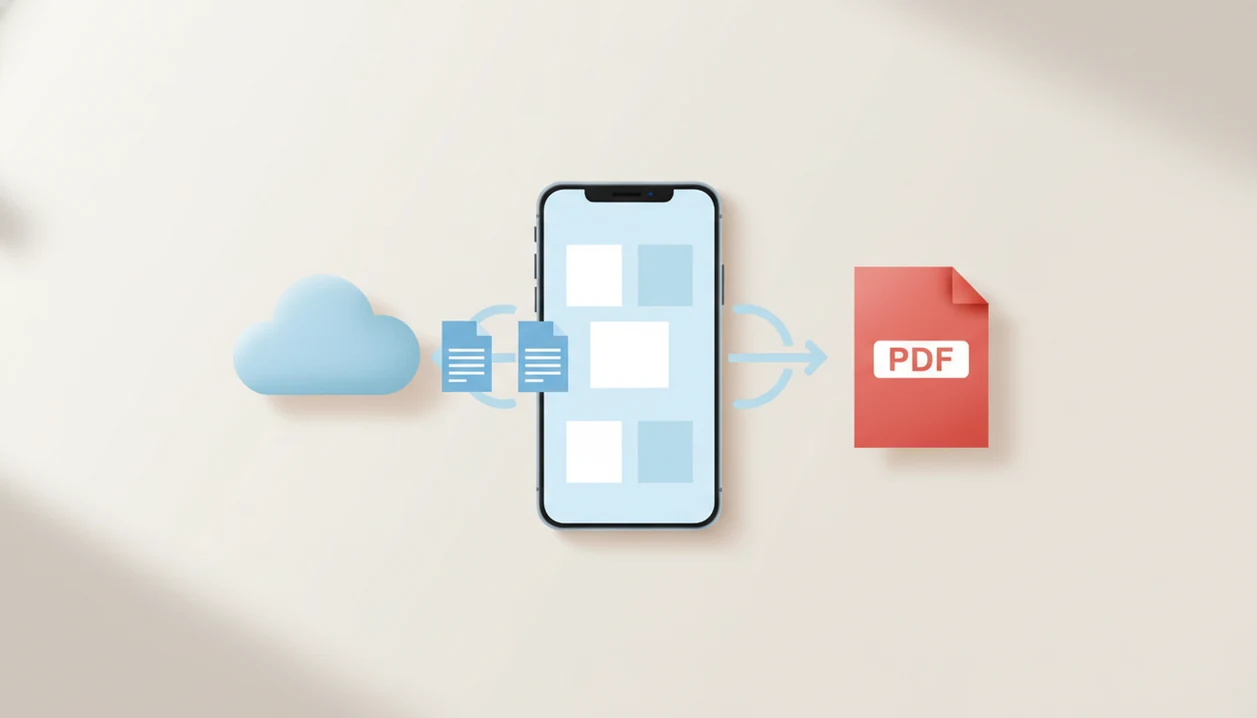
The best tool to convert Word files from Drive is a mobile Word-to-PDF app that can import DOC or DOCX files from Google Drive, preview the layout, convert to PDF, and share the finished file from iPhone or Android. Choose a path that matches your privacy needs: on-device conversion for sensitive documents, or a trusted cloud converter when speed and Drive access matter most.
> A drive DOCX to PDF tool converts a Word document stored in Google Drive into a fixed-layout PDF that is easier to share, print, archive, and open across devices.
- Use a mobile Word-to-PDF app when you want the simplest Drive-to-PDF workflow on iPhone or Android.
- Download the Word file first if you need offline conversion or want to avoid uploading a sensitive document to a web converter.
- Always preview the PDF before sharing because complex fonts, images, headers, and embedded objects can shift during conversion.
What a Google Drive Word-to-PDF tool should do
A Google Drive Word-to-PDF tool should open DOC and DOCX files from Drive, render the Word document, and export a finished PDF that you can save, share, print, or submit. It should also show a layout preview before the file leaves your phone.
The practical checklist is simple: Drive access, mobile sharing, file naming, local saving, and privacy controls. On iPhone, that may mean opening the file through the share sheet or Files app. On Android, it often means picking the file from Drive or the Downloads folder.
Focused mobile converters fit this narrow job: they convert DOC or DOCX documents into PDF files on iPhone and Android. This page covers Word-to-PDF conversion, not PDF editing, scanning, e-signatures, or PDF-to-Word conversion.
How a Google Drive Word converter creates a PDF file
A Google Drive Word converter creates a PDF by selecting a Drive file, importing or downloading it, rendering the document, writing a fixed-layout PDF, then saving or sharing the exported file. That rendering step is where fonts, margins, headers, images, and page breaks are interpreted.
The phone flow looks small, but the file moves through several states. A contract draft from client email may be saved to Drive first, opened in a converter, then exported as a PDF attachment. PDF preserves page geometry better than sending a raw DOCX because the recipient does not need the same editor, fonts, or page settings.
Cloud converters upload the DOCX to a server for conversion. Local converters work on the device after the file is downloaded. Google has reported more than 3 billion Google Workspace users, which helps explain why Drive-to-PDF handoffs are common rather than niche (https://workspace.google.com/blog/product-announcements/bringing-google-workspace-to-everyone).
Good Word-to-PDF tools create shareable PDF files on iPhone and Android, not full document management suites with unrelated editing promises.
Before You Convert a Drive Word File
Before you convert a Drive Word file, make sure you are using the right document, the phone can finish the job, and you know where the PDF should go. A one-minute check prevents the common mistakes: wrong draft, failed export, or a finished PDF saved somewhere you cannot find.
- Confirm the file in Drive is the newest DOC or DOCX version, especially if Drive search shows several drafts with similar names.
- Download the document first when it contains sensitive information and you want the conversion to stay local on your iPhone or Android device.
- Check your phone storage, battery level, and connection before starting, because large image-heavy files can stall on a nearly full or low-power phone.
- Decide the destination before exporting, such as Files, Downloads, email, a portal upload, or a shared folder.
- Open the original Word file once and scan for complex tables, unusual fonts, logos, headers, or image-heavy pages that need closer preview after conversion.
This is the same small pause we use before sending a contract or school form from a phone.
How to use a Drive DOCX-to-PDF tool on iPhone or Android
Use this mobile path when the file already sits in Google Drive and you need a PDF today. It works for a resume, invoice, classroom upload, or client copy.
- Open your Word-to-PDF app on iPhone or Android.
- Choose Google Drive, Files, or the Android file picker as the document source.
- Select the DOC or DOCX file you want to convert.
- Preview the layout and check page breaks, logos, tables, and headers.
- Convert the document to PDF.
- Share, save, print, or submit the exported PDF.
Check the preview first.
We usually open the converted PDF in the iPhone Files preview before sending it. On Android, saving a copy to Downloads makes it easier to attach later. If the next step is email, the full handoff is covered in Word to PDF for email attachments.
4 paths for converting Google Drive Word files to PDF
There are four common ways to convert Google Drive Word files to PDF. The right path depends on Drive access, formatting risk, privacy, and how fast you need to share from a phone.
| Conversion path | Drive access | Mobile ease | Offline potential | Formatting reliability | Privacy risk |
|---|---|---|---|---|---|
| Word to PDF mobile app | Direct import or file picker | High | Good after download | Usually strong | Low to medium |
| Google Docs export | Open through Docs | Medium | Limited | Good for simple files | Low |
| Microsoft Word app | Open in Word app | Medium | Good after sync | Strong for Word-native files | Low |
| Browser-based converter | Upload from Drive or device | Medium | Poor | Varies by tool | Medium to high |
A dedicated mobile Word-to-PDF app is often the better fit for fast phone-based sharing because it reduces the open, export, attach loop. IDC’s 2023 smartphone shipment reporting shows Android and iOS as the dominant global mobile operating systems, so mobile-first conversion should treat both platforms as the normal case (https://www.idc.com/getdoc.jsp?containerId=prUS52032524). For broader file handling after export, use a Word to PDF workflow after conversion.
5 facts about Drive DOCX-to-PDF conversion quality
- Standard text, margins, and ordinary page breaks usually survive DOCX-to-PDF conversion well.
- Custom fonts may be substituted if the converter or device cannot access the original font.
- Images can shift, compress, or lose sharpness, especially in proposal files with layered logos.
- Macros and interactive Word objects usually do not become working PDF features.
- Large image-heavy PDFs may need compression before upload or email.
Layout often stays intact, but it is not guaranteed for complex documents. We have caught a shifted page break by comparing the Word file and PDF side by side before sending a report draft.
Some tools rasterize pages or compress output too aggressively. That can make text harder to search and images less clear. If the PDF is going to a client, school, court, or employer, preview it before sending. For heavy files, it may help to reduce Word to PDF file size after conversion.
Privacy checks for an online Google Drive Word converter
An online Google Drive Word converter can be convenient, but it may upload private document contents to a third-party server. That matters for legal, medical, HR, finance, school, and client documents.
Use a short privacy checklist before converting:
- Check whether the tool is reputable and clearly named.
- Review what Google Drive permissions it requests.
- Look for a deletion policy for uploaded files.
- Prefer local conversion for sensitive DOCX files.
- Avoid converters that require broad Drive access for one file.
Offline conversion can be safer once the DOCX is downloaded to the device, because the file does not need to pass through an unknown web service. For extra handling after export, some users also password protect PDF after Word conversion, especially for HR packets or client contracts.
The tiny permission screen is worth reading.
Mobile sharing benefits for Google Drive Word-to-PDF files
PDFs are easier to share from a phone because they behave like finished documents. Email apps, messaging apps, upload portals, school systems, job applications, and client delivery tools usually handle a PDF more predictably than a DOCX file.
A recruiter asking for “PDF only” in an application form at the last minute is a normal use case. So is a classroom doorway essay submission rush, where the file picker hides unsupported documents and the PDF option is the safe path. The paperclip icon in Gmail feels small until the DOCX becomes a PDF attachment and the upload finally works.
A 2023 survey reported that 49% of mobile office suite users used a smartphone as a primary or frequent device for editing and sharing documents. For phone users, a Drive DOCX-to-PDF tool is often easier than desktop export because the document, preview, and share sheet are already in one place. Portal-specific steps are covered in upload Word to PDF to portal.
7 common mistakes with a Google Drive Word converter
These seven mistakes cause most Drive Word-to-PDF problems we see in mobile testing:
- Wrong Drive version: Converting an older draft because Drive search surfaced the wrong file.
- Skipped preview: Sharing the PDF without checking page breaks, tables, or logos.
- Unsafe upload: Using a random web converter for sensitive documents without reading its policy.
- Font assumptions: Expecting custom fonts to render the same on every device.
- Macro confusion: Assuming Word macros or embedded objects will work inside the PDF.
- Huge file attempt: Converting an image-heavy file on a low-storage phone with a low-battery warning.
- Bad destination: Saving the PDF somewhere hard to find, then attaching the DOCX by accident.
The pocket check is real. Before sharing, confirm the file extension says PDF, not DOCX.
Limitations
Drive Word-to-PDF conversion is useful, but it has real limits.
- Google Drive integrations may break or require re-authentication after API, account, or permission changes.
- Complex formatting, custom fonts, macros, and embedded objects may not render perfectly.
- Large Word files with many high-resolution images may convert slowly or fail on lower-end phones.
- Some tools compress, rasterize, watermark, or limit output in free versions.
- Cloud converters require internet access and may upload sensitive document contents.
- Offline conversion usually requires downloading the Word file from Drive first.
- Google Docs export can slightly change Word-native spacing, especially in resumes and formal templates.
- The Microsoft Word app may preserve Word formatting well, but it adds another app and sign-in path.
WordPDF and similar focused tools can simplify the phone workflow, but no converter can guarantee identical output for every DOCX. Always check the exported PDF before you send the final version.
FAQ
Can Google Drive export a DOCX as a PDF?
Google Drive stores the Word file, but conversion usually happens through Google Docs export, Microsoft Word, a mobile app, or another converter. Drive is the source location, not always the conversion engine.
How do I convert DOCX from Drive?
Open the DOCX from Drive in a Word-to-PDF app, preview the layout, export to PDF, then save or share the file. A focused mobile converter is one option for this iPhone and Android workflow.
Does conversion work offline?
Offline conversion can work after the DOCX is downloaded locally to the phone. Browser converters and Drive browsing usually need internet access.
Will the PDF keep formatting?
Most standard text, images, and page breaks should remain stable. Complex fonts, macros, and embedded objects may shift or be dropped.
Is an online converter safe?
An online converter is safer when it has a clear reputation, limited permissions, and a visible deletion policy. Avoid uploading sensitive Drive files to unknown third-party sites.
Do I need Microsoft Word?
No, Microsoft Word is only one option. iOS Files, Google Docs export, and dedicated Word-to-PDF apps can also convert files.
Can iPhone convert Drive DOCX?
Yes, iPhone users can open a Drive DOCX through Files or a Word-to-PDF app, then export it as PDF. A focused converter can handle this mobile conversion path after the file is available to the app.
Can Android convert Drive DOCX?
Yes, Android users can open the Drive DOCX in a compatible app, use export or print-to-PDF, or convert through a dedicated app. Saving the file to Downloads first can make offline conversion easier.