
Confidential Document Conversion Checklist for Sensitive DOCX Files
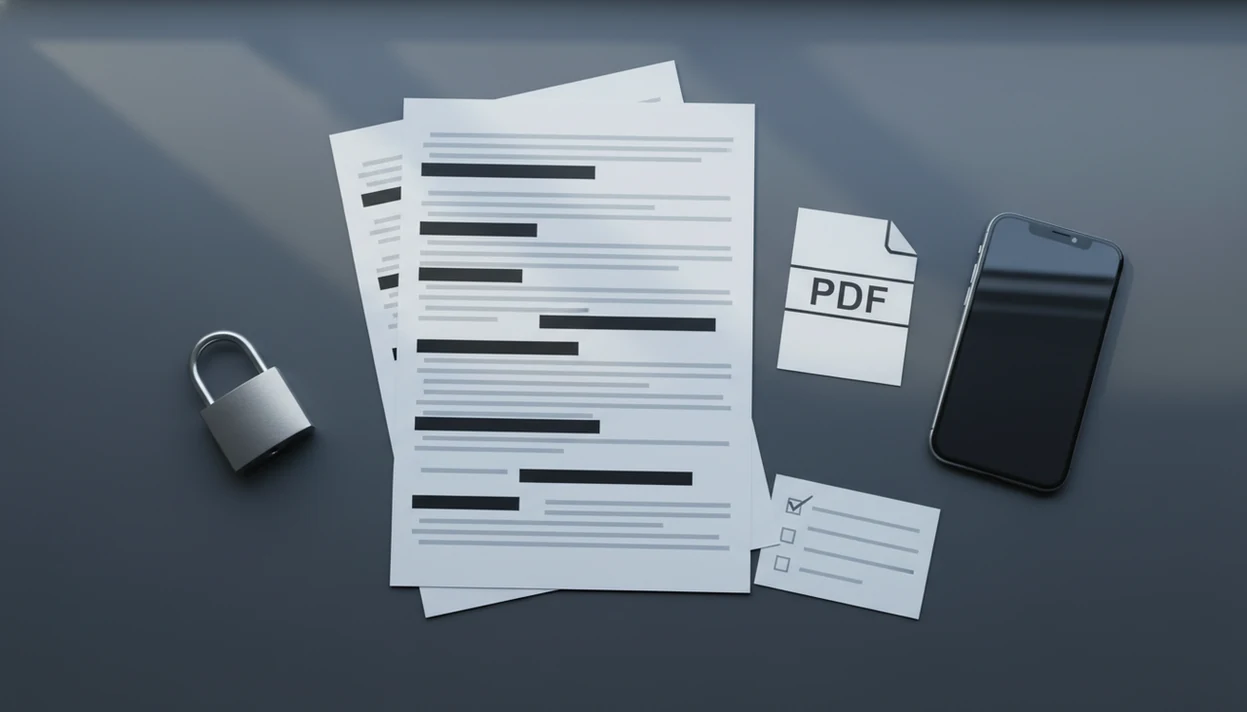
Use this confidential document conversion checklist before converting any sensitive DOCX into a shareable PDF: clean the Word file, verify the app’s privacy handling, protect the PDF, and check the final file before sending. The goal is to prevent hidden comments, tracked changes, metadata, weak passwords, or careless sharing from exposing private information.
> A confidential conversion checklist is a repeatable privacy review used before turning a sensitive Word or DOCX file into a PDF on iPhone, Android, or desktop.
- Remove tracked changes, comments, hidden text, metadata, and unintended headers or footers before conversion.
- Use DOCX, not legacy DOC, when applying modern labels, protection, and export controls.
- Protect the final PDF with appropriate encryption, a strong password, and a secure sharing method when confidentiality matters.
At-a-glance private Word to PDF checklist
- Check the source file first. Confirm you are converting the correct DOCX, especially for contracts, HR files, medical records, financial statements, and internal reports.
- Clean the Word content. Remove tracked changes, comments, hidden text, old headers, footers, author names, and embedded objects before export.
- Review the conversion app. Know whether the file stays on-device or gets uploaded; our safe Word to PDF app checks explain that review in more detail.
- Secure the exported PDF. Add encryption or password protection when the document contains private, regulated, or commercially sensitive material.
- Share, confirm, then delete extras. Verify the recipient, send passwords separately, and remove temporary copies from Downloads, Files, Recents, and cloud folders.
PDF conversion alone does not make a document private.
How a confidential Word to PDF checklist works
A confidential Word to PDF checklist works by separating content cleanup from file protection before a DOCX becomes a fixed-layout PDF. PDF export preserves the visible page layout, but it may also carry metadata, links, embedded objects, file properties, or comment-related information depending on the app and settings.
Cleaning the Word file means reviewing what is inside the source document. Protecting the PDF means controlling the exported file after conversion with encryption, passwords, permissions, and safer sharing. Those are different jobs.
On mobile, the risk often appears in small places: an iPhone Files preview, an Android Downloads folder, a cloud upload prompt, or a recent-files thumbnail. A converter should create a reliable exported PDF; it should not replace legal review, enterprise data loss prevention, or a full redaction process.
Sensitive DOCX cleanup before private Word to PDF conversion
What should you remove from a sensitive DOCX before private Word to PDF conversion? Accept or reject tracked changes, delete comments, and inspect hidden text before exporting the PDF.
Next, check headers, footers, footnotes, endnotes, text boxes, document properties, author names, company names, file paths, and embedded objects. We usually compare the Word file and PDF side by side to catch a shifted page break or a forgotten footer. The quiet stuff leaks.
Do not treat black boxes over text as proper redaction if the underlying words remain selectable, searchable, or recoverable. Use a real redaction workflow when information must be permanently removed.
If the file is an older DOC, save a working copy as DOCX before applying modern labels, protection, or export controls. For mobile workflows, a secure DOCX to PDF converter should fit that cleanup step instead of rushing past it.
Converter privacy checks on iPhone and Android
Before using a mobile converter for confidential material, check whether conversion happens on-device or requires upload to a server. If upload is required, read the privacy policy for file retention, deletion timing, third-party processors, analytics, and whether support staff can access submitted files.
Mobile adds its own paper trail. iPhone previews may appear in Files or Recents. Android may leave exported copies in the Downloads folder. Cloud backup, temporary files, shared tablets, and notification previews can also expose document names or first-page thumbnails.
Converter services such as Adobe Acrobat online and Smallpdf should be judged by published privacy terms, not assumptions. Product-specific privacy claims matter only when the app’s policy or documentation verifies them. If upload risk is the main concern, start with whether you can convert Word to PDF without uploading.
Password protection for confidential Word to PDF files
Sensitive PDFs may need password protection or encryption after conversion, not only protection on the original Word file. A Word-file password does not automatically secure every exported PDF workflow.
Use a strong, unique password that is not reused from email, payroll, banking, or shared team accounts. Send the password through a separate channel, such as a phone call, secure message, or approved password manager. Not the same email thread.
Permissions that limit printing, copying, or editing can help reduce casual misuse, but they are not absolute security. Some viewers ignore restrictions, and determined users may find workarounds. NIST describes encryption for stored data as an important safeguard for reducing exposure risk in digital files and documents source. For confidential files, the exported PDF needs its own security decision before it leaves your device.
Secure sharing rules for private Word to PDF documents
Verify every recipient before sending a private PDF. Autocomplete mistakes are common, especially when two clients, recruiters, or internal teams have similar names.
Use secure channels when the document contains health, financial, employment, legal, or client-confidential information. Open email attachments may be acceptable for low-risk files, but sensitive documents often belong in an approved portal, encrypted message, or access-controlled storage link. Avoid sending the PDF password in the same message as the file.
The tiny paperclip in Gmail can feel harmless until the DOCX becomes a PDF attachment addressed to the wrong person. According to the UK Information Commissioner’s Office, “data sent to the wrong recipient” and missing BCC, email, or document security controls are recurring breach causes source. A final recipient check is not busywork. It is part of the control.
High-risk confidential Word to PDF document examples
- Contracts and legal letters. These may expose negotiation notes, party names, signature blocks, or privileged comments if cleanup is skipped.
- Payroll files and HR complaints. Employee identifiers, allegations, salary details, and manager notes usually need stricter handling than ordinary office memos.
- Medical records, tax documents, and bank statements. Regulated or financial records may require organizational approval, retention rules, and enterprise tools beyond a consumer converter.
- Board reports and internal reports. Draft assumptions, acquisition notes, and hidden comments can carry business risk.
- Client proposals. Pricing, logos, and scope language should be checked in preview before sending; a proposal logo staying sharp on preview is useful, but privacy still comes first.
IBM reported an average global breach cost of $4.45 million in 2023, with healthcare much higher source. That statistic is not about one PDF, but it shows why document mishandling deserves a stricter checklist. After conversion, use a Word to PDF workflow after conversion that includes naming, storage, sharing, and deletion.
When to Use Approved Legal, Compliance, or IT Controls
Use approved legal, compliance, or IT controls whenever the document is regulated, contractually sensitive, or subject to company policy. A consumer converter may be fine for ordinary files, but it is not the right control when the organization needs proof of access, retention, approval, or revocation.
Before converting health records, legal files, tax documents, payroll material, background checks, banking records, or employment complaints, slow down and confirm the required path.
- Escalate the file to the responsible owner when it contains regulated health, legal, financial, or employment information.
- Ask privacy, legal, compliance, or IT what retention period, approval step, naming rule, and storage location apply before export.
- Use enterprise tools such as data loss prevention, information rights management, audit logging, or a secure portal when policy requires them.
- Avoid consumer conversion services when the PDF must support remote revocation, access logs, managed sharing, or recipient-level permissions.
- Document the decision if a sensitive file is converted outside the usual workflow, so the reason is not reconstructed later from memory.
The safest conversion is sometimes not a faster conversion. It is the one your organization can defend after the file is sent.
Limitations
A checklist reduces risk, but it cannot eliminate it. Use it as a control, not a guarantee.
- It cannot protect files on a compromised phone, laptop, email account, or cloud account.
- Weak passwords and outdated encryption may be cracked, guessed, reused, or bypassed.
- Unprotected PDFs can be forwarded, copied, uploaded, or printed after they leave your control.
- Many mobile apps do not fully support enterprise sensitivity labels, information rights management, access logs, or remote revocation.
- Visual redaction can fail if the underlying text remains in the Word file or PDF layer.
- Cloud backup, previews, recent files, and temporary folders may keep copies after conversion.
- Organizational policy, staff training, legal requirements, and approved tools still matter.
For regulated work, ask the responsible privacy, legal, compliance, or IT team before using a consumer converter. WordPDF can be part of a mobile conversion flow, but it should not be treated as a substitute for enterprise controls.
FAQ
Is document conversion to PDF secure for confidential files?
Word to PDF conversion can be secure only when the Word file is cleaned, the converter is trusted, the exported PDF is protected, and the sharing method is appropriate. Conversion by itself does not make a confidential document safe.
Does converting to PDF remove tracked changes?
Do not assume conversion removes tracked changes. Accept or reject tracked changes and remove comments in Word before exporting the PDF.
Can a PDF file contain metadata?
Yes, a PDF can contain metadata such as author, title, software, creation dates, modification dates, and other file properties. Review metadata before sharing confidential PDFs.
Should I password protect a confidential PDF?
Password protection is recommended when the PDF contains sensitive personal, financial, legal, medical, HR, or client information. Protect the final PDF, not only the original Word document.
Is DOCX safer than DOC for confidential files?
DOCX generally supports more modern protection, labeling, and document-management features than legacy DOC files. Save a working copy as DOCX before applying current security controls.
Can I redact text by putting black boxes over it?
No, black boxes are not reliable redaction if the underlying text remains in the file. Use a proper redaction tool or workflow that permanently removes the content.
Are mobile Word to PDF converters private?
Mobile converter privacy depends on whether files are uploaded, retained, backed up, logged, or accessible to third parties. Review the app’s policy and platform-specific details, such as Word to PDF app privacy iPhone and Android data safety disclosures.
How should I share a PDF password?
Send the PDF password through a separate secure channel from the PDF itself. Do not place the password in the same email, message, or upload note as the protected file.