
Word to PDF from OneDrive for Microsoft Word files
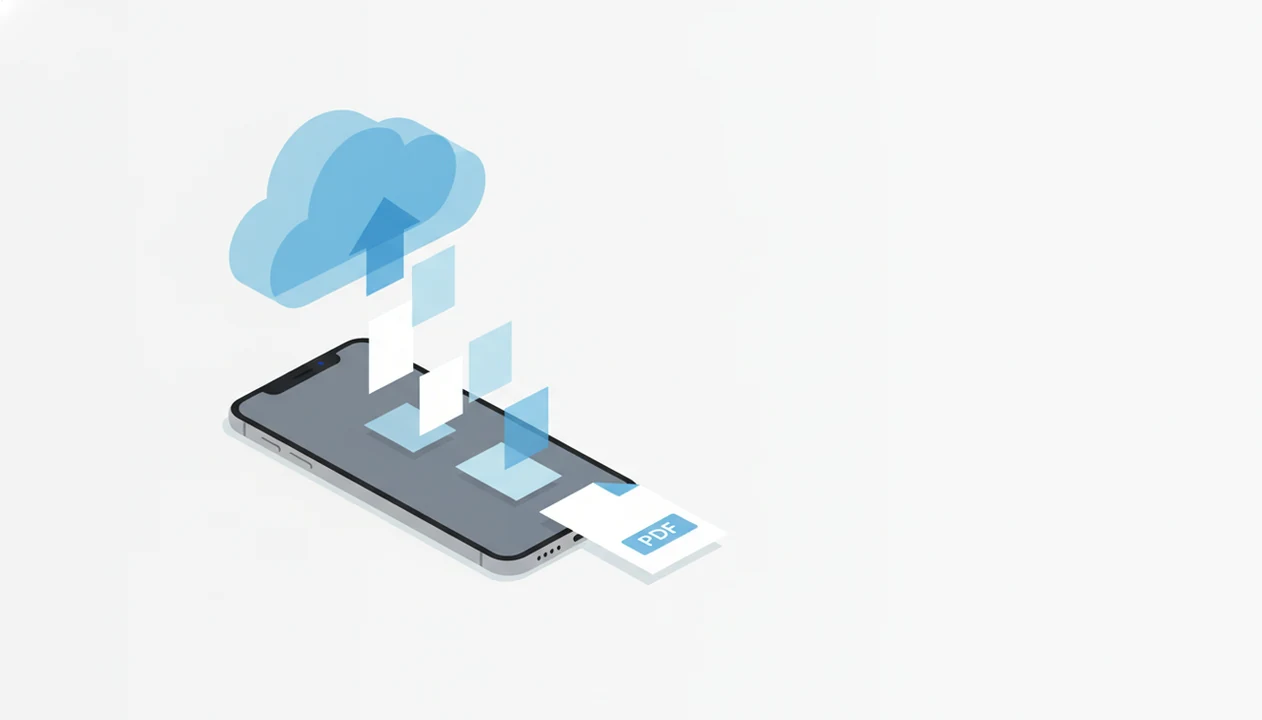
Word to PDF from OneDrive works best when you open the synced DOCX in the Microsoft Word mobile app, export or share it as a PDF, and save the finished PDF back to OneDrive or your phone. OneDrive stores and syncs the file, but Word or a dedicated converter app usually performs the actual DOCX-to-PDF conversion.
> Definition: DOCX-to-PDF conversion turns an editable Microsoft Word document into a fixed-layout PDF for sharing, printing, or submission from iPhone or Android.
- Open the DOCX from OneDrive, let it launch in Word, then use Export, Share, or Save as PDF.
- OneDrive by itself is mainly cloud storage; the conversion happens in Word or another compatible app.
- Check fonts, margins, images, and page breaks before exporting because the PDF locks the layout.
What Word to PDF from OneDrive means on mobile
Word to PDF from OneDrive means starting with a Word or DOCX file stored in Microsoft OneDrive, then creating a PDF from that document on your phone. OneDrive keeps the file synced, Word opens and edits it, and the export tool creates the fixed PDF.
That distinction matters. If a client asks for a non-editable copy, opening the DOCX in OneDrive is only the first step. You still need Word mobile, Word for the web, or another converter that can read the document layout and write a PDF.
People convert word from onedrive to share final versions, print cleaner copies, submit school work, or preserve spacing before a deadline. For a broader phone workflow, the same basic logic applies when you convert Word to PDF on phone.
OneDrive DOCX to PDF requirements before exporting
Before you try a OneDrive DOCX to PDF export, make sure the document can open cleanly on the phone you’re using. Mobile conversion is common now; Pew Research reported in 2021 that 85% of U.S. adults owned a smartphone (https://www.pewresearch.org/internet/2021/04/07/mobile-technology-and-home-broadband-2021/), so these file handoffs often happen away from a laptop.
- Signed-in OneDrive: The OneDrive app should be signed in to the correct Microsoft account and finished syncing.
- A conversion app: Microsoft Word mobile or another compatible DOCX converter should be installed before you tap the file.
- File access: The DOCX should be online or cached locally, especially if service is weak.
- Document size: Large files with photos, charts, or scanned images may take longer to open and export.
- Phone context: On Android, check the Downloads folder after export; on iPhone, check Files, OneDrive, or the share destination.
A hallway handoff feels longer when the progress spinner sits there.
How OneDrive DOCX to PDF conversion works behind the scenes
OneDrive DOCX to PDF conversion works by syncing the Word file, handing it to Word or another compatible app, and letting that app render the document into a fixed-layout PDF. OneDrive is the storage layer; the conversion engine is usually elsewhere.
The converter reads the document structure, including headings, fonts, images, margins, headers, footers, tables, and page breaks. Then it renders those elements into PDF pages. “Fixed layout” means the PDF should open with the same pagination on another device, instead of reflowing like an editable Word file.
Fix formatting before export. If a table spills past the margin or a page break shifts, the PDF will preserve that mistake. We usually compare the Word file and PDF side by side when a resume, invoice, or classroom essay has tight spacing.
Word to PDF conversion gives you a shareable final document, not a full PDF editing workspace.
How to use Word to PDF from OneDrive on iPhone or Android
Use Word to PDF from OneDrive by opening the DOCX in OneDrive, sending it into Word mobile, reviewing the layout, and exporting the finished PDF to a cloud or local location. The exact menu wording changes by app version, but the path is usually open, review, export, save.
- Open the OneDrive app and locate the Word or DOCX file you want to convert.
- Tap the document so it opens in Microsoft Word mobile or another DOCX-compatible app.
- Review the file before export, especially headings, tables, images, and page breaks.
- Choose Export, Share, Print, or Save as PDF, depending on the menu shown on your device.
- Save the exported PDF to OneDrive, the iPhone Files app, Android Downloads, or a share destination.
- Open the PDF once before sending it, even if the attachment row already shows the right file name.
If you mainly work on Apple devices, the iPhone-specific flow is covered in convert Word to PDF on iPhone.
Best OneDrive DOCX to PDF path for common mobile cases
The best OneDrive DOCX to PDF path depends on what you start with: an existing Word file, a simple phone conversion, or a paper document. Scanning to PDF is useful, but it is not the same as converting a DOCX file to PDF.
| Mobile case | Use this path | Good fit | Watch for |
|---|---|---|---|
| Existing DOCX in OneDrive | Open in Word mobile, then Export or Save as PDF | Edited Word files, resumes, reports | Word app access and layout review |
| Straight DOCX conversion | Use a focused converter app | Quick iPhone or Android exports | Confirm where the PDF saves |
| Paper document | Use OneDrive scan-to-PDF | Receipts, handouts, signed paper | Creates an image-based PDF, not a DOCX export |
For existing Word files, Word mobile is often the clearest path because it opens the synced document in its native editor before export. A focused converter app can also help when you want a focused converter without extra PDF tools. A good word to pdf converter app turns DOCX and Word documents into shareable PDF files on iPhone and Android, not a general editing suite for every PDF task.
If you are choosing between tools, compare Microsoft Word mobile, Word for the web, Adobe Acrobat online tools, and a dedicated DOCX-to-PDF converter. Word mobile is usually best when layout fidelity matters; Acrobat-style tools are better when the PDF needs editing after export.
Checks before you convert Word from OneDrive to PDF
Before you convert Word from OneDrive to PDF, check the Word file as if the PDF cannot be easily fixed later. That is close to how it behaves in practice; PDF preserves the layout and makes many mistakes harder to correct.
- Headings: Confirm titles, section breaks, and numbered headings still look intentional.
- Margins: Look for text sitting too close to the page edge, especially after mobile edits.
- Page breaks: Check that a signature line, chart, or final paragraph did not jump alone.
- Tables: Preview borders and columns so totals stay aligned in neat columns.
- Images: Make sure logos, screenshots, and photos are not cropped or blurry.
After export, open the PDF from OneDrive, Files, or Downloads. Rename it clearly before sharing, such as `Garcia_Resume.pdf` or `Invoice-1042.pdf`. For layout-heavy files, the deeper guide on Word to PDF without losing formatting is worth using before the final export.
Common OneDrive Word to PDF mistakes on phones
Most OneDrive Word to PDF mistakes on phones come from mixing up storage, editing, export, and sharing. The file may look “done” in OneDrive, but that does not mean a PDF has been created.
- Expecting OneDrive alone to convert: OneDrive usually stores and syncs the DOCX; Word or another app performs the conversion.
- Downloading too early: You may not need to download first if OneDrive can open the file directly in Word.
- Confusing markup with editing: PDF comments and highlights are not the same as full text editing.
- Working offline too soon: Export can fail if the DOCX was never cached locally.
- Sending the wrong file: The email attachment must end in `.pdf`, not `.docx`.
The tiny Gmail paperclip is a useful final check. If it still shows the Word draft, stop and reattach the exported PDF.
How to verify a Word to PDF from OneDrive export
Did the Word to PDF from OneDrive export actually work? Open the finished PDF from OneDrive or local storage, then check the file name, extension, page count, layout, images, and readability before you submit or send it.
Start with the file extension. It should end in `.pdf`, not `.docx`. Then open the file in OneDrive, iPhone Files preview, Android Downloads, or the app you plan to share from. A thumbnail preview of the first PDF page is helpful, but it is not enough.
Students should be extra careful here. An EDUCAUSE student technology report found that 86% of students used smartphones to access course materials (https://www.educause.edu/ecar/research-publications/2021/students-and-technology-report-rebalancing-the-student-experience/introduction-and-key-findings), so phone-based coursework uploads are normal. Send a test copy to yourself if a portal, teacher, or recruiter says “PDF only.” For Android-specific storage details, use the guide to convert DOCX to PDF on Android.
Limitations
OneDrive-to-PDF workflows are practical on phones, but they have limits. Treat the export as a final-copy step, not a full document repair tool.
- OneDrive itself generally stores and syncs files rather than performing DOCX-to-PDF conversion.
- Word mobile or a compatible converter app may be required to create the PDF.
- Offline export may fail if the DOCX is not available locally on the phone.
- Large or image-heavy DOCX files can be slower and may fail on older devices.
- PDF export does not provide advanced PDF editing, form creation, or digital signature workflows.
- PDF-to-Word conversion is a separate workflow and may not preserve layout perfectly.
- Some Microsoft 365 account features vary by device, region, app version, or organization policy.
- A school or workplace account may block sharing, downloading, or opening files in third-party apps.
Dedicated converter apps can simplify the conversion step, but they cannot fix every layout problem that already exists in the Word file.
FAQ
Can OneDrive convert a Word document to PDF by itself?
OneDrive usually stores and syncs the Word file, while Word or another compatible app performs the DOCX-to-PDF conversion. Some workflows may open from OneDrive directly into Word for export.
How do I convert a OneDrive Word file to PDF on iPhone?
Open the DOCX in the OneDrive app, let it open in Word mobile, then use Export, Share, Print, or Save as PDF. Save the PDF to OneDrive, Files, or the app where you plan to send it.
How do I convert a OneDrive Word file to PDF on Android?
Open OneDrive, tap the DOCX, and open it in Word mobile. Use Export, Print, or Save as PDF, then check OneDrive or the Android Downloads folder.
Is converting a Word file from OneDrive to PDF free?
Basic export may be free in Word mobile or another app, but some account, app, or organization limits can apply. A dedicated DOCX-to-PDF converter is another option for focused DOCX-to-PDF conversion.
Where does the PDF save after I export it from OneDrive or Word?
The PDF may save to a OneDrive folder, iPhone Files, Android Downloads, or the share target you selected. Check the final location before assuming the export is complete.
Can I convert a OneDrive Word document to PDF while offline?
Offline conversion depends on whether the DOCX is cached locally and whether the needed app is available. If the file only exists online, the export may fail without a connection.
Can OneDrive scan paper documents to PDF instead of converting a DOCX?
Yes, OneDrive can scan paper documents and save them as PDFs. That scan-to-PDF workflow is different from converting an existing Word or DOCX file into a PDF.