
Word to PDF images: keep pictures sharp and in place
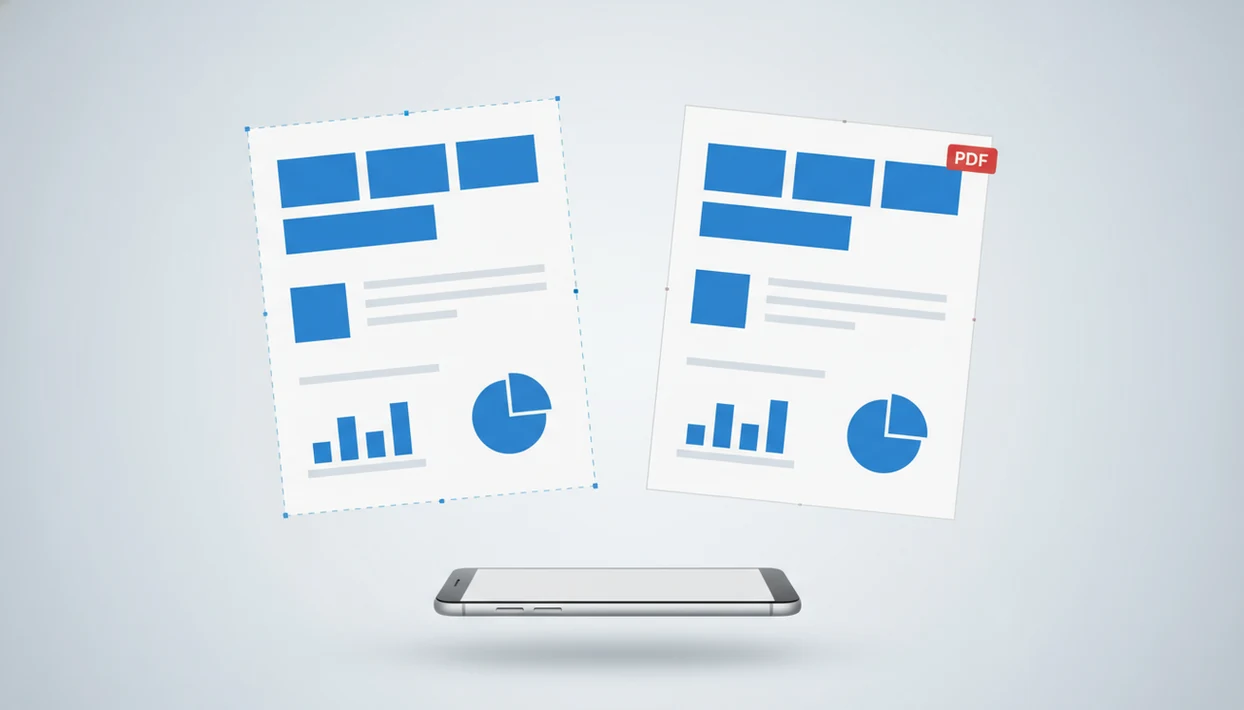
To keep pictures sharp and correctly placed, convert from the original DOCX with a reliable export or DOCX-to-PDF converter, then check image placement, logo clarity, and chart labels before sending. Most image problems come from floating objects, text wrapping, low-resolution source images, or converters that compress files too aggressively.
Definition: WordPDF is a mobile word-to-PDF app that converts DOCX and Word documents into PDF files for people using iPhone and Android.
TL;DR
- Use Save as PDF, Export to PDF, or a converter app built for image-rich DOCX files rather than print-to-PDF when quality matters.
- Inline images usually stay more stable than floating images, especially in documents with columns, charts, logos, and custom fonts.
- Always review the final PDF at 100% and zoomed in before sending, because a picture can look acceptable on a phone but blurry in a shared or printed PDF.
Word to PDF images definition for sharp DOCX files
Word to PDF images means preserving pictures, screenshots, logos, charts, and their exact page placement when a Word document becomes a PDF. The goal is not just to create a PDF. It is to keep the visual parts looking like they did in the DOCX file.
When conversion goes wrong, images shift, disappear, blur, compress, or overlap nearby text. We see this most often in resumes, invoices, proposals, school forms, and reports built on a phone. A recruiter asking for “PDF only” at the last minute is usually when the problem becomes urgent.
On iPhone and Android, the safest habit is simple: convert, open the exported PDF, then inspect the pages with images before you send.
Five facts about Word images that shift in PDF
- Export or Save as PDF is usually more reliable than Print to PDF for keeping image placement and document structure intact.
- Converter quality varies, especially on mobile. Two apps can handle the same image-heavy DOCX file differently.
- Floating images, wrapping, SmartArt, charts, and custom fonts create the highest shift risk because the converter must rebuild a more complex layout.
- On-device conversion can be preferable for sensitive documents compared with unknown online converters. A 2022 Pew Research Center survey found that 64% of U.S. adults say they have experienced some type of data theft or fraud, which is a fair reminder to be careful with uploads to online tools: source.
- A PDF cannot restore detail missing from a low-resolution image already placed in Word.
The pocket check is real. Open the PDF, not just the success message.
How Word to PDF images conversion works
Word stores images as anchored objects with layout rules, not just as flat pixels on a page. An image may be inline with text, which makes it behave like a large character, or floating, which lets it sit beside, behind, or in front of text.
Floating objects are more fragile. Their position depends on anchors, margins, columns, wrapping, fonts, and page breaks. During conversion, the export engine rebuilds the Word layout into fixed PDF pages. That fixed-page model is why PDFs are shareable, but it also exposes small layout differences.
If a custom font is missing, a line can reflow. If a margin changes, a chart can move. If text wrapping is set to tight or behind text, an object can land differently in the PDF.
Blurry images usually come from compression or downsampling. In plain terms, the converter reduces image data to make the file smaller. For broader layout issues, the same checks apply to Word to PDF without losing formatting.
Before converting Word to PDF images on phone
How should you prepare DOCX-to-PDF images on a phone? Start from the original DOCX whenever possible, not a copy that has been downloaded, edited, re-uploaded, and compressed several times.
Use high-resolution logos, charts, and screenshots inside Word before you convert. Avoid shrinking file size too early, especially if the document will be printed or reviewed on a larger screen. If the file uses a custom font, confirm that the font is available or embedded where possible; font swaps can push image anchors onto a new line.
According to Deloitte’s 2020 US mobile consumer survey, 47% of U.S. smartphone users use phones for work-related tasks daily, including viewing and sharing documents like PDFs: source.
For iPhone or Android work away from a desktop, use a reliable mobile DOCX-to-PDF app and then check the exported PDF in Files, Downloads, or your mail app before sending.
How to use Word to PDF images conversion
For image-heavy documents, the cleanest workflow is prepare, convert, inspect, then share. Do not skip the inspection step just because the converter says the file is finished.
- Prepare the DOCX by checking image resolution, wrapping, page breaks, and fonts before conversion.
- Open the file in Word, a trusted export tool, or a focused mobile converter such as WordPDF.
- Choose quality-oriented settings if the app offers high quality, preserve images, or reduced compression options.
- Convert the document from DOCX to PDF without editing the PDF afterward unless you need a separate PDF tool.
- Review the exported PDF at normal size and zoomed in, especially around logos, screenshots, and charts.
- Share the final PDF from the Files app, Android Downloads folder, Google Drive upload, or email attachment screen.
For job applications, export first, then confirm the PDF attachment chip appears in Gmail before submitting.
Word images shift in PDF layout fixes
If Word images shift in PDF output, change floating images to inline with text when stability matters more than fine positioning. Inline images usually travel with the paragraph, which makes them less likely to drift during conversion.
Text wrapping is the next place to look. Square, tight, in front of text, and behind text all give Word more layout decisions to preserve. A converter may interpret those rules slightly differently, especially on mobile. If an image overlaps a paragraph in the PDF, wrapping is often the cause.
Simplify the file before reconverting. Reduce nested tables, manual page breaks, grouped objects, and complicated columns. Keep logos and charts away from margin edges when possible, because tiny page-size differences can clip or nudge them.
SmartArt and editable charts may export more predictably if you convert them to images inside Word first, once editing is no longer needed. Font-driven movement is covered separately in preserve fonts Word to PDF.
Best methods to keep images in PDF files
The safest method for keeping images in PDF files depends on layout complexity, phone access, and privacy. Microsoft Word Export/Save as PDF is usually the most stable first try; WordPDF is convenient on iPhone and Android; and browser tools such as Adobe Acrobat online, Smallpdf, or iLovePDF can vary because they require an upload and may apply different compression settings.
| Method | Image placement | Image sharpness | Convenience on phone | Privacy considerations |
|---|---|---|---|---|
| Word Export/Save as PDF | Usually strong | Usually strong | Medium | File may stay local if done in Word |
| Mobile Word to PDF app | Good if app supports image-rich DOCX files | Varies by settings | High | On-device conversion helps sensitive files |
| Browser-based converter | Varies widely | Varies widely | High with internet | Requires upload to a third party |
| Print to PDF | Fine for simple files | May flatten or compress | Medium | Usually local, but output can be less precise |
A good word to pdf converter app that turns docx and word documents into shareable pdf files on iphone and android should deliver a dependable exported PDF, not a full design suite or PDF editing workspace.
If the file also has clickable links, check image placement and preserve hyperlinks Word to PDF before sending.
PDF image quality check before sending
Open the final PDF itself before sending. Do not rely on the conversion success screen, because that only confirms that a file was created.
Check the first page, every page with a logo, each chart page, and any screenshot-heavy section. Zoom in on chart labels, tiny icons, signatures, QR codes, and fine lines. If placement matters, compare the Word file and PDF side by side to catch a shifted page break or a logo that moved closer to the margin.
We often check a converted PDF in the iPhone Files preview before attaching it. On Android, open the file from Downloads, not just from a temporary app preview.
According to a 2020 IDC white paper sponsored by Adobe, employees spend an average of 3.1 hours per day on document-related tasks: source. For business-critical files, send a test copy to another device before the real deadline.
Limitations
No converter can remove every image problem from every Word file. These limits are worth knowing before you blame the app or the phone.
- Low-resolution source images cannot become sharp just because they are placed in a PDF.
- Extremely complex layouts can still shift slightly, especially with many floating objects.
- Some mobile apps and online converters compress images by default to reduce file size.
- Older phones may struggle with very large image-heavy DOCX files.
- Custom fonts, SmartArt, charts, and grouped objects may render differently after conversion.
- Print to PDF can work for simple documents, but it may flatten visual elements.
- This page is about document-to-PDF conversion, not PDF editing or PDF to Word conversion.
For margin-sensitive documents, a separate preserve margins Word to PDF check can prevent edge clipping.
FAQ
Why do images move after DOCX-to-PDF conversion?
Images move because Word uses anchors, wrapping rules, fonts, margins, and page layout instructions. Floating images are more likely to shift than inline images.
How do I keep images sharp when saving Word as PDF?
Start with high-resolution images, avoid repeated compression, and use Save as PDF, Export to PDF, or a quality-focused converter. Then zoom into the exported PDF before sending.
Is Print to PDF worse for Word documents with images?
Print to PDF can work for simple files. Complex Word documents may flatten, compress, or reposition images during print-style output.
Do phone converters compress Word images in PDFs?
Some mobile converters compress images by default to reduce file size. Choose high-quality settings or a better app when logos, screenshots, or charts must stay sharp.
Should Word images be inline before converting to PDF?
Inline images are usually more stable because they move with the surrounding text. Floating images offer more design control but create more conversion risk.
Can a PDF conversion fix a blurry logo in Word?
No. A PDF conversion cannot restore detail missing from a low-resolution or already pixelated logo.
Are online Word to PDF converters safe for image-heavy files?
Privacy practices vary by service, and uploads may expose sensitive document content. Sensitive image-heavy files are often better converted on-device with a trusted app such as WordPDF.