
Benefits of converting Word to PDF for sharing
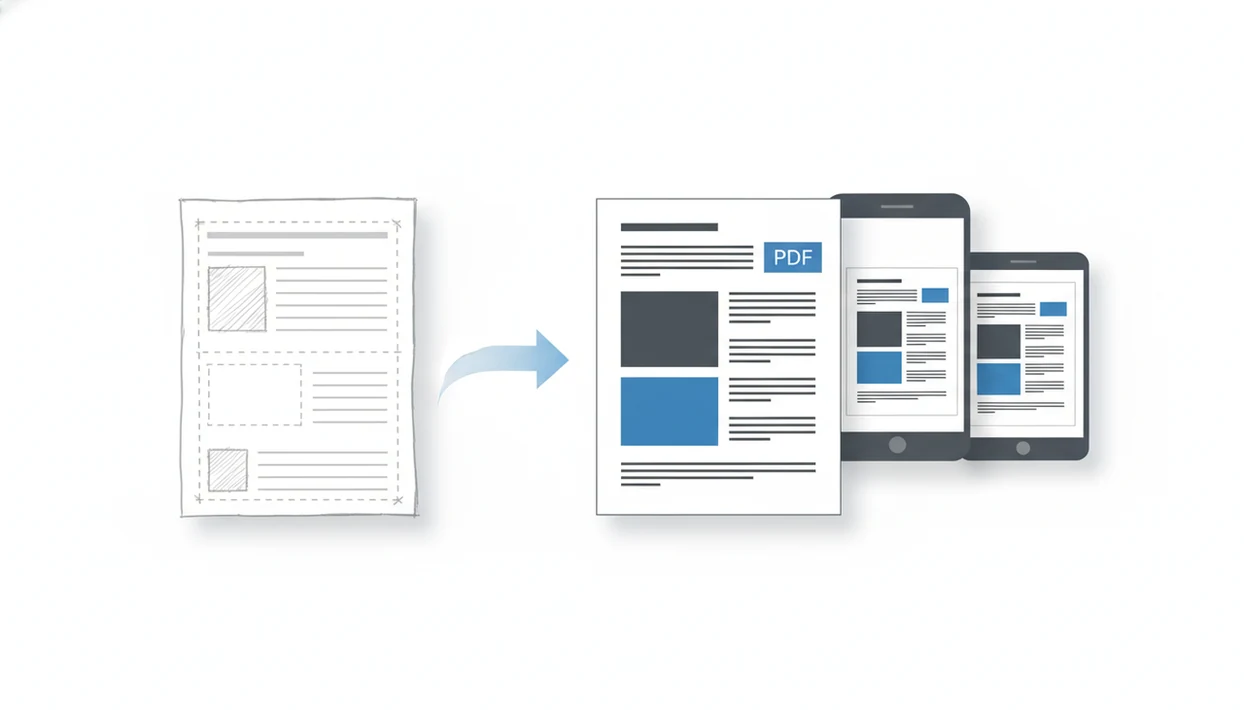
The benefits of converting Word to PDF are simple: your document keeps its layout, opens more reliably on phones, prints cleaner, and is easier to share as a final version. For mobile users, PDF is usually the better format when the recipient needs to view, save, print, or forward the file without editing it.
> WordPDF converts DOCX files into PDFs on iPhone and Android when you need a finished document from your phone.
- Convert Word to PDF when you want a finished document to look the same on iPhone, Android, tablets, and computers.
- PDF is better for sharing, printing, and final review; Word is better when the recipient still needs to edit the text.
- Mobile-friendly PDFs still need good source formatting, readable fonts, and sensible compression to avoid zooming or slow downloads.
At-a-glance benefits of converting Word to PDF
Converting Word to PDF helps most when a document is finished and needs to look stable for someone else. PDF preserves formatting, fonts, images, page breaks, and spacing better than sending an editable Word file.
That matters on phones. A recruiter asking for “PDF only” in an application form is not asking you to gamble on DOCX rendering. PDF files usually open through built-in viewers, browsers, email apps, or free readers, without Microsoft Word installed. Adobe describes PDF as a format built for reliable document exchange and consistent display across devices source.
The practical wins are plain: cleaner printing, a more finished appearance, easier email or messaging, and fewer layout surprises. Final means final.
Five facts about why convert DOCX to PDF on mobile
- PDF preserves structure. A converted PDF usually keeps layout, fonts, images, margins, headers, footers, and page breaks more consistently across devices.
- PDF improves compatibility. Recipients without Microsoft Word can often open PDFs through iPhone preview, Android viewers, browsers, email clients, or free reader apps.
- PDF can be compressed. Compression can make upload, download, email, and mobile-data sharing easier, especially for image-heavy reports or school files.
- PDF can support security settings. Passwords, encryption, and restricted editing can be applied to PDFs, but conversion alone does not add those protections.
- Mobile apps remove the desktop step. A dedicated Word to PDF app lets iPhone and Android users convert, save, and share from the same device.
A good mobile DOCX-to-PDF converter should export a stable PDF, preserve visible layout, and make saving or sharing obvious without pretending to be a full desktop publishing suite.
How Word to PDF conversion works
Word to PDF conversion reads the editable DOC or DOCX file and renders its content into fixed PDF pages with stable page coordinates. In plain terms, the converter decides where every line, image, table, and footer should sit on the page.
The process uses the Word file structure: text, styles, fonts, images, margins, headers, footers, tables, metadata, and page breaks. It does not simply take a screenshot. A PDF can package text, image data, vector objects, document metadata, and sometimes embedded fonts into a document exchange format. If you want the deeper mechanics, our guide to what happens when you convert Word to PDF explains the handoff.
However, unusual fonts, macros, complex fields, and Word-only features may not survive perfectly. We still compare the Word file and PDF side by side when a shifted page break would change the meaning.
How to use a Word to PDF app on iPhone or Android
Use a mobile DOCX-to-PDF converter when the source file is on your phone and the next step is sending, uploading, or printing a finished PDF. The flow should stay focused on conversion, not PDF-to-Word, scanning, or unrelated editing.
- Select the DOC or DOCX file from Files, Google Drive, email, Downloads, or another file manager folder.
- Preview the layout before export, including margins, page breaks, headers, footers, and visible dates near the page edge.
- Choose PDF output settings such as file name, destination folder, and compression when available.
- Convert the Word file into an exported PDF.
- Open the PDF once, then check it in iPhone Files preview or the Android Downloads folder.
- Share it through email, messaging apps, cloud storage, or an upload portal.
Tools like WordPDF fit this mobile handoff when you need the DOCX to become a shareable PDF quickly. For file-source examples, the DOCX to PDF guide for mobile covers more starting points.
Advantages of PDF for phone sharing and opening
Does PDF make phone sharing easier than Word? Usually, yes, because PDFs are widely viewable and do not assume the recipient has Microsoft Word installed.
Mobile document sharing is now normal. Pew reported that 70% of U.S. adults used a smartphone for work-related tasks at least occasionally in a 2020 survey source. Pew also reported 81% U.S. adult smartphone ownership in 2019 source. Those numbers explain why attachments get opened in Gmail, Messages, WhatsApp, browser previews, and cloud apps before anyone reaches a laptop.
PDF’s fixed layout helps with resumes, invoices, forms, reports, school files, and client documents. The tiny paperclip icon in Gmail feels less risky when the attachment has changed from DOCX to PDF. For job applications, PDF is often easier than Word because the recruiter sees the same margins and page breaks you checked.
Word versus PDF for final document sharing
Word is better when the recipient still needs to edit text, add comments, or track changes. PDF is better when the document is final and the sender wants consistent viewing.
| Use case | Word file | PDF file | Best choice |
|---|---|---|---|
| Editing text | Easy to revise | Harder to edit directly | Word |
| Final review | Can shift by app or device | More stable layout | |
| Printing | May reflow on another setup | Usually cleaner page output | |
| Emailing | Useful for collaboration | Better for finished attachments | |
| Mobile viewing | May require Word or compatible app | Opens in many viewers | |
| Layout preservation | Less predictable across systems | Stronger fixed layout | |
| Sensitive documents | Editable unless protected | Can add passwords or restrictions | PDF, with settings |
For final sharing, PDF usually works better than Word because the file is meant to be viewed, printed, or forwarded rather than rewritten. If timing matters, the Word to PDF conversion timeline explains what usually happens from selection to saved file.
Mobile PDF formatting tips before converting Word
PDFs do not automatically become mobile-friendly just because they are PDFs. A cramped Word layout can still force pinching, zooming, or sideways scrolling after conversion.
- Single-column layout. One column is easier to read on phones than newsletter-style columns.
- Readable font sizes. Body text that looks fine on a laptop may feel tiny on a campus bench upload screen.
- Reduced margins. Very wide margins waste screen space and can make short paragraphs feel chopped up.
- Short paragraphs and clear headings. Mobile readers scan first, then slow down.
- Compressed images. Large images can make PDFs slow to download over mobile data.
Research on mobile reading found that smaller screens can reduce reading speed and comprehension compared with larger screens source. For mobile readers, a simple one-column Word layout is often better than a decorative layout because it converts into a PDF that needs less zooming.
Limitations
PDF conversion solves many sharing problems, but it does not fix every document problem.
- PDF is not ideal when the recipient still needs to edit the original text or collaborate in Word.
- Complex macros, embedded objects, advanced interactive fields, or custom fonts may not convert perfectly.
- PDFs are not automatically secure; passwords, encryption, or permission settings must be applied separately.
- PDFs are not always smaller than Word files, especially when large images are included or compression is not used.
- A fixed PDF can still be hard to read on a phone if the Word layout was not designed for small screens.
- Password-protected PDFs can create access problems if recipients use limited apps or forget credentials.
- Relying only on phone storage creates data-loss risk if the device is damaged, lost, or replaced.
One more practical caution: save the exported PDF beside the original Word file when possible. That makes it easier to resend the right version later.
FAQ
Why convert DOCX to PDF?
Convert DOCX to PDF when you want to preserve layout, improve opening reliability, and share a document as a final file. It is especially useful for resumes, invoices, reports, and uploads.
Is PDF better than Word?
PDF is better for final viewing, printing, and sharing. Word is better for editing, comments, tracked changes, and collaboration.
Does PDF keep formatting?
PDF usually preserves fonts, spacing, images, and page breaks better across devices than an editable Word file. Always preview the exported PDF before sending.
Can phones open PDF files?
Most iPhone and Android users can open PDFs through built-in viewers, browsers, email apps, or free reader apps. WordPDF can help create that PDF from a DOCX file on mobile.
Are PDFs smaller than Word files?
PDFs can be smaller when compressed. Image-heavy or uncompressed PDFs may be larger than the original Word file.
Does PDF make files secure?
PDF can support passwords, encryption, and permission settings. Conversion alone does not automatically secure the file.
Can PDFs be edited?
PDFs are harder to edit than Word files, but they can still be annotated or modified with certain tools. WordPDF is focused on conversion, not full PDF editing.
When should I send Word instead?
Send Word when the recipient needs to revise text, track changes, or continue collaborating. Send PDF when the document is ready for final viewing or submission.