
What Happens When You Convert Word to PDF?
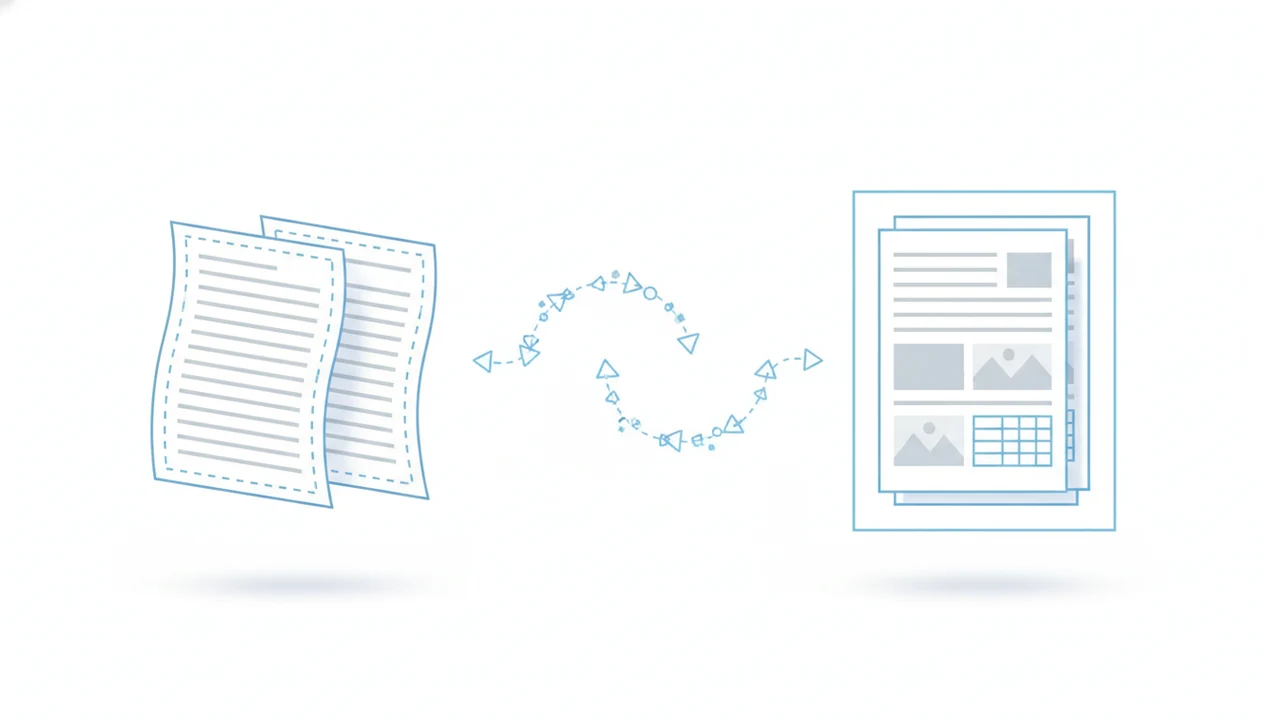
When you ask what happens when you convert Word to PDF, the short answer is that your editable Word document is rendered into a fixed-layout PDF that preserves pages, fonts, images, and spacing for consistent viewing. Some elements can change during conversion, especially fonts, comments, accessibility tags, image quality, and interactive features.
> Definition: Word to PDF conversion is the process of turning a DOC or DOCX file into a fixed, portable PDF file designed to display consistently across devices.
- A Word file is editable and reflows; a PDF is fixed and easier to share without layout shifts.
- The DOCX to PDF process usually preserves page layout, images, links, and many fonts, but unsupported features can change.
- Word conversion changes are most common with missing fonts, complex formatting, comments, tracked changes, forms, and compressed images.
Word to PDF conversion definition for DOCX files
Word to PDF conversion changes a reflowable editing file into a fixed-layout delivery file. A Word document can shift when someone opens it with different fonts, screen sizes, or app settings; a PDF is meant to hold the page shape in place.
It is not the same as renaming `resume.docx` to `resume.pdf`. A converter has to read the Word file, render the pages, and create a new PDF file. That matters for resumes, contracts, reports, invoices, and forms where the page needs to arrive looking finished.
A mobile converter can turn DOCX and Word documents into PDF files on iPhone or Android, but the exported PDF still needs a quick preview before sending.
If an upload portal requires PDF, a DOCX file may be rejected before anyone reviews the document.
How the DOCX to PDF process works
How does the DOCX to PDF process work? A converter reads the Word file, calculates page layout, places text and objects, embeds or substitutes fonts, and writes those results as PDF pages.
That rendering step is why two tools can produce slightly different PDFs from the same DOCX file. Microsoft Word on Windows, an iPhone export tool, an Android app, a browser converter, and a desktop PDF app may use different layout engines. We test this by opening the exported PDF in the iPhone Files preview and checking whether the footer date still sits above the page edge.
On mobile, conversion may happen on the device or through a cloud service. Cloud processing can be faster for large files, but it changes the privacy question for sensitive documents. Font embedding is one core reason PDFs preserve layout across platforms; the Library of Congress notes PDF’s ISO 32000 support for embedded fonts and its broad web presence, including about 7% of crawled file types in one Common Crawl analysis source.
For a deeper mobile file path, the DOCX to PDF guide for mobile covers source files, uploads, and exports.
How to use Word to PDF conversion
Use Word to PDF conversion when the document is finished enough to send, submit, print, or archive. The goal is to create a stable delivery copy while keeping the Word file as the version you can still edit later.
- Open the final DOCX file, not a working draft with unresolved comments, placeholder text, or unfinished formatting. If the document still needs edits, make those in Word first.
- Choose a reliable export path: Word’s built-in export command, print-to-PDF, or a trusted converter that supports DOCX files and preserves layout well.
- Save the PDF with a clear filename that identifies the version, such as `proposal-final-2026-05-27.pdf` or `resume-marketing-v3.pdf`.
- Preview the exported PDF before sending it. Check page breaks, fonts, links, images, headers, footers, and whether comments or tracked changes appear unexpectedly.
- Keep the original DOCX as the editable source file. If someone asks for revisions, update the Word document and export a fresh PDF instead of editing the PDF as your master copy.
Five Word conversion changes readers should expect
- Page layout becomes fixed. A Word file can reflow as the window or app changes; the PDF locks page breaks, margins, and object positions.
- Fonts are embedded or replaced. If the converter can embed the font, the PDF keeps the intended look. If not, a substitute font can change spacing.
- Images may be compressed. The exported PDF can be smaller, but fine image detail may suffer, especially for print-heavy reports.
- Some interactive features change. Hyperlinks and bookmarks often survive, but comments, macros, media, and tracked changes may be removed, flattened, or simplified.
- The PDF is harder to edit. The Word file remains the drafting copy; the PDF is the version you open, share, print, or submit.
For most users, Word is the working file and PDF is the delivery file because PDF reduces layout surprises after sending.
Layout, fonts, images, and links after Word to PDF
Most basic document elements stay in place after Word to PDF conversion. Margins, page breaks, tables, headers, footers, images, and standard links usually carry over when the source DOCX is clean.
Fonts are the common trouble spot. If a font is missing, restricted, or unavailable to the converter, the PDF may use a substitute. That can nudge line breaks, spacing, and pagination. We often compare the Word file and PDF side by side to catch one shifted page break before sending a resume.
Image compression is useful when the PDF has to fit an upload limit, but it can reduce print quality. Hyperlinks usually remain clickable when generated by a modern converter. A good word to pdf converter app that turns docx and word documents into shareable pdf files on iphone and android should create a dependable final PDF, not promise full PDF editing, legal review, or security by default.
Word file versus PDF file after conversion
Word is better for drafting, revising, and collaboration. PDF is better for sharing, printing, and archiving when the page should not move. Nielsen Norman Group has reported that PDFs are often preferred for printing and archiving, especially for reports and manuals source.
| Area | Word file after drafting | PDF file after conversion |
|---|---|---|
| Editability | Easy to edit text and styles | Harder to edit directly |
| Layout behavior | Can reflow between apps | Fixed page layout |
| Fonts | Depends on installed fonts | Embedded when possible |
| Images | Original quality may remain | May be compressed |
| Links | Editable in the document | Often clickable |
| Comments | Supports comments and tracking | May be flattened or removed |
| File size | Can be large with media | May shrink after compression |
| Sharing | Can open differently for recipients | Widely supported and common on the web |
| Printing | May shift by app or printer settings | Usually more predictable |
Do not treat a converted PDF as a backup editing copy. If you need to keep revising, keep the DOCX too. The practical tradeoffs are covered further in our benefits of converting Word to PDF.
When Word to PDF conversion applies on phones
Phone conversion makes sense when the document is ready to send and should not reflow. Common examples include resumes, school assignments, contracts, invoices, reports, instructions, forms, and any file a portal accepts only as PDF. Pew Research Center reports that 91% of U.S. adults own a smartphone source, which helps explain why mobile document conversion is now a normal workflow rather than an edge case.
Keep the DOCX when the file is still being actively edited, needs comments, or depends on tracked changes. The last-minute recruiter form that says “PDF only” is a good conversion moment; a group draft with unresolved comments is not.
How to use Word to PDF conversion on a phone:
- Open the DOCX file from Files, Downloads, Drive, or your mail app.
- Export or share it to a PDF-capable converter.
- Name the exported PDF clearly before sending.
- Preview the PDF and check page breaks, fonts, and links.
- Attach the PDF to the email, portal, or message thread.
A focused mobile converter fits this narrow job: fast, reliable DOCX-to-PDF export for iPhone and Android when the file is ready to send. For timing expectations, use the Word to PDF conversion timeline.
Common myths about Word conversion changes
Conversion is reliable for ordinary documents, but it does not guarantee every advanced feature survives untouched. The practical truth depends on fonts, source formatting, converter settings, and whether the file was built cleanly.
Myth: every PDF is pixel-perfect
A converted PDF is usually close to the Word layout, not automatically identical in every pixel. Missing fonts, text effects, unusual tables, and unsupported objects can cause small shifts. The table border that looked clean in Word deserves one PDF preview check.
Myth: every PDF is automatically secure
Conversion alone does not encrypt the file or stop copying, printing, or forwarding. Password protection and permissions must be applied separately.
Other myths matter too. A converted PDF is not automatically accessible for screen readers, and reverse conversion back to Word may lose styles, spacing, or objects.
Limitations
Word to PDF conversion is useful, but it has real limits. Check these before submitting the final file:
- Missing fonts can trigger substitutions and change spacing, line breaks, or page breaks.
- Macros, embedded media, comments, and tracked changes may be flattened, removed, or simplified.
- Accessibility tags, headings, reading order, and alt text may not be preserved perfectly by every converter.
- Free or mobile tools may process files in the cloud, which raises privacy concerns for sensitive documents.
- Image compression can reduce file size but harm print quality.
- PDFs are harder to edit after conversion, so finalize the Word file first.
- Repeated round-tripping between DOCX and PDF can degrade formatting.
Tiny issues become visible late.
If a document has legal, medical, academic, or contractual consequences, review the exported PDF before sending it. For a broader reliability check, our guide on does Word to PDF conversion work explains common pass and fail cases.
FAQ
Does conversion change formatting?
Word to PDF usually keeps formatting stable, including margins, page breaks, images, and tables. Fonts, spacing, comments, and unsupported features can still shift.
Are PDFs harder to edit?
Yes. PDFs are designed mainly for sharing, viewing, printing, and archiving, while Word files are better for editing.
Do hyperlinks survive Word to PDF?
Most modern converters preserve standard web and email hyperlinks. Complex bookmarks, cross-references, or custom link behavior can vary by converter.
Why do fonts change in PDF?
Fonts can change when the original font is missing, cannot be embedded, or is restricted by licensing. The converter then substitutes another font, which can affect spacing and page breaks.
Does PDF reduce file size?
A PDF can be smaller if images are compressed or unused document data is removed. File size depends on images, fonts, export settings, and document complexity.
Is Word to PDF secure?
Word to PDF conversion alone does not encrypt or password-protect a file. Use separate security settings if you need password protection or permissions.
Are converted PDFs accessible?
Converted PDFs may be accessible if the Word file has proper headings, alt text, reading order, and tags. Accessibility also depends on the converter used.
Can phones convert DOCX to PDF?
Yes. iPhone and Android can convert Word documents with a mobile export tool or an app such as WordPDF.