
What App Identifies Layout Problems Before Word to PDF Conversion?
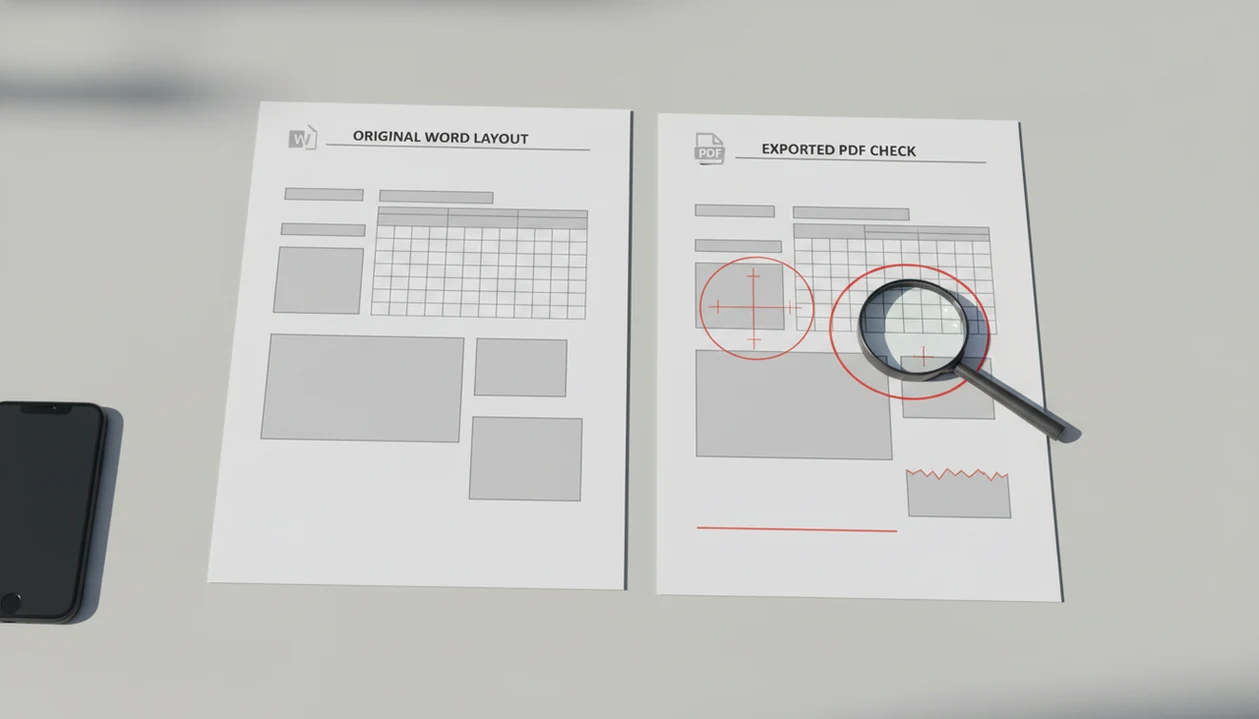
A DOCX-to-PDF converter with a DOCX preview is the practical answer to what app identifies layout problems before conversion. It can help you spot shifted text, missing fonts, bad page breaks, wide tables, and image movement before you share the final PDF, but it cannot replace a careful manual review.
> Definition: WordPDF is a mobile DOCX-to-PDF app that converts DOCX and Word documents into PDF files for people using iPhone and Android.
- Use a document conversion layout checker or preview app to inspect the document before sending.
- Check fonts, margins, page breaks, tables, images, headings, and mobile readability.
- No app catches every layout or accessibility problem, so review the exported PDF manually.
Word to PDF layout checker definition for layout problems
A Word to PDF layout checker is usually a preview step, not a full diagnostic engine. It shows how a DOCX file is likely to render as a PDF so you can catch layout problems before sending.
The common problems are familiar: text shifts, page breaks move, fonts substitute, margins tighten, tables run wide, and images slide away from their intended position. Most apps preserve or preview layout rather than label every issue with a warning message.
The practical goal is simple. See the final PDF before someone else does. We often compare the Word file and PDF side by side to catch a shifted page break, especially in resumes, invoices, and short proposals where one bad line looks careless.
A good DOCX-to-PDF converter app that turns docx and word documents into shareable pdf files on iphone and android should create a stable PDF for review, not promise to judge design, accessibility, and legal formatting for you.
What app identifies layout problems in Word to PDF files?
What app identifies layout problems in DOCX-to-PDF files? The right category is a DOCX-to-PDF converter with a preview, plus a final PDF viewer check after export.
Tools like WordPDF can fit this job on iPhone and Android when you need to open a DOCX file, convert it, and inspect the exported PDF before sharing. Microsoft Word export is also a valid workflow, especially if the document was created in Word and uses standard fonts, page sizes, and styles.
High-quality online converters can work too, but layout identification still means previewing and checking. It does not mean the app can guarantee automatic repair. For documents where formatting matters, Word to PDF without losing formatting is often easier when you check the DOCX preview and the exported PDF in the same sitting.
The tiny paperclip in Gmail is a poor place to discover the DOCX should have been a PDF.
How a DOCX formatting preview app works before PDF export
A DOCX formatting preview app works by rendering the Word file into a page-based view before or during PDF export. It uses page size, margins, fonts, image anchors, line spacing, and pagination to estimate how the PDF will look.
Under the hood, this is a rendering and pagination problem. In plain terms, the app decides where each word, table, image, header, and footer belongs on a fixed page. Missing fonts, substituted fonts, printer defaults, and different PDF viewers can change that result. Mobile screens add another problem: wide tables and multi-column reports are harder to inspect through a narrow viewport.
Microsoft has reported more than 1.2 billion Office users (https://news.microsoft.com/bythenumbers/en/office), and Statista estimates billions of smartphone users worldwide (https://www.statista.com/statistics/330695/number-of-smartphone-users-worldwide/). That scale explains why many Word files are eventually converted, opened, and checked on phones.
For mobile readers, a layout check is often better than trust because the final viewer is small, bright, and unforgiving.
Five facts about Word to PDF layout problems
- Layout problems usually come from fonts, margins, page size, image anchoring, and device or printer settings.
- Built-in Word export or a reliable converter plus manual preview is the safest routine for most DOCX to PDF work.
- Many mobile converter apps prioritize speed, upload, download, and sharing over proactive error detection.
- Accessibility tags, headings, bookmarks, lists, tables, and reading order may change during conversion.
- Automatic checking is limited for resumes, contracts, reports, tables, invoices, and image-heavy files.
A layout checker helps most when the document has a strict shape. Think of a proposal logo staying sharp on preview, or a table that must stay on one page. For deeper formatting control, preserve fonts Word to PDF and margin settings matter as much as the conversion button.
Visual review catches the obvious problems. Structure review catches the hidden ones.
Before You Start: Prepare the DOCX for Layout Checking
Prepare the DOCX before you convert it so the preview is judging the real document, not a draft with unstable settings. A few checks up front make layout problems easier to spot and safer to fix.
- Confirm the final page setup first: paper size, margins, and portrait or landscape orientation. If those settings are wrong, the PDF preview can look broken even when the converter is working correctly.
- Use standard fonts or embedded fonts when spacing matters. Resumes, invoices, forms, and branded files are more likely to shift when a recipient’s device substitutes a different typeface.
- Save a backup copy before editing tables, images, headers, footers, or section breaks. Those parts can change several pages at once, especially on a phone.
- Open dense files on a larger screen when possible. Image-heavy reports and wide tables are much easier to inspect on a tablet, laptop, or desktop than through a narrow mobile preview.
- Decide whether accessibility tags, bookmarks, headings, or reading order are required before export. If they are, treat visual layout as only one part of the final check.
How to use a Word to PDF layout checker on iPhone or Android
Use this mobile workflow when the document has to look finished before you send it. Apps such as WordPDF, Microsoft Word, and established online converters can all work if they let you preview the file and open the exported PDF.
- Open the DOCX file from Files, Google Drive, email, chat, or the Android Downloads folder.
- Preview the Word document and scan headings, tables, images, margins, and page breaks.
- Convert the DOCX to PDF using the app’s export or PDF export option.
- Review the exported PDF, not only the DOCX preview, and compare page count against the original.
- Test the PDF in another viewer before sending, especially for resumes, proposals, and client files.
For a job application, this extra minute matters. A recruiter asking for “PDF only” in an application form at the last minute is not the moment to guess.
Word to PDF layout checker areas to inspect manually
A Word to PDF layout checker should guide your eyes, but your manual inspection does the real quality control. Check the visible layout first, then check structure.
Use this quick inspection list:
- Headings: confirm style, spacing, and hierarchy.
- Line breaks: look for orphaned words and awkward wraps.
- Page breaks: confirm sections start and end where expected.
- Tables: check width, borders, row breaks, and clipped text.
- Margins: inspect top, bottom, left, and right edges.
- Images: confirm placement, sharpness, and captions.
- Headers and footers: check logos, dates, and repeated text.
- Page numbers: confirm order and total count.
- Accessibility structure: review headings, reading order, lists, and tags when required.
Open the PDF in more than one viewer if the document matters. The iPhone Files preview, Android PDF viewer, a browser, and Adobe Acrobat can expose different zoom or rendering quirks. For tables and letterhead, preserve margins Word to PDF is usually part of the same check.
Common myths about DOCX formatting preview apps
Myth: converters automatically fix bad formatting. Truth: most converters preserve the source layout as best they can, so messy styles often become a messy PDF.
Myth: a PDF that looks good on one phone looks perfect everywhere. Truth: PDFs are more stable than DOCX files, but viewers, zoom levels, screen size, and print settings can still reveal problems.
Myth: every app embeds fonts the same way. Truth: missing or unembedded fonts can cause spacing changes, line breaks, and page-count shifts.
Myth: visual correctness guarantees accessibility. Truth: a PDF can look right and still have poor headings, broken list structure, or an incorrect reading order.
We see this most often in files with dense tables, floating images, and manually spaced headings. For image-heavy documents, Word to PDF images issues deserve a separate pass before the file leaves your phone.
Word to PDF layout verification before sending
Verify the exported PDF, not just the DOCX preview. The final file is what the recruiter, client, school, or portal will open.
Before sending, check page count, section breaks, fonts, images, signature lines, tables, and file size. Open the file on at least one mobile viewer and one desktop or browser viewer when the document is important. A saved copy beside the original Word file also prevents confusion later, especially if both files have similar names in a download folder.
Resumes, contracts, reports, proposals, and invoices deserve extra review because small layout errors carry more weight there. For business files, Word to PDF for business documents usually means checking the finished attachment, the filename, and the recipient’s required format.
For professional documents, the most reliable layout check is the exported PDF opened in the same way the recipient is likely to open it.
Limitations
No layout preview or conversion app can perfectly predict and repair every Word to PDF problem automatically. Some issues only appear after export, upload, print, or viewing on another device.
- Missing or substituted fonts can change spacing, line breaks, and page count.
- Complex columns, tables, images, footnotes, and advanced Word styles still need manual review.
- Some mobile apps may compress images or alter output quality during conversion.
- Accessibility tags and reading order may need specialist checking, especially for covered organizations.
- PDF viewers, zoom settings, browser previews, and devices can display the same PDF differently.
- Password protection, compression, and merging can introduce new checks after conversion.
- Automatic tools may miss meaning-based problems, such as a table that reads in the wrong order.
Official accessibility guidance from the U.S. Department of Justice explains that some digital content must meet ADA accessibility obligations (https://www.ada.gov/resources/2024-03-08-web-rule/). That is bigger than visual layout and may require a real accessibility review.
FAQ
What app checks Word layout before PDF conversion?
A Word to PDF converter with a DOCX preview can check common layout issues before export. WordPDF is one mobile option for iPhone and Android.
Can an app fix Word layout problems automatically?
Most apps preserve and preview formatting rather than automatically repairing every layout problem. You still need to correct the DOCX or review the exported PDF.
Why does Word formatting shift after PDF export?
Formatting can shift because of font substitution, margin differences, page size settings, image anchoring, or viewer behavior. These changes can affect line breaks and page count.
What is a DOCX preview app used for?
A DOCX preview app is used to view a Word file before conversion, printing, or sharing. It helps you inspect layout before creating the final PDF.
Do PDFs look identical on every phone and computer?
PDFs are more stable than DOCX files, but they may still appear different by viewer, zoom level, screen size, and device. Important files should be checked in more than one viewer.
How do I check PDF formatting before sending it?
Open the exported PDF and review page breaks, tables, fonts, images, margins, headers, footers, and page numbers. Compare it with the original Word file if the layout matters.
Can missing fonts change a converted PDF’s layout?
Yes, missing or unembedded fonts can cause text to reflow, spacing to change, and page counts to shift. Font checks are especially important for resumes and branded documents.
Are PDF layout checks fully automatic?
No, PDF layout checks are not fully automatic. Apps can preview and flag some obvious issues, but manual review is still necessary for reliable results.