
Word to PDF before and after conversion checks
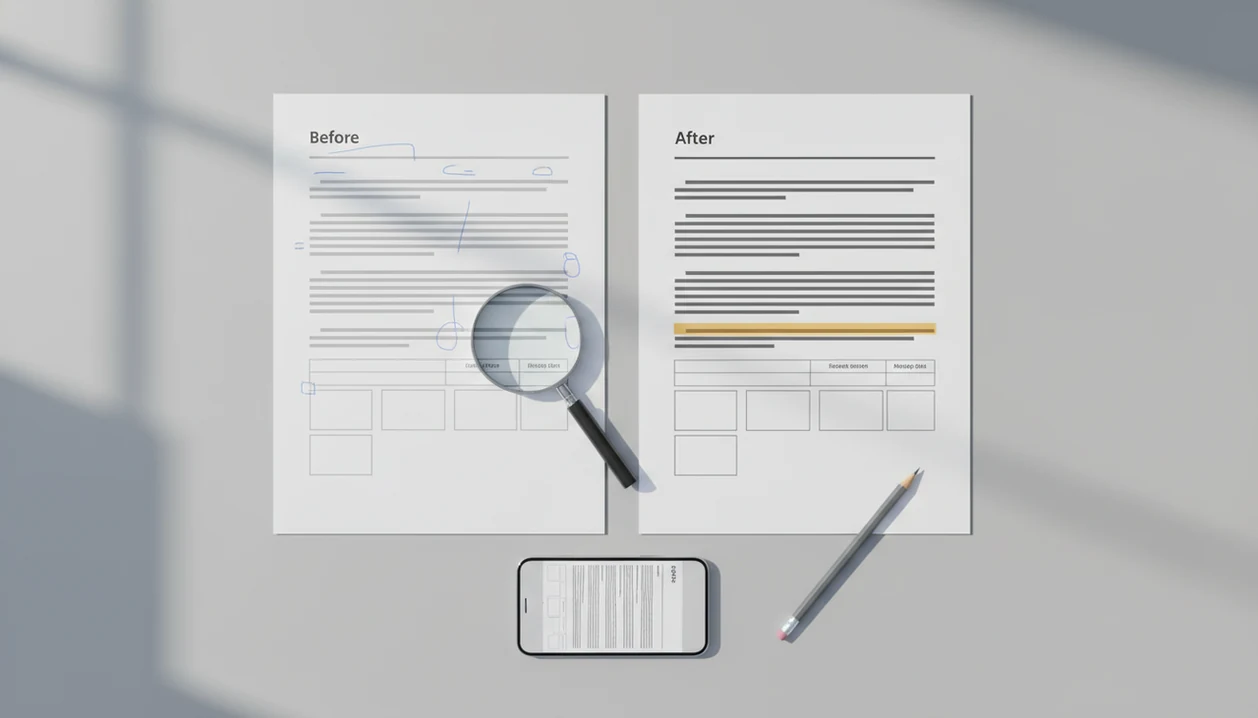
Word to PDF before and after checks mean comparing the original DOCX with the converted PDF before you share it, especially for layout, links, images, comments, and file size. The safest workflow is to convert the final saved Word file, open both versions on the same device, and review the PDF in at least one other viewer.
> WordPDF is a mobile app that converts DOCX and Word documents into PDF files for people using iPhone and Android.
- Compare the DOCX and PDF side by side for fonts, spacing, images, headers, footers, page breaks, and links.
- Tracked changes, comments, embedded fonts, forms, bookmarks, and unusual layouts are the most likely items to change after conversion.
- Use the final saved DOCX, test the PDF in more than one viewer, and check file size before emailing or messaging it.
Word to PDF before and after checks at a glance
- The “before” file is the final saved DOCX, not an email preview or stale cloud copy.
- The “after” file is the converted PDF that you plan to open, share, print, or submit.
- Core checks include layout, fonts, images, links, comments, track changes, headers, footers, page breaks, and file size.
- A 2019 Statista survey found that 83% of global respondents used PDF as their most common format for sharing important documents source.
- On iPhone or Android, the fastest check is page count first, then a short scan of every page.
We usually start with the page count because a shifted page break shows up fast. In one resume test, the PDF looked fine until page two gained a lonely final line.
Tiny error. Big impression.
DOCX-to-PDF conversion mechanics and layout changes
DOCX is a reflowable editing format, while PDF is a fixed-layout sharing format. A converter must interpret the Word file’s fonts, styles, margins, images, tables, headers, footers, and page breaks, then place them into a stable page model.
That translation is where small differences appear. Missing fonts can substitute. Embedded objects can flatten. Fields, comments, and complex formatting may render differently. University of Michigan SafeDoc research notes that complex Office features, including embedded objects and advanced formatting, can create compatibility and rendering issues when documents are processed between formats source.
A PDF usually locks the visual result better than a Word file, but it does not prove the conversion was exact. For a deeper plain-English breakdown, our guide to what happens when you convert Word to PDF covers the same mechanics step by step.
How to use a Word to PDF before-and-after checklist
Use a Word to PDF before-and-after checklist as a short quality pass between conversion and sending. The goal is simple: confirm the exported PDF is the final file, looks right, works right, and meets the recipient’s requirements.
- Start with the final saved DOCX, not a preview, attachment thumbnail, or older cloud-synced copy. If you just made an edit, save first and reopen the file you actually plan to convert.
- Convert the document once, then give the exported PDF a clear name such as “resume-final-pdf” or “contract-signed-review.” That makes it harder to review or send the wrong version.
- Compare the DOCX and PDF for page count, layout, fonts, images, links, comments, headers, footers, and page breaks. Page count is the fastest warning sign.
- Open the same PDF in a second viewer before sharing it, especially on mobile. A file can look fine in one preview and awkward in another.
- Check file size, privacy risk, and upload limits before sending. If the document is sensitive or the portal has strict requirements, fix those issues before the final upload.
iPhone and Android before-and-after conversion checklist
A good mobile check starts with the saved DOCX and ends with the exact PDF your recipient will receive. Pew Research Center reports that smartphone ownership is now common among U.S. adults, which makes mobile document review a normal workflow rather than a backup method source.
- Save the final DOCX first, and avoid converting an old email preview or cached cloud version.
- Convert the document with a Word to PDF app, then keep the exported PDF easy to find.
- Open the DOCX and PDF on the same iPhone or Android device for a direct comparison.
- Review layout, fonts, images, tables, headers, footers, and page breaks.
- Tap every important hyperlink inside the PDF, not just the blue text.
- Test another PDF viewer and confirm file size before sending or uploading.
Adobe Acrobat online, Smallpdf, and mobile DOCX-to-PDF apps can handle this basic conversion flow. A good converter should turn DOCX and Word documents into shareable PDF files on iPhone and Android, not bury the user in unrelated editing tools.
DOCX and PDF layout elements side by side
Check page count first because it quickly reveals layout shifts. If the DOCX has four pages and the PDF has five, something moved.
| DOCX item | PDF check | Warning sign |
|---|---|---|
| Fonts | Confirm typeface and weight look the same | Text looks wider, thinner, or substituted |
| Line spacing | Compare dense paragraphs | Extra white space appears between lines |
| Paragraph breaks | Scan section endings | A heading lands alone at the page bottom |
| Page numbers | Check every page number | Missing, duplicated, or shifted numbering |
| Headers and footers | Compare first and later pages | Logo, date, or footer text disappears |
| Tables | Inspect borders and columns | Table borders break or cells wrap oddly |
| Images and captions | Match placement and labels | Caption separates from its image |
| Page breaks | Compare section starts | New page begins too early or too late |
Phone screens can hide small spacing errors. We zoom in, then rotate the device when checking tables. Quote line items staying readable is the real test, not just “it opens.”
Before-and-after conversion checks for links, comments, and track changes
Interactive and review-related items need functional checks, not only a visual scan. For important files, accept or reject tracked changes before conversion if the PDF must look final.
- Hyperlinks: Tap each important link in the PDF. Blue text does not guarantee the link target survived.
- Tracked changes: Resolve edits before exporting. Otherwise, insertions or deletions may appear in the final PDF.
- Comments: Check whether comments appear, disappear, or export as side notes. Converter settings vary here.
- Bookmarks and references: Test table-of-contents links, cross-references, and bookmarks after conversion.
- Forms and interactive fields: Treat fillable areas as higher risk, especially if the DOCX was built with advanced controls.
For resumes and applications, convert only after the last edit. A recruiter asking for “PDF only” at the final upload screen is not the moment to discover visible markup. The broader DOCX to PDF guide for mobile explains where these document features usually sit in the workflow.
Word to PDF before and after results in mobile PDF viewers
A converted PDF can be correct even when one preview app displays it strangely. That is why before-and-after review should include more than one viewing environment.
On iPhone, test the Files preview and, when relevant, Adobe Acrobat or a browser preview. On Android, check the Downloads folder, then open the same PDF in the built-in viewer, Acrobat, Chrome, Gmail, or the app your recipient is likely to use. Email and messaging previews can simplify rendering, especially with fonts and large images.
We often open the exported PDF in the iPhone Files preview before sending it. Then we attach it in Gmail and look for the tiny paperclip icon, because that is the version the recipient will actually tap.
For client work, test the viewer they will use. For job forms, test the upload preview if the portal shows one.
File size and sharing checks after Word to PDF conversion
Is a PDF always smaller than a DOCX? No. A PDF can be larger when it contains high-resolution images, embedded fonts, long document sections, scanned images, or heavy graphics.
Check the file size before email, chat, cloud upload, or application portal submission. Some portals reject large files without explaining the problem clearly. Others upload slowly on mobile data, then fail after the progress bar reaches the end. Not fun.
An IDC study sponsored by Adobe reported that knowledge workers spend about 3.1 hours per day on document-related tasks, including creating, editing, and converting documents source. That is why small quality checks matter in document-heavy work. For timing expectations, the Word to PDF conversion timeline gives a practical view of what usually takes seconds and what slows down.
Privacy checks for Word to PDF before and after workflows
Privacy is part of before-and-after QA because you should know where the document went during conversion. This matters for contracts, resumes, invoices, medical forms, school records, and legal drafts.
| Workflow | Privacy check | Practical risk |
|---|---|---|
| Online converter | Confirm who receives and stores the file | Sensitive DOCX may upload to an unknown server |
| Cloud preview | Check account, folder, and sharing status | You may convert the wrong shared or synced copy |
| Email attachment | Verify recipient and attachment format | The DOCX may be sent instead of the PDF |
| Offline app conversion | Confirm files stay on device when possible | Safer for confidential files, but features vary |
Sensitive files should not be uploaded to unknown online converters. If you need mobile conversion for private documents, an offline-capable workflow is usually safer because the file does not need to leave the device for basic export.
Limitations
Before-and-after checks reduce risk, but they cannot guarantee every detail will survive conversion. Gartner has estimated that poor data and document quality can cost organizations an average of $12.9 million per year, which is useful context for why critical documents deserve review source.
- No converter can guarantee exact fidelity for every complex Word document.
- Macros, advanced fields, unusual fonts, embedded media, and forms may not carry over cleanly.
- Accessibility tagging may change or require separate PDF accessibility review.
- Small phone screens make subtle spacing, alignment, and page-break shifts harder to catch.
- Online tools may have file size limits, latency, and privacy risks.
- A PDF can display differently across viewers even when the conversion succeeded.
- Password protection, compression, and merging can introduce new checks after export.
If the document is legally sensitive, medically sensitive, or compliance-critical, treat conversion QA as a first pass. Use a larger screen or a specialist review when the stakes are high.
FAQ
How do I compare DOCX and PDF?
Open the final saved DOCX and converted PDF on the same device, then compare page count, layout, images, links, headers, footers, and page breaks. For mobile checks, zoom in and review the exported PDF in another viewer.
Why did my PDF layout change?
PDF layout changes usually come from font substitution, margin differences, image handling, table wrapping, or converter behavior. Complex Word formatting increases the chance of visible differences.
Do PDF links always work?
No, PDF links do not always work after conversion. Tap every important hyperlink in the converted PDF before sharing it.
Can track changes appear in PDF?
Yes, unresolved tracked changes or comments can appear in a PDF depending on document settings and converter behavior. Accept or reject changes before conversion when the PDF must look final.
Is PDF always smaller than DOCX?
No, PDF is not always smaller than DOCX. PDFs can be larger when they include images, embedded fonts, scanned pages, or high-resolution graphics.
Should I use an offline converter?
Use an offline converter when the Word document contains confidential or sensitive information. An offline-capable mobile converter can be useful when you want DOCX-to-PDF conversion without relying on an unknown online upload flow.
Which PDF viewer should I test?
Test the built-in iPhone or Android viewer plus the viewer your recipient is likely to use. Even after a successful export, open the PDF in Files, Downloads, email preview, a browser preview, or Acrobat when the document is important.
Can phones catch layout errors?
Phones can catch major layout errors, missing images, broken links, and page-count changes. Small spacing or page-break issues may need a tablet, laptop, or desktop screen.