
Word to PDF benefits timeline after conversion
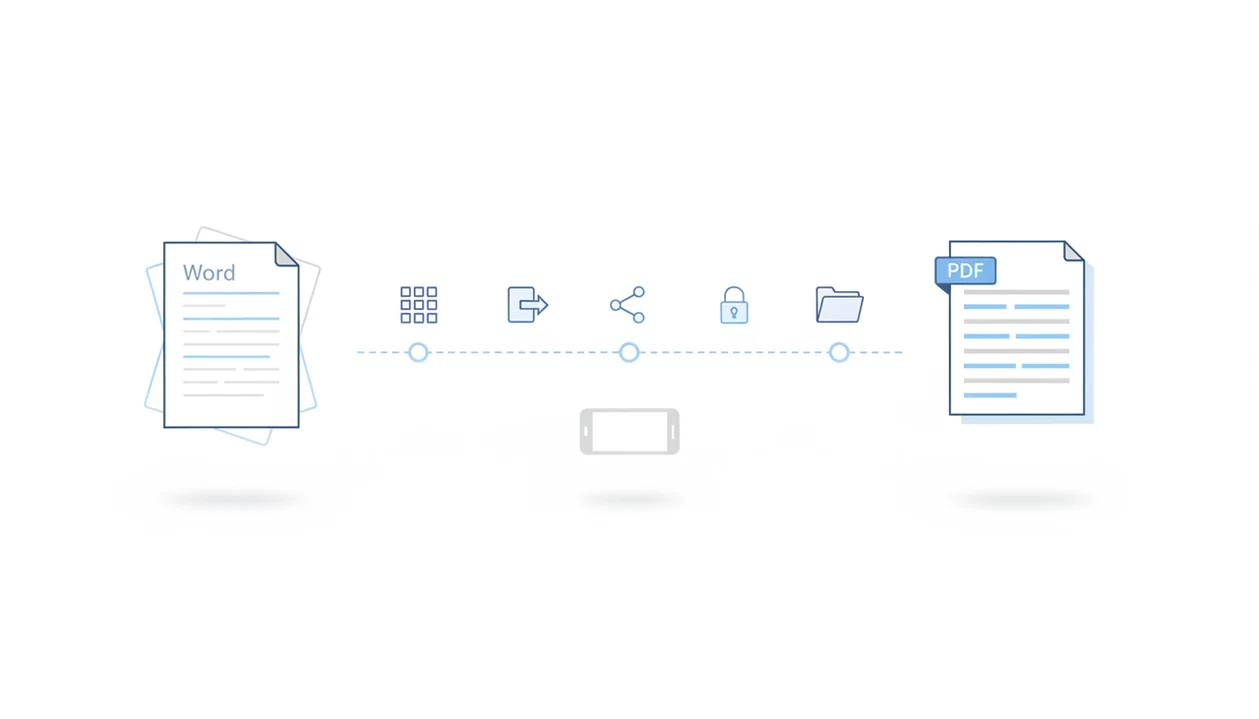
The Word to PDF benefits timeline starts immediately: your DOCX layout becomes more stable, the file becomes easier to open across devices, and sharing gets simpler. Over time, the biggest gains are fewer formatting surprises, less accidental editing, clearer review workflows, and better long-term storage.
> WordPDF is a mobile word to PDF app that converts DOCX and Word documents into PDF files for people using iPhone and Android.
- Right after conversion, PDF preserves the intended page layout better than a live Word file across phones, tablets, and computers.
- Within minutes, the PDF is easier to send, upload, review, and open because PDF is a widely supported fixed-layout document format.
- Over months or years, PDF supports archiving better than DOCX when the file is saved with the right settings, metadata, and, when needed, PDF/A.
Word to PDF benefits timeline at a glance
A conversion timeline is the before-and-after path from “editable draft” to “stable file.” The first gain is layout stability; the later gains are easier sharing, optional security, and stronger records handling.
Immediately, the exported PDF should hold margins, page breaks, headers, and images more predictably than a DOCX file opened in different apps. Same day, it is easier to attach, preview, upload, or print. Medium term, reviewers see the same page instead of changing the draft by mistake. Long term, a correctly saved PDF can fit storage and archive workflows better than a loose Word file.
The simple rule: use DOCX while drafting, then use PDF when the document needs to be opened, shared, printed, or stored as a final version.
How the Word to PDF benefits timeline works
The Word to PDF benefits timeline works by moving a document from an editable DOCX draft into a fixed-layout PDF, then through the practical stages that follow: export, inspection, sharing, protection, and storage. Some gains arrive automatically at export, while others only happen when you check settings, add protections, or save the file correctly.
During export, the converter renders flowing Word content into fixed pages, so headings, images, margins, and page breaks should stop shifting between apps. That layout stability and broad PDF openability are the mostly automatic benefits. Inspection is still your job: open the PDF, confirm fonts look right, check page breaks, and make sure metadata such as title or author is acceptable before sending. Sharing benefits appear when the recipient can preview the file without editing the draft. Protection is not automatic; passwords, permissions, signatures, or copy limits must be added after conversion. Storage benefits also depend on user action, including clear filenames, the right folder, useful metadata, and, for archives, the right PDF settings.
Five DOCX to PDF benefits after conversion
Five conversion benefits show up after conversion, but they do not all arrive at the same moment. Some are instant, and some depend on what you do after export.
- Layout becomes more stable. PDF locks in page structure more reliably than DOCX across common viewing apps.
- Opening gets easier. PDF is widely openable on phones, computers, browsers, email apps, and file preview tools.
- Accidental editing drops. Sending a PDF makes it less likely that someone changes a sentence while reviewing.
- Security options become available. Passwords, permissions, restricted copying, and signatures can be added after conversion.
- Records handling improves. PDF is better suited for final records and archives when saved with proper settings.
For most mobile users, converting after the last edit is safer than sending DOCX because the receiver sees a fixed page instead of a live draft. A recruiter asking for “PDF only” at the last minute is exactly that situation.
Mobile Word to PDF conversion process
Mobile Word to PDF conversion works by reading the DOCX structure and rendering it into fixed PDF pages. The converter interprets text, fonts, images, margins, headers, footers, and page breaks, then writes a presentation copy.
DOCX is built for drafting and editing. PDF is built for presentation and exchange. That difference matters when a document leaves your phone. We often test the flow by opening the exported PDF in the iPhone Files preview before sending it, because a quick page swipe catches obvious problems.
Font embedding, image compression, and the converter’s layout engine affect the final result. In plain terms, the app has to decide how the Word document should look when it is no longer editable text flowing inside Word. If you want the mechanics in more detail, the DOCX to PDF guide for mobile explains the source file side.
Four steps for using a Word to PDF benefits timeline
Use the timeline as a checklist after conversion, not just as a reason to convert. The goal is to confirm that the PDF is ready for the next action.
- Check the layout by opening the PDF and comparing page breaks, images, headers, and signature lines against the Word file.
- Share the PDF through email, a message app, a portal, or a Google Drive upload only after the preview looks right.
- Add optional security if the file needs a password, restricted copying, limited printing, or a signature step.
- Store the final version with a clear filename in the Files app, Android Downloads folder, Drive, or the required archive location.
Small check. Big difference.
Tools like a mobile converter, Adobe Acrobat online, and Smallpdf can help with the conversion step, but the timeline still depends on how you inspect and store the exported PDF.
Immediate Word to PDF benefits: layout stability and openability
What improves immediately after converting Word to PDF? The file looks more like the intended final document, with fixed pages instead of a live document that can reflow in another app.
Margins, page breaks, images, tables, and fonts are the details to check first. We like to compare the Word file and PDF side by side when a page break sits near a heading. One shifted line can push a signature line onto the next page. Annoying, but catchable.
PDF is also common enough for routine exchange; government publishing workflows, including govinfo.gov, rely on PDF as a primary fixed-layout format source.
A good word to pdf converter app that turns docx and word documents into shareable pdf files on iphone and android should deliver a stable exported file, not a promise that every document issue is solved.
Same-day DOCX to PDF benefits for sharing and review
Same-day benefits show up when you attach, message, upload, or preview the file. A PDF is usually easier for a recipient to open quickly, especially when the job is review rather than editing.
In Gmail, the tiny paperclip moment is clearer when the DOCX becomes a PDF attachment and the preview opens without asking the recipient to choose a Word-compatible app. A campus bench assignment upload or a client portal form also tends to favor a finished PDF. The file picker may hide unsupported documents, but it usually recognizes PDF.
PDF is better for final review, while DOCX remains better for ongoing drafting. That split prevents version surprises. It also reduces accidental edits when someone only meant to read the document. File size may improve after conversion, especially with clean text documents, but image-heavy PDFs can be larger. For a broader outcome view, read the benefits of converting Word to PDF.
Long-term Word to PDF benefits for security and records
Long-term benefits start after the file has been shared, approved, signed, or stored. Conversion alone does not encrypt the file, but PDF can support post-conversion security layers.
Those layers include passwords, permission limits, restricted copying, restricted printing, and digital signatures. They are separate choices, not automatic side effects. If a client sends back an approved proposal, the next step may be saving the signed PDF in a named project folder, not continuing to circulate the editable DOCX.
Records are another reason PDF matters. The U.S. National Archives and Records Administration specifies PDF and PDF/A as accepted formats for permanent records source. The UK National Archives lists PDF and PDF/A among preferred preservation formats source, and ISO standardizes PDF under ISO 32000 source and PDF/A under ISO 19005 source.
PDF/A is an archival profile, not every PDF by default. For permanent storage, the Word to PDF conversion timeline helps separate export, checking, and retention steps.
Hidden Word to PDF conversion issues after export
A visually correct PDF can still need work before it is sent or stored. Accessibility tags, document metadata, bookmarks, compression, and selectable text may matter depending on the recipient.
Live Word features may not transfer cleanly. Macros, comments, tracked changes, form controls, embedded objects, and some interactive elements can disappear or flatten during export. If tracked changes were visible in Word, confirm what the PDF actually shows before sharing. Nobody wants private comments inside a “final” file.
Cloud conversion adds another concern. You may need to ask where the file is processed, how long it is retained, and whether the document contains sensitive data. Apps such as a dedicated mobile converter can be useful for a focused mobile workflow, but the user still has to choose the right file and review the output.
Open the PDF before sending. The share sheet can wait.
Limitations
Word to PDF conversion has real limits, even when the exported PDF looks fine at first glance.
- Conversion does not automatically add encryption, passwords, access control, or rights management.
- PDFs can still be edited, copied, converted, printed, or screenshotted unless separate protections are applied.
- Some PDFs become larger than the original DOCX, especially when the document contains high-resolution images.
- Non-embedded fonts or weak conversion settings can still cause small rendering differences.
- Complex Word features may not carry over perfectly, including macros, comments, tracked changes, and interactive fields.
- DOCX remains better for real-time collaborative drafting, suggested edits, and frequent revision.
- Archiving may require PDF/A, metadata, naming rules, storage controls, and retention practices.
- Mobile screens make layout review harder, so a final print job may still deserve a desktop or printer preview.
For users deciding whether the app step is worth adding, is Word to PDF app worth it is usually a question about file risk, not just speed.
FAQ
What changes after you convert a DOCX file to PDF?
After conversion, the file usually has a more stable layout, easier sharing, wider openability, and fewer accidental edits. PDF is usually better when the document is ready to send, submit, print, or store.
Does converting a Word document to PDF keep the formatting?
Converting Word to PDF usually preserves formatting better than sending DOCX, especially for margins, page breaks, and images. Results still depend on fonts, embedded media, and conversion quality.
Is a PDF safer than a Word document after conversion?
A PDF can support passwords, permissions, signatures, and copying restrictions. Basic conversion alone does not automatically protect the file.
Can someone still edit a PDF after I convert it from Word?
Yes, a PDF can still be edited or converted with the right tools. PDF reduces casual editing, but it does not make changes impossible.
Are PDFs always smaller than Word documents?
No, PDF size depends on images, fonts, compression, and export settings. Some image-heavy PDFs are larger than the original DOCX file.
Should I keep the DOCX if I need to edit the document later?
Yes, keep the DOCX if you expect more drafting, collaboration, or tracked changes. Use the PDF as the final sharing or submission copy.
Can I convert Word to PDF on iPhone or Android?
Yes, iPhone and Android apps can convert Word and DOCX documents into PDF files. WordPDF is one option for mobile Word to PDF conversion.
Is PDF or PDF/A better for archiving Word documents?
PDF can be good for archiving, but PDF/A is designed more specifically for long-term preservation. Proper metadata, naming, and storage practices still matter.