
DOCX-to-PDF glossary for file, formatting, and mobile conversion terms
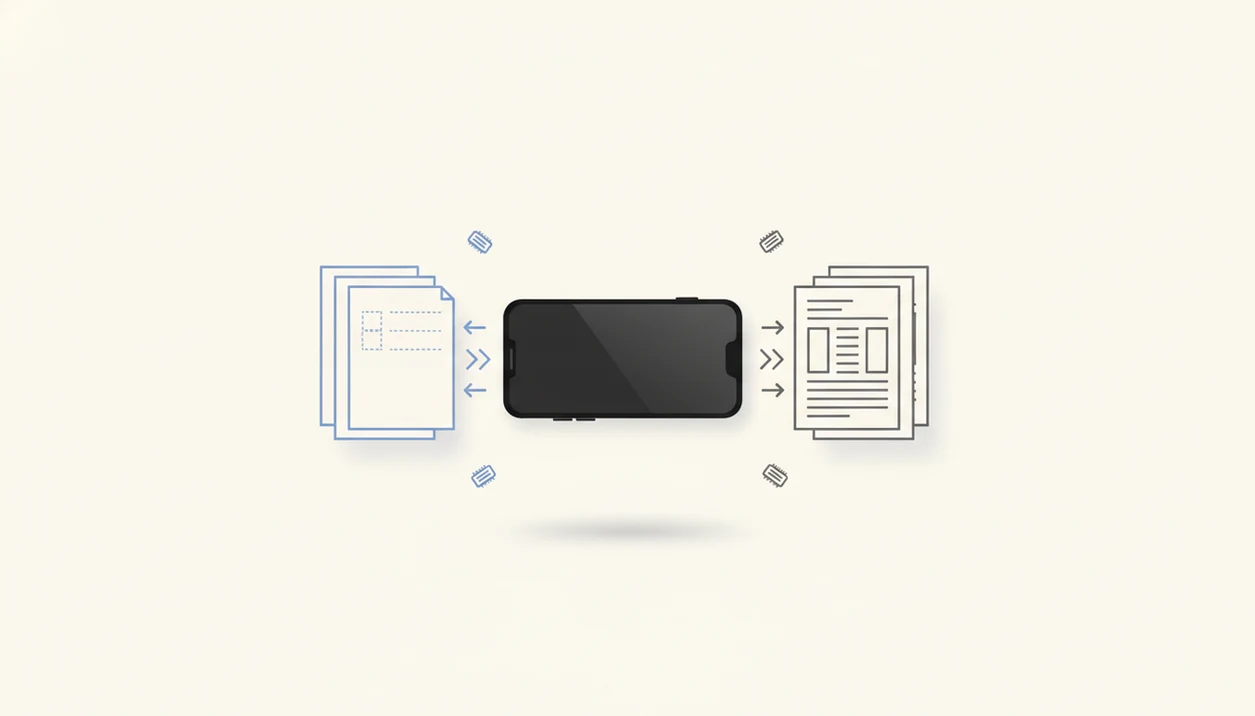
This DOCX-to-PDF glossary is a plain-English reference for the file, formatting, upload, export, compression, and sharing terms people see when converting Word documents into PDFs on iPhone or Android.
Definition: A DOCX-to-PDF converter turns editable Word documents into fixed-layout PDF files for people using iPhone and Android.
TL;DR
- DOCX usually means an editable Word document, while PDF usually means a fixed-layout file for sharing, printing, and consistent viewing.
- Convert, export, and save as PDF can point to different mobile workflows, but all usually create a new PDF from the original Word file.
- Formatting can shift during conversion if the Word file uses unusual fonts, complex tables, embedded objects, or device-specific layout behavior.
Glossary definition for mobile DOCX-to-PDF users
This glossary is a short reference that explains the file and workflow terms used when turning Word documents into PDFs on a phone or tablet. It focuses on the labels people see during mobile DOCX to PDF conversion, such as import, upload, export, save as PDF, share, compress, and password protect.
Use it as a translation layer, not as a full instruction manual for one app. The point is to help you understand what is happening before you tap the next button.
The file name matters.
Most users want the same result: a Word file that is easier to share, print, open, and view consistently. For a step-by-step flow, a DOCX to PDF guide for mobile is more useful than a glossary alone.
Five DOCX PDF terms every converter user should know
- DOCX: A DOCX file is the modern editable Microsoft Word document format, often used before Word to PDF conversion.
- PDF: A PDF is a fixed-layout document format designed to preserve appearance across devices, printers, and apps.
- Convert: Convert means creating a PDF version of a Word file; it does not usually mean editing the wording inside the document.
- Export or save as PDF: Export or save as PDF is an app or phone command that creates a PDF copy from the original Word document.
- Share: Share means sending the finished PDF through Gmail, Messages, WhatsApp, iCloud Drive, Google Drive, or another app.
We usually check the exported PDF in the iPhone Files preview before sending it. That quick layout check catches shifted page breaks before the tiny Gmail paperclip turns the file into a final attachment.
Word to PDF conversion terms on iPhone and Android
Word to PDF conversion works by choosing or importing a Word file, rendering its pages, creating a fixed-layout PDF, then saving or sharing the new file. In plain terms, the app reads the DOCX structure and outputs a PDF that should look like the finished document.
File location changes the wording you see. On iPhone, the source may come from Files, iCloud Drive, a mail attachment, or Recent. On Android, it may come from Google Drive, the Downloads folder, local phone storage, or a document picker.
Permissions matter too. A converter may ask for file access, cloud access, or internet access before it can upload or render the document. Microsoft says Word for the web supports viewing, editing, and sharing documents in a browser, which explains why the same DOCX file often moves between phone, cloud, and desktop before PDF export. The deeper mechanics are covered in what happens when you convert Word to PDF.
How DOCX-to-PDF conversion works
DOCX-to-PDF conversion works by reading the Word file first, then rendering its editable parts into fixed pages. Rendering means the app turns movable text, images, tables, margins, and page breaks into a PDF layout that is meant to stay in place when someone else opens it.
The converter has to understand the source DOCX structure before it can draw the finished pages. Fonts are a common layout factor because a missing or substituted font can change line length. Tables can affect page breaks when rows are wide, merged, or close to the bottom of a page. Images matter too because their size, wrapping style, and position can push nearby text around. The result is not the same file with a new label; it is a separate PDF output file created from the original Word document.
A typical mobile conversion flow is:
- Read the DOCX structure, including text, styles, images, tables, and page settings.
- Render those editable elements into fixed PDF pages.
- Create a new PDF file while leaving the original Word file separate.
- Request storage, cloud, or upload permission if the file must be opened, saved, or processed outside the phone.
DOCX, DOC, and PDF conversion definitions compared
DOC and DOCX are Word document formats, while PDF is usually the shareable output format created after conversion. A PDF is not simply another editable Word file.
| Term | Plain-English meaning | Editable? | Mobile conversion role |
|---|---|---|---|
| DOCX | Modern Microsoft Word document format | Yes | Common source file for conversion |
| DOC | Older Microsoft Word document format | Yes | Older source file that may still convert |
| Fixed-layout document format | Limited | Finished file for sharing, viewing, or printing | |
| Original file | The Word file you start with | Yes | The source document |
| Output file | The new file created after conversion | Usually no | The exported PDF |
| Fixed layout | Page design that aims to stay visually stable | No | The reason PDF is used for final sharing |
For resumes, invoices, and school forms, the output file is usually the one you submit. The original stays editable for later changes.
Mobile Word to PDF examples for common app labels
Mobile converter labels differ between Android and iPhone, but the underlying actions are usually similar. These examples define the labels you are likely to see before the exported PDF appears.
Import and upload labels
- Import: Choose a Word file from device storage, cloud storage, Recent, Files, iCloud Drive, Google Drive, or the Android Downloads folder.
- Upload: Send the Word file into an app or cloud-based converter so it can be processed.
- Select file: Pick the DOCX from a file browser, attachment list, or shared folder.
Export and print to PDF labels
- Export: Create a PDF copy from the Word file.
- Save as PDF: Store the converted PDF as a new file.
- Print to PDF: Use a system print workflow to create a PDF without using a physical printer.
A client asking for a non-editable copy usually means they want the PDF, not the DOCX. For timing expectations, the Word to PDF conversion timeline explains what typically happens after export starts.
Related DOCX and PDF conversion concepts
Related DOCX and PDF conversion concepts explain what happens before and after the file format changes. They help separate the core Word to PDF task from nearby actions like making a PDF smaller, locking it, viewing it, editing it, or signing it.
Compression is usually a follow-up step: it reduces the finished PDF’s file size when an email, upload form, or messaging app rejects a large attachment. Password protection is another separate layer that can limit opening, copying, or printing after the PDF exists. File-size limits matter because they may force you to compress images, split a document, or try a smaller export before sharing.
A practical way to think about the workflow is:
- Convert the DOCX into a fixed-layout PDF when the document needs to look stable.
- View the PDF to check page breaks, fonts, tables, and image placement.
- Edit the source Word file if the wording is wrong, then export again.
- Sign the PDF only when the document needs approval, consent, or a completed form field.
- Use a step-by-step conversion guide when you need exact taps, not just definitions.
PDF to Word is the reverse task. It tries to rebuild an editable document from a fixed PDF, so it has different layout risks.
Word to PDF glossary terms versus editing terms
Does “convert to PDF” mean editing my Word document? Usually no. Convert to PDF means creating a PDF copy from a Word file, not changing the source text, images, or headings inside the DOCX.
That distinction is important on mobile. If you fix a typo after conversion, you normally edit the Word file first, then export a new PDF. Sharing the PDF is different from changing the original document.
Word to PDF also differs from PDF to Word. Word to PDF moves from an editable Word document toward a fixed-layout file. PDF to Word tries to rebuild an editable document from a PDF, which is a separate workflow with different risks.
A good word to pdf converter app that turns docx and word documents into shareable pdf files on iphone and android should deliver a reliable exported PDF, not broad scanning, signing, or full PDF editing.
Mobile workflow cases for Word to PDF definitions
This glossary helps when you need to understand terms before or during conversion. It is especially useful if you are choosing a file from phone storage, cloud drives, recent files, Gmail, or a shared folder.
Use it when labels like share, print, compression, password protection, and file size appear without much explanation. Android accounts for roughly 70% of global mobile operating-system share, according to StatCounter (https://gs.statcounter.com/os-market-share/mobile/worldwide), and Apple says the App Store hosts more than 1.8 million apps (https://www.apple.com/app-store/). That scale is why document workflows rarely use one set of labels everywhere.
Tools like WordPDF can help with the focused conversion task, but menu names still vary by source app.
How to use a Word to PDF glossary:
- Identify the file you are starting with, usually DOCX or DOC.
- Match the label on screen to a glossary term, such as import or export.
- Check where the finished PDF will be saved.
- Open the exported PDF before sending it.
- Compare the Word file and PDF side by side if the layout looks important.
For final-file reasons, the benefits of converting Word to PDF are often clearer than the terminology.
Limitations
A glossary explains terms, but it cannot promise that every Word to PDF conversion will behave the same way. The real result depends on the file, the phone, the app, and where the document is stored.
- Word to PDF conversion does not guarantee exact formatting.
- Unsupported fonts, complex tables, embedded objects, and unusual layouts can shift.
- Some workflows depend on permissions, file location, cloud access, or internet connection.
- Save as PDF may create a new PDF or open a print workflow, depending on the app.
- Exporting is not the same as compressing; export changes format, compression reduces file size.
- Free tools may have file-size limits, ads, batch caps, or feature restrictions.
- A glossary cannot replace app-specific instructions because menu names vary across Word, Files, Google Drive, and converter apps.
The annoying case is familiar: a school submission box refuses Word files, but the PDF preview shows one bullet pushed onto a new page. Check before uploading.
FAQ
What does DOCX mean?
DOCX is the modern editable Microsoft Word file format. It is often the source file used before Word to PDF conversion.
What does PDF mean?
PDF means Portable Document Format. In Word to PDF workflows, it is used for consistent viewing, printing, and sharing.
Is PDF editable like Word?
A PDF is primarily a fixed-format file, not the same as an editable Word document. Some PDF tools allow edits, but that is separate from basic Word to PDF conversion.
What does convert to PDF mean?
Convert to PDF means creating a PDF version of a Word document. The original DOCX usually remains separate.
What does save as PDF mean?
Save as PDF is a command or workflow that creates a PDF copy from the source document. On some phones, it may appear inside an export or print menu.
Does DOCX-to-PDF conversion keep formatting?
DOCX-to-PDF conversion usually preserves layout, but formatting can shift with unusual fonts, complex tables, or embedded objects. Always open the exported PDF before submitting it.
Is export the same as compress?
No. Export creates a file in another format, while compression reduces file size.