
Word to PDF success stories for urgent mobile tasks
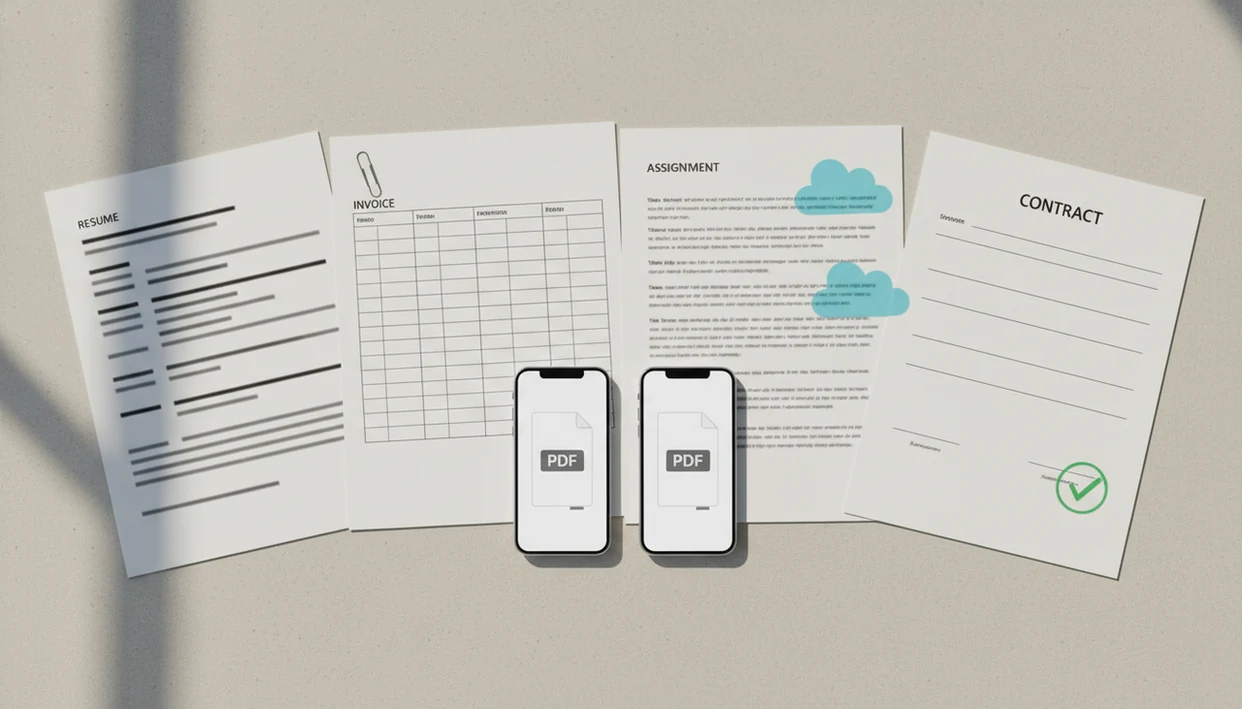
Word to PDF success stories show how people turn DOCX files into clean, shareable PDFs from a phone when a resume, invoice, assignment, or contract has to arrive correctly. The strongest examples include the file source, mobile conversion steps, final PDF check, and the real outcome.
> WordPDF is a word to pdf app that converts DOCX and Word documents into PDF files on iPhone and Android while preserving layout, tables, and images.
- Successful mobile Word-to-PDF workflows usually start with a DOCX from email, cloud storage, messages, or device files.
- The best mobile PDF results are verified by previewing the converted PDF before sending it to a client, teacher, recruiter, or team.
- Resumes, invoices, assignments, and contracts are the clearest DOCX-to-PDF examples because formatting and shareability matter immediately.
Mobile Word to PDF success stories workflow
A successful mobile document conversion is an end-to-end workflow, not just a tap on a convert button. It starts with a Word or DOCX file, then ends with a PDF that someone can open, review, submit, approve, or store without layout surprises.
The usual path is simple: receive the DOCX, open it in a converter app, generate the PDF, preview it, rename it, save it, and share it. We usually test the flow by opening the exported PDF in the iPhone Files preview before sending. Small check, big difference.
PDFs are trusted because they tend to display consistently across phones, laptops, browsers, printers, and document systems. Adobe reported in 2023 that 55% of surveyed consumers use PDFs on mobile devices for everyday document tasks (Adobe). For a deeper file-format walkthrough, the DOCX to PDF guide for mobile covers the mechanics.
How to use Word to PDF success stories as a checklist
Use Word to PDF success stories as a practical checklist by matching your situation to the closest example, then following the same verification habits. The goal is not just to create a PDF, but to send one that the recipient can open and use.
- Choose the closest example to your document type and pressure point, such as a resume before a recruiter deadline, an invoice for a client, an assignment for an LMS, or a contract for review.
- Open the newest DOCX from the place where it actually lives, whether that is email, cloud storage, messages, or the Files or Downloads area on your phone.
- Convert the file with your mobile Word-to-PDF tool, then preview the exported PDF before you attach, upload, or forward it.
- Check the practical details that often cause rework: page layout, file name, file size, and any recipient rules about uploads or accepted formats.
- Send or upload the PDF, then confirm the recipient, portal, teacher, client, or recruiter can open the final version.
How mobile Word-to-PDF workflows work
Mobile Word-to-PDF workflows work by reading the DOCX structure and exporting it as a fixed-layout PDF. In plain terms, the editable Word file becomes a shareable file where each page is meant to stay in place for the recipient.
The converter interprets the document’s text, images, spacing, margins, and page breaks, then writes them into a PDF page model. That fixed layout is why a resume, invoice, assignment, or contract can be opened on another phone, laptop, browser, or upload portal without requiring Word. The result is not magic, though. Problems usually come from custom fonts that are missing, tables that are too wide, images that are oversized or layered oddly, and files that are damaged before conversion starts.
A second preview catches what the first conversion screen cannot. Open the exported PDF in another viewer, such as Files, Downloads, a browser, or the target upload system, and scan the risky spots: headings, page endings, logos, tables, and signature lines. That extra minute matters most during urgent mobile submissions, when the goal is not just creating a PDF, but sending one the recipient can actually open and use.
DOCX-to-PDF examples for urgent phone tasks
How do you use these examples as a repeatable phone workflow? Follow the file from its starting place to the final recipient, then verify the PDF before you send it.
- Find the exact DOCX file on your phone, not an older draft with a similar name.
- Open the file source from email, the Files app, Google Drive, Dropbox, OneDrive, or Android local storage.
- Convert the document in a Word to PDF converter app such as WordPDF or another focused tool.
- Preview the PDF and check headings, images, page breaks, tables, and the file name.
- Rename and share the final PDF through email, messaging, an LMS, or a business upload system.
The tiny paperclip icon in Gmail is often the moment the file becomes real. A DOCX attachment turns into a PDF attachment, and the recipient no longer needs your editing file.
Mobile PDF result criteria for iPhone and Android
A mobile PDF result is successful when the exported PDF is accepted, approved, paid, submitted, or signed off by the intended recipient. The conversion itself matters less than the outcome.
- Outcome proof: The PDF reached the recruiter, client, teacher, or business system and was accepted.
- Formatting proof: Fonts, margins, images, bullets, page breaks, and tables stayed usable.
- Naming proof: The file name made sense, such as `Client-Invoice-1042-2025-02-14.pdf`.
- Platform proof: The workflow worked on iPhone or Android, which matters because Statista tracks Android and iOS as the dominant global mobile operating systems by market share (Statista).
- Second-viewer proof: The strongest check is opening the PDF in another app or device before sending.
Pew Research Center reports that most U.S. adults own a smartphone (Pew Research Center). That makes mobile document handling normal, not a backup plan. The Word to PDF conversion timeline explains where each check fits.
Resume Word to PDF success story from an iPhone
A job applicant gets a recruiter message at 4:42 p.m.: “Please upload PDF only.” The resume is a Word file tucked in the iPhone Files app, and the application portal closes that evening.
The applicant opens the DOCX from Files, converts it to PDF, and checks the preview before attaching it. The one-page layout holds. Headings stay bold, bullets keep their spacing, and the phone number does not wrap onto a second line. We would still compare the Word file and PDF side by side if time allows, especially for resumes with narrow margins.
The outcome is practical. The recruiter receives a professional PDF that opens consistently instead of an editable DOCX that may reflow on another system. For job seekers, PDF conversion often works better than sending DOCX because the recipient sees a fixed resume layout.
Phone screen glare on the job listing is real.
Invoice DOCX-to-PDF example from an Android freelancer
An Android freelancer finishes a client task while away from a laptop. The invoice starts as a DOCX in Google Drive, with a logo, line items, total, payment terms, and a short note about the completed work.
The freelancer opens the file, converts it to PDF, then checks the Android Downloads folder for the exported version. The logo remains clear. Totals line up. Payment terms stay on the same page as the amount due. Before sharing, the file is renamed with the client name, invoice number, and date.
A clear name helps later.
The client can forward the PDF to accounting without editing the original invoice. The outcome is approval or payment with less back-and-forth. A converter can create the handoff file, but it does not handle accounting approval, legal review, tax advice, or payment collection.
Student assignment mobile PDF results before a deadline
A student has a Word assignment in a cloud folder and a learning system that refuses Word files. The submission box accepts PDF only, and the deadline is close enough that reopening a laptop is not realistic.
The student opens the DOCX, converts it, and checks the PDF before upload. The title page stays intact, citations remain readable, page numbers appear in the right places, and images do not jump into the wrong section. File size matters too. Some learning systems reject oversized uploads even when the format is correct.
The final PDF is uploaded and accepted by the LMS. That is the success point, not the conversion message inside the app. Students usually get better mobile PDF results when they preview the file before upload because LMS viewers can expose page breaks that the converter screen hides.
Contract Word to PDF success story for a small business
A field manager needs to send a contract from a phone after a client site hallway review. The file starts as a Word agreement with clauses, tables, dates, pricing terms, and signature lines.
The manager converts the agreement to PDF, then checks that the page breaks and tables remain stable enough for review. The PDF goes out through email or a document management channel, where the client can open it without needing Word. Adobe reported in 2023 that 69% of workers rely on documents such as PDFs to collaborate remotely (Adobe), which explains why consistent files matter in routine business handoffs.
This is not legal advice. It is a document-format step. The benefits of converting Word to PDF are strongest when the recipient needs a fixed review copy rather than an editable draft.
Common patterns in Word to PDF success stories
The strongest mobile DOCX-to-PDF examples share the same habits: simple formatting, a clear recipient, a deadline, and a verification step. Generic converter guides often stop at “tap convert,” but real mobile workflows continue until the PDF is opened, named, and sent.
- Standard fonts: Arial, Calibri, Times New Roman, and similar fonts usually reduce surprises.
- Simple margins: Plain page setups are less likely to create cutoffs on mobile conversion.
- Clear file names: A specific name helps recipients store, forward, and retrieve the PDF.
- Preview before sharing: Users catch shifted page breaks, missing images, and wrong versions before the recipient does.
- Recipient-first sharing: PDFs are popular because recipients can open them without editing the original DOCX.
Tools like focused mobile converters, Adobe Acrobat online tools, Smallpdf, and iLovePDF can fit these workflows, but the result still depends on the source document and the final layout check. For deeper behavior, read what happens when you convert Word to PDF.
Limitations
Mobile Word-to-PDF conversion is useful, but a success story does not guarantee identical results for every DOCX file. The source file still controls much of the outcome.
- Complex layouts with custom fonts may shift during conversion.
- Large images, charts, or wide tables can cause cutoffs or odd spacing.
- Some mobile converter apps need internet access or cloud processing.
- Free tools may limit file size, page count, or daily conversions.
- Public Wi-Fi and careless cloud sharing can create privacy risks.
- Password-protected or corrupted Word files may fail before conversion starts.
- A PDF should be tested in another viewer before a critical submission.
- Legal, school, or business rules may require a specific format or upload process.
Preview first. Then send.
For critical documents, open the exported PDF in a second app, browser, or device. That extra check catches problems a converter confirmation screen will not show.
FAQ
What makes a mobile DOCX-to-PDF conversion successful?
A successful mobile conversion example turns a Word or DOCX file into a usable PDF. It includes the source file, conversion step, preview check, sharing method, and final outcome.
Can I convert a DOCX file to PDF on my phone?
Yes, iPhone and Android users can convert DOCX files with a reliable Word-to-PDF app. WordPDF is one option for turning mobile Word files into PDFs.
Will a mobile Word to PDF conversion keep my formatting?
Good mobile conversions usually preserve headings, bullets, margins, and page breaks. Complex layouts, custom fonts, and large tables still need previewing.
Are DOCX to PDF apps safe for private documents?
Safety depends on the app, storage location, network, and sharing method. Avoid public Wi-Fi for sensitive files and review how the app handles uploads.
Can students submit converted Word documents as PDFs?
Yes, many schools and learning platforms accept PDFs converted from Word documents. Students should still confirm the assignment instructions before uploading.
Should I send an invoice as a PDF instead of a DOCX file?
Freelancers and businesses often send invoices as PDFs because the file is easier to open and harder to accidentally edit. A DOCX invoice is better when the recipient must revise the document.
Why should I preview the converted PDF before sending it?
Previewing catches shifted page breaks, missing images, wrong file names, and layout changes. It is the fastest quality check before email, upload, or messaging.
Can Word to PDF conversion work offline on mobile?
Some phone workflows can create PDFs offline, especially when conversion happens on the device. Many mobile converter apps, including some cloud-based tools, require internet access.